 Pixlio AI
The Complete Guide to Adding Snow to a Photo
Winter photography has a magical quality that captures hearts and drives engagement across social media, marketing campaigns, and personal collections. But what if you missed the snowfall, live somewhere warm, or simply want to transform an existing photo into a cozy winter scene? Learning how to add snow to a photo used to require hours of tedious Photoshop work—layering effects, adjusting opacity, and hoping the result looked natural. Today, AI-powered tools have completely changed this process, making it possible to create stunning winter scenes in seconds. Whether you're working with portraits, landscapes, products, or architecture, this guide will show you exactly how to add snow to a photo using two specialized approaches.
Choosing the Right Tool to Add Snow to Your Photo
Before you start adding snow to photos, it helps to understand that different image types benefit from different approaches. Pixlio offers two specialized tools designed for distinct use cases. The AI Snow Photo Editor is optimized for portraits, couple shots, and family photos—images where preserving facial features and natural expressions matters most. It offers style presets like Cinematic Portrait, Holiday Glow, and Urban Night Snow that create atmospheric winter scenes while keeping your subject looking authentic.
For landscapes, product photography, architecture, and outdoor scenery, the Add Snow to Photo tool provides focused scene transformation. It analyzes your image's composition and lighting to place snowflakes realistically throughout the environment, creating authentic winter atmospheres without the complexity of portrait-specific features. Understanding which tool matches your photo type is the first step in learning how to add snow to a photo effectively.
Adding Snow to Portrait Photos
When you want to add snow effects to selfies, couple portraits, or family pictures, Pixlio's AI Snow Photo Editor delivers the best results. The process is straightforward: upload your image in JPG, PNG, or WebP format (up to 10MB), select your preferred snow intensity—Light for gentle flurries, Medium for balanced snowfall, or Heavy for dramatic blizzard effects—and choose a style preset that matches your creative vision.
The Cinematic Portrait preset creates that romantic, shallow depth-of-field look perfect for couples and professional headshots. Holiday Glow adds warm, festive lighting ideal for seasonal cards and family photos. Urban Night Snow delivers edgy city street vibes with neon reflections for fashion and lifestyle content. Each preset is designed to enhance your winter photo while preserving the natural appearance of faces and expressions.
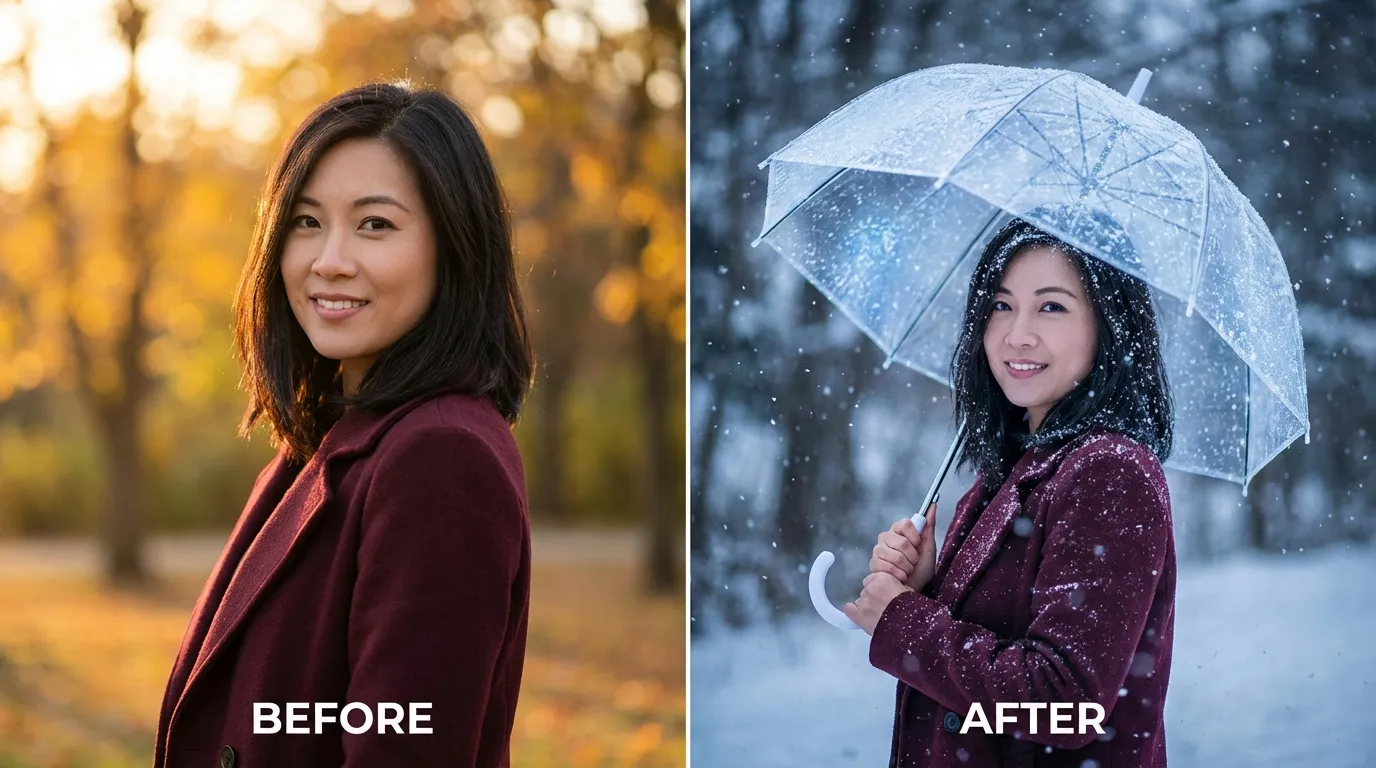
Portrait transformed with the AI Snow Photo Editor using the Cinematic Portrait preset
Once you click generate, Pixlio AI processes your image in seconds, intelligently adding snowflakes, adjusting lighting for that crisp winter atmosphere, and creating depth without distorting your subject. You can download the result immediately or experiment with different intensity and style combinations until you find the perfect winter aesthetic.
Transforming Landscapes and Products into Winter Scenes
For images without people—or when you want the focus on environment rather than faces—the Add Snow to Photo tool provides specialized scene transformation. This approach works beautifully for mountain vistas, forest paths, urban architecture, real estate exteriors, and product photography. Pixlio AI analyzes your photo's depth, lighting, and composition to place snow realistically throughout the scene.
To add snow to a landscape photo, simply upload your image, select Scene mode, and choose your snow intensity. The tool creates winter effects that respect the original image's perspective—snow appears at varying distances with appropriate opacity, creating that authentic atmospheric depth you see in real winter photography. For product shots, Pixlio AI focuses snowfall on the background and environment while keeping your merchandise crisp and clearly visible.
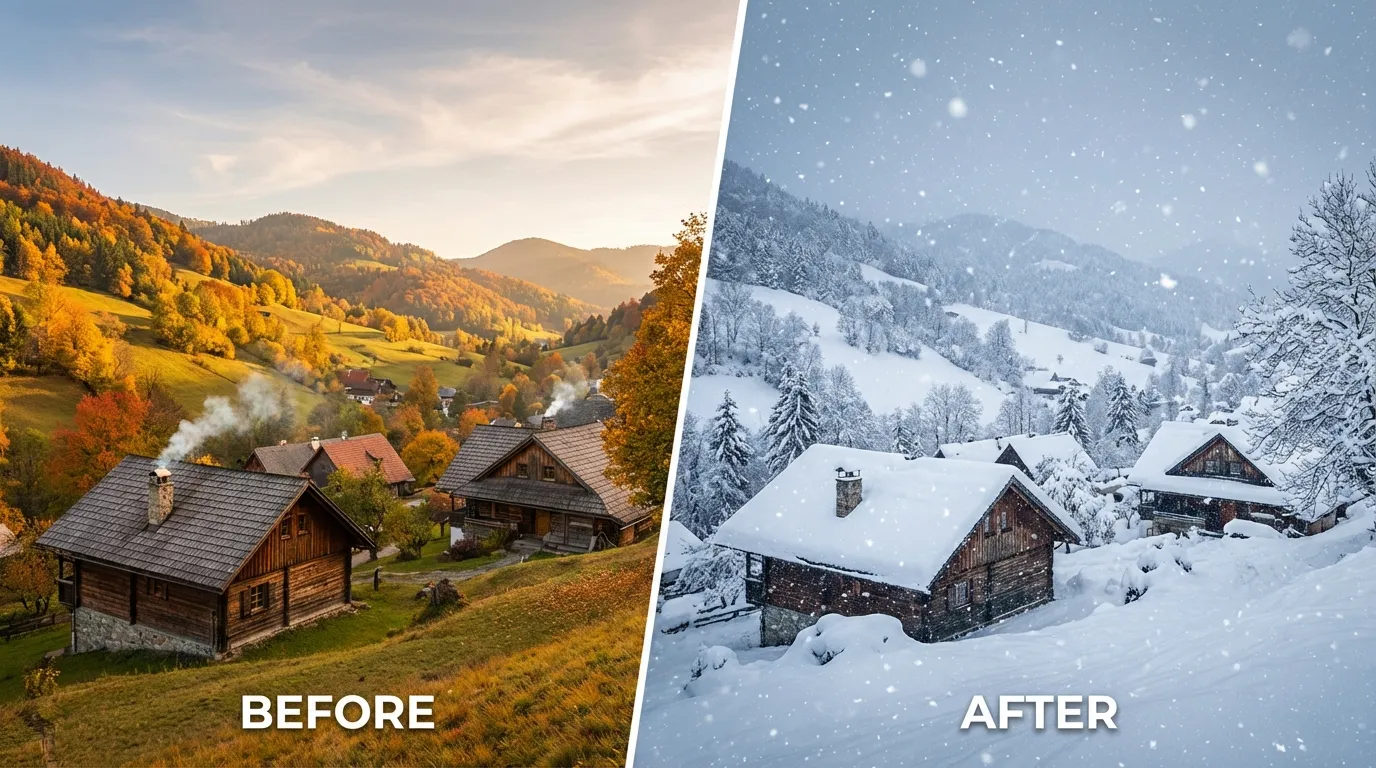
Landscape transformed with realistic snowfall using the Add Snow to Photo tool
The three intensity levels give you creative control: Light intensity creates subtle, gentle snowfall perfect for understated winter atmosphere, Medium provides balanced coverage suitable for most seasonal content, and Heavy delivers dramatic snowstorm effects for bold visual statements. Experiment with different settings to find the look that best serves your project.
Tips for Getting the Best Snow Effect Results
While Pixlio's AI tools handle the heavy lifting, following a few best practices will help you achieve more realistic winter transformations. Start with high-quality source images—clear, well-lit photos with good contrast produce the most convincing snow effects. Both daylight and evening photos work well, though Pixlio AI adapts differently to each lighting condition.
Consider your snow intensity carefully. Light snowfall often looks more natural and elegant, while heavy snow makes a bold creative statement but may obscure fine details. For portraits, medium intensity typically provides the best balance between atmospheric effect and subject visibility. When working with landscapes or products, match intensity to your content goals—subtle for sophisticated marketing materials, dramatic for attention-grabbing social posts.
If your first result isn't quite right, try adjusting settings and regenerating. The tools work quickly enough that you can experiment with multiple combinations to find your ideal winter aesthetic.
Creative Ways to Use Your Winter Photos with Snow Added
Once you know how to add snow to a photo with Pixlio's AI tools, the creative possibilities expand significantly. Social media creators use winter-transformed selfies to capture seasonal engagement and ride trending aesthetics. E-commerce businesses prepare holiday marketing campaigns by adding snow effects to product shots, creating cohesive seasonal themes without expensive photo shoots. Real estate agents showcase properties with charming winter curb appeal, helping buyers envision cozy evenings in their potential new home.
Content creators and influencers appreciate the workflow flexibility—shoot in comfortable conditions any time of year, then add winter effects in post-production. This approach eliminates weather dependencies and location constraints while maintaining creative control over the final aesthetic. Family photographers transform favorite memories into holiday card material, and couples create romantic K-drama style portraits for anniversaries and special occasions.
Start Creating Winter Magic Today
Learning how to add snow to a photo no longer requires design expertise or expensive software. Pixlio's AI tools handle the technical complexity while giving you creative control over intensity, style, and atmosphere. Whether you're preparing seasonal marketing content, creating personal keepsakes, or simply exploring winter aesthetics, the process takes just seconds from upload to download.
Ready to transform your images? For portraits and photos with people, try the AI Snow Photo Editor. For landscapes, products, and architecture, use the Add Snow to Photo tool. Both offer free credits on signup so you can experience the magic of Pixlio's AI-powered winter transformations immediately.