 Pixlio AI
Use the tool below for AI photo restoration online.
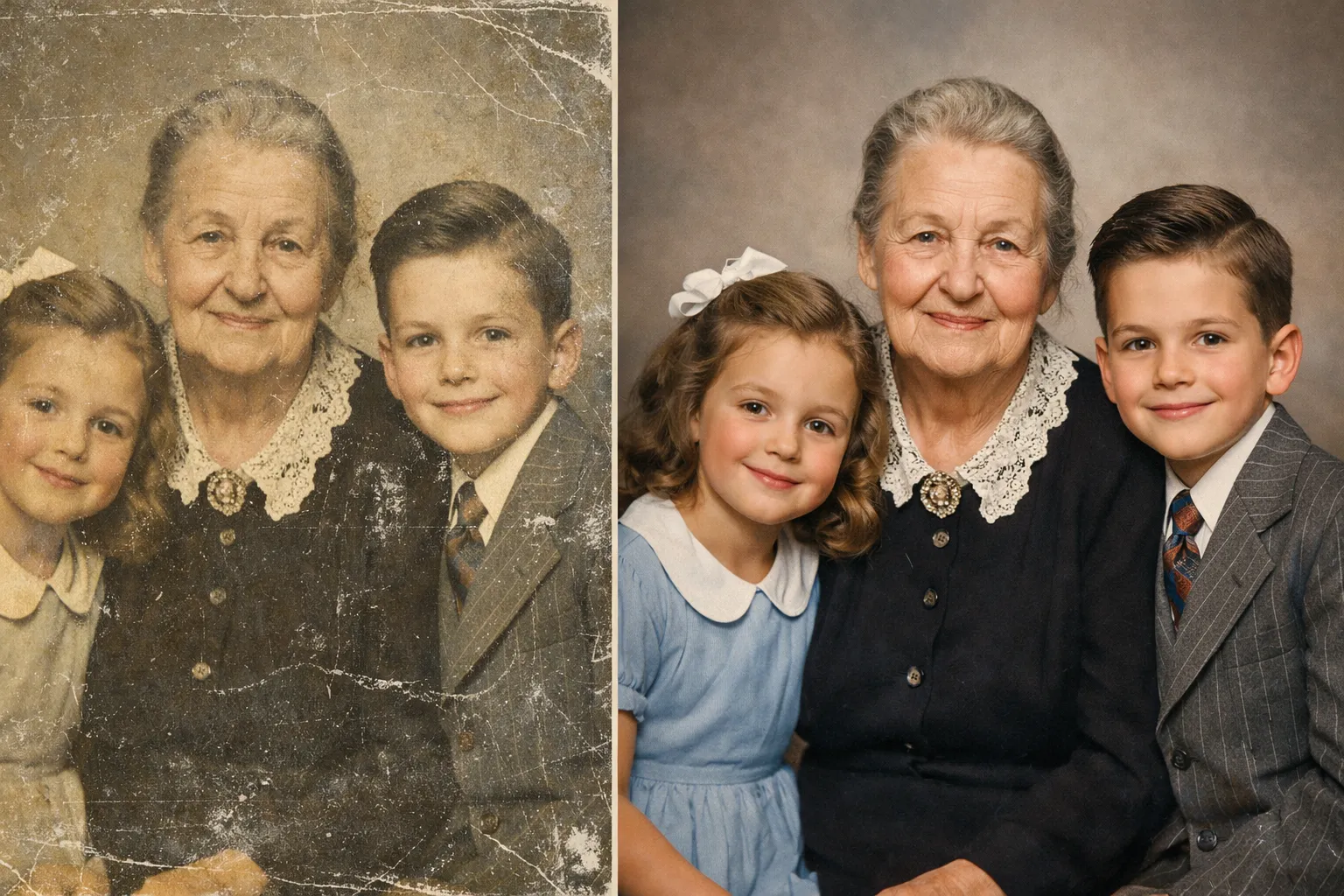
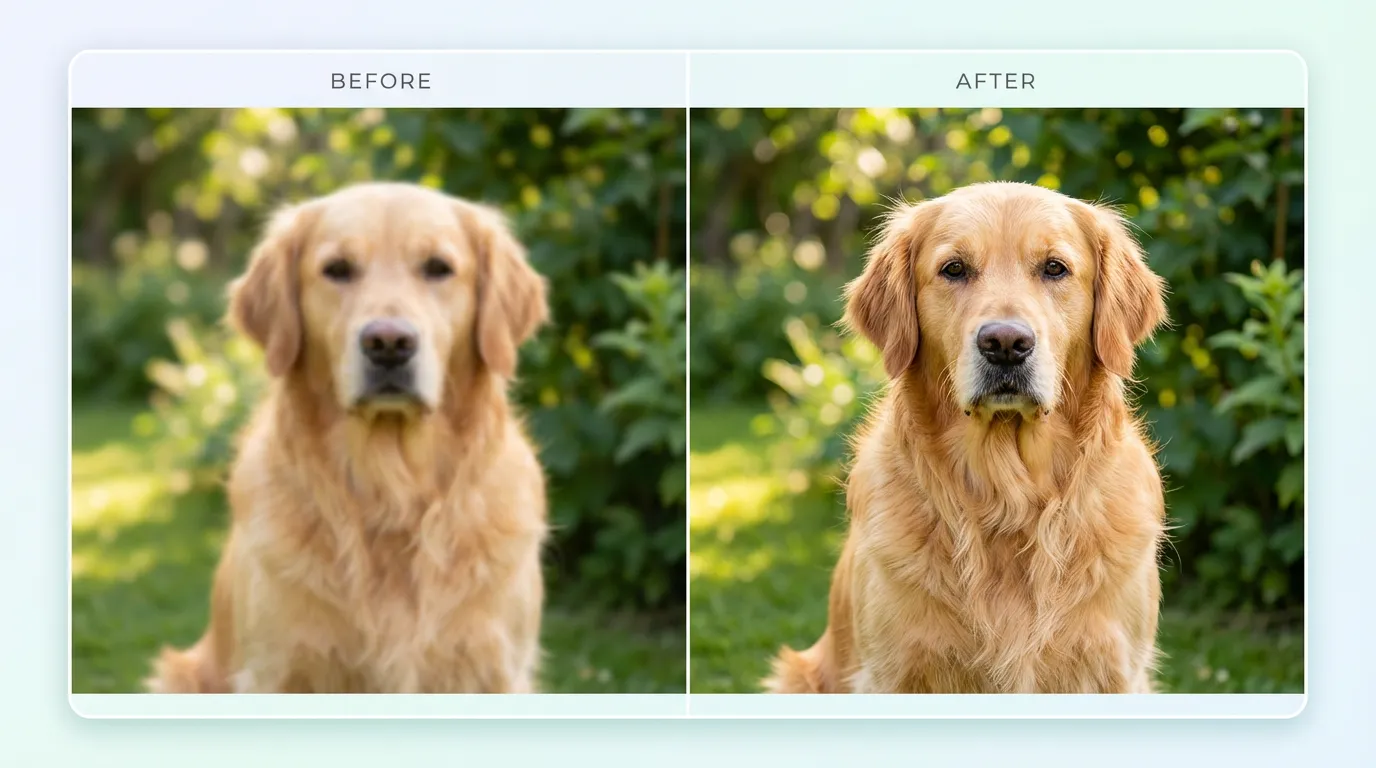
Before / After
Upload a photo, choose options, then compare the restored result.
More AI Image Tools
Explore our collection of AI-powered image tools designed for different creative needs and styles




AI Photo Restoration — Restore Old and Damaged Photos in Seconds
Old photographs hold irreplaceable memories, but time takes its toll. Faded colors, scratches, and low resolution can make treasured family photos difficult to enjoy. Pixlio's AI photo restoration tool helps you restore old photos online without complex editing software or design skills. Simply upload a scanned print or digital photo, choose your restoration options, and let the AI fix damaged photos automatically. Whether you want to enhance old photo quality, remove dust and scratches, or fix faded colors, results appear in seconds. No prompts required. For complementary tools, explore our AI Image Upscaler for higher resolution, Unblur Image for motion blur removal, or Background Remover for clean cutouts.
Powerful Photo Restoration Made Simple
Pixlio's AI photo restoration tool delivers professional results without technical complexity. Upload your image, select restoration options, and download an enhanced version in seconds.
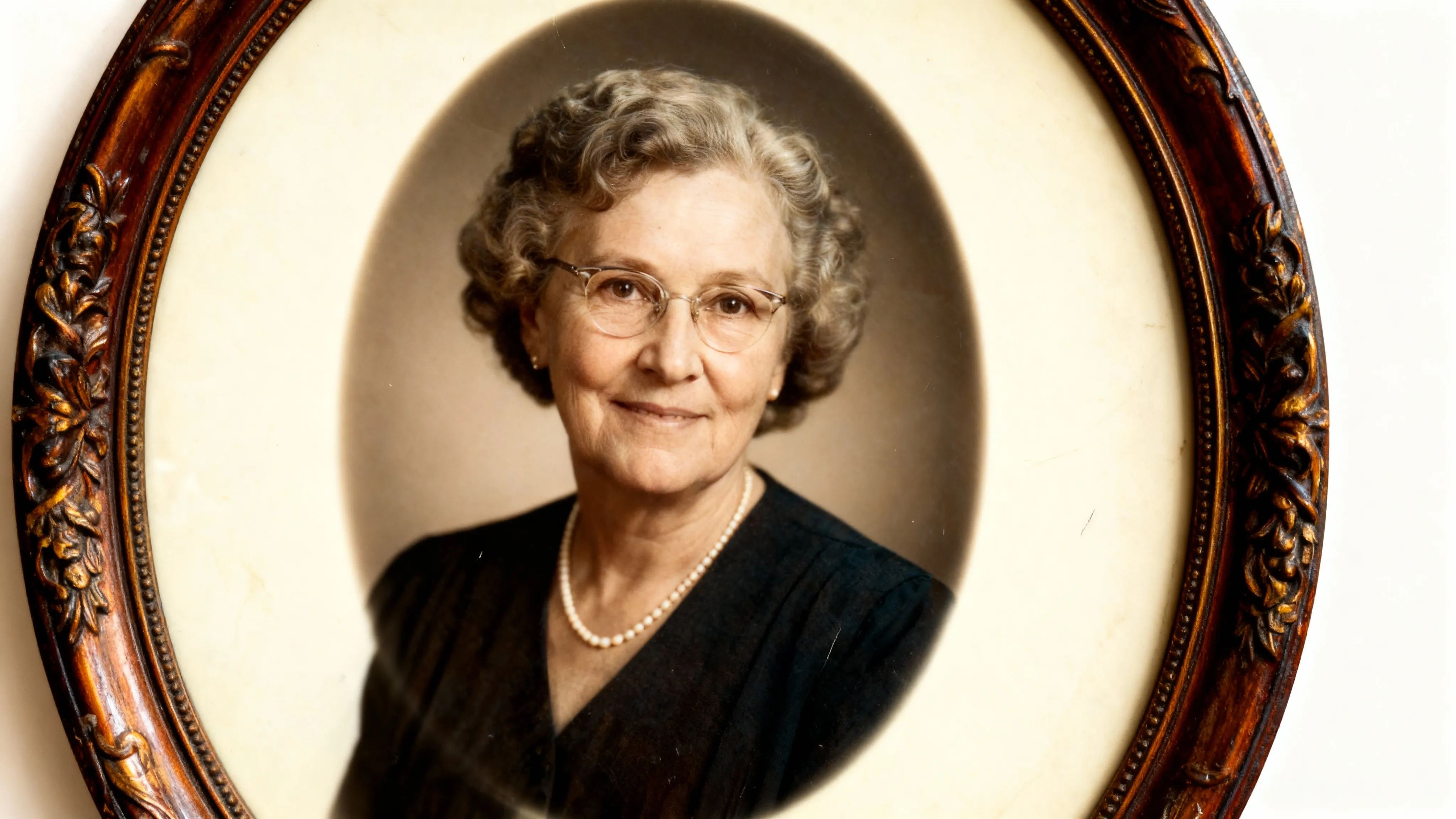
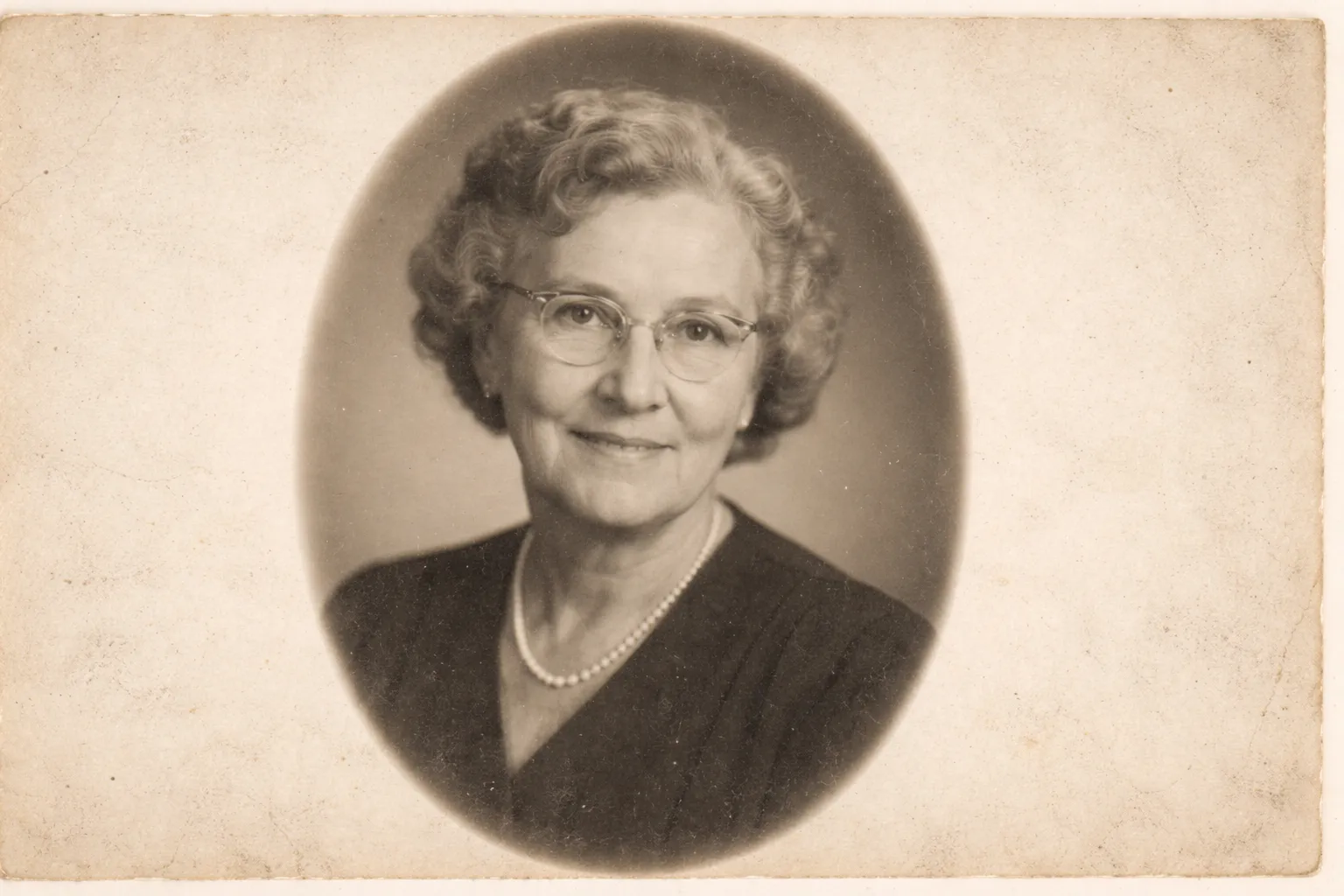
One Upload, No Prompt Required
Unlike text-to-image generators, Pixlio's AI photo restoration works entirely from your uploaded image. There's no need to write prompts or describe what you want—the AI analyzes your photo and applies intelligent restoration automatically. This makes it ideal for scanned family prints, vintage photographs, and compressed digital archives.
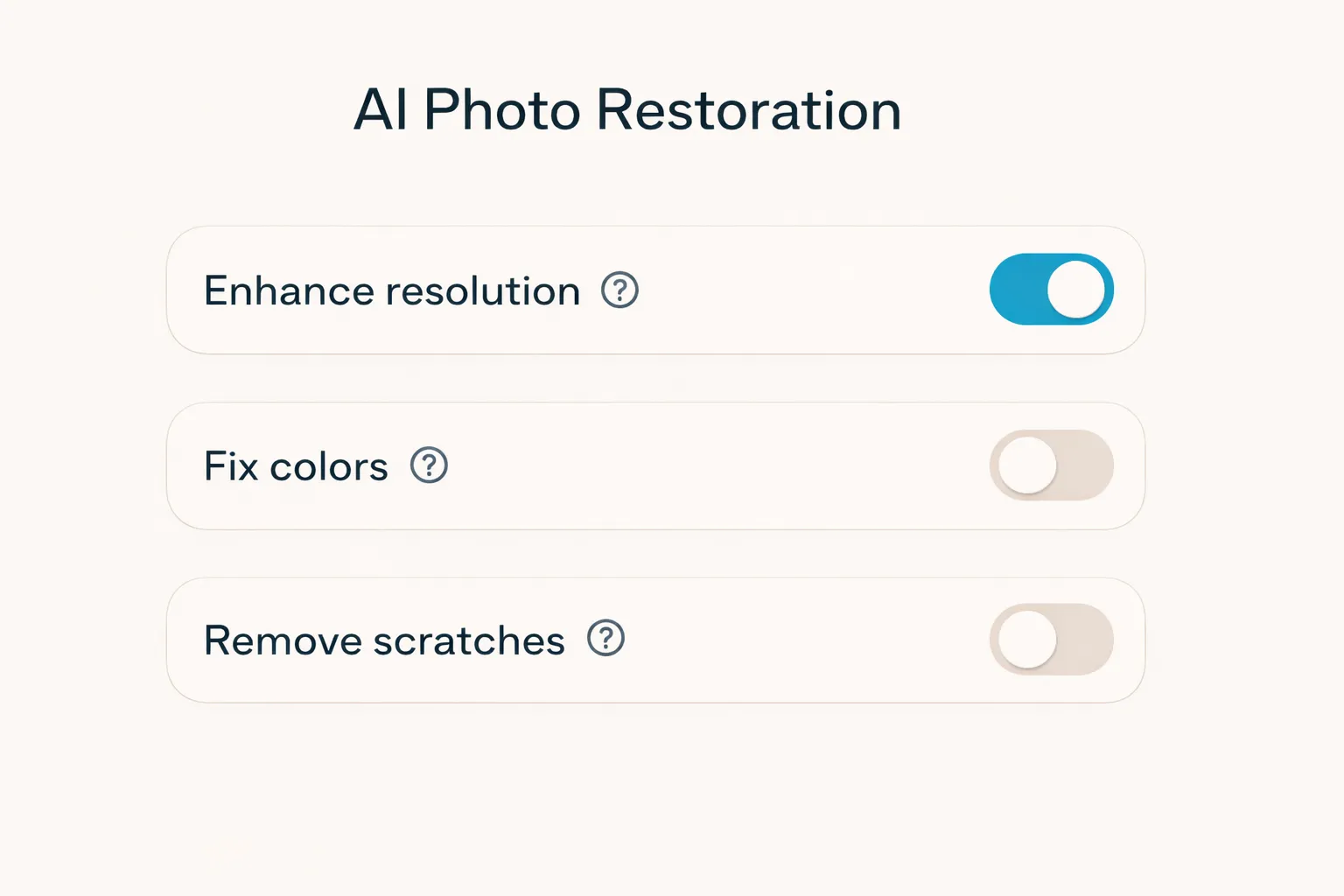
Flexible Restoration Toggles
Take control of your photo enhancement with three dedicated options: Enhance resolution sharpens blurry details, Fix colors corrects faded or yellowed tones, and Remove scratches reduces dust marks and surface damage. Enable all three for comprehensive restoration, or selectively disable options for already-clean photos that need only minor improvements.
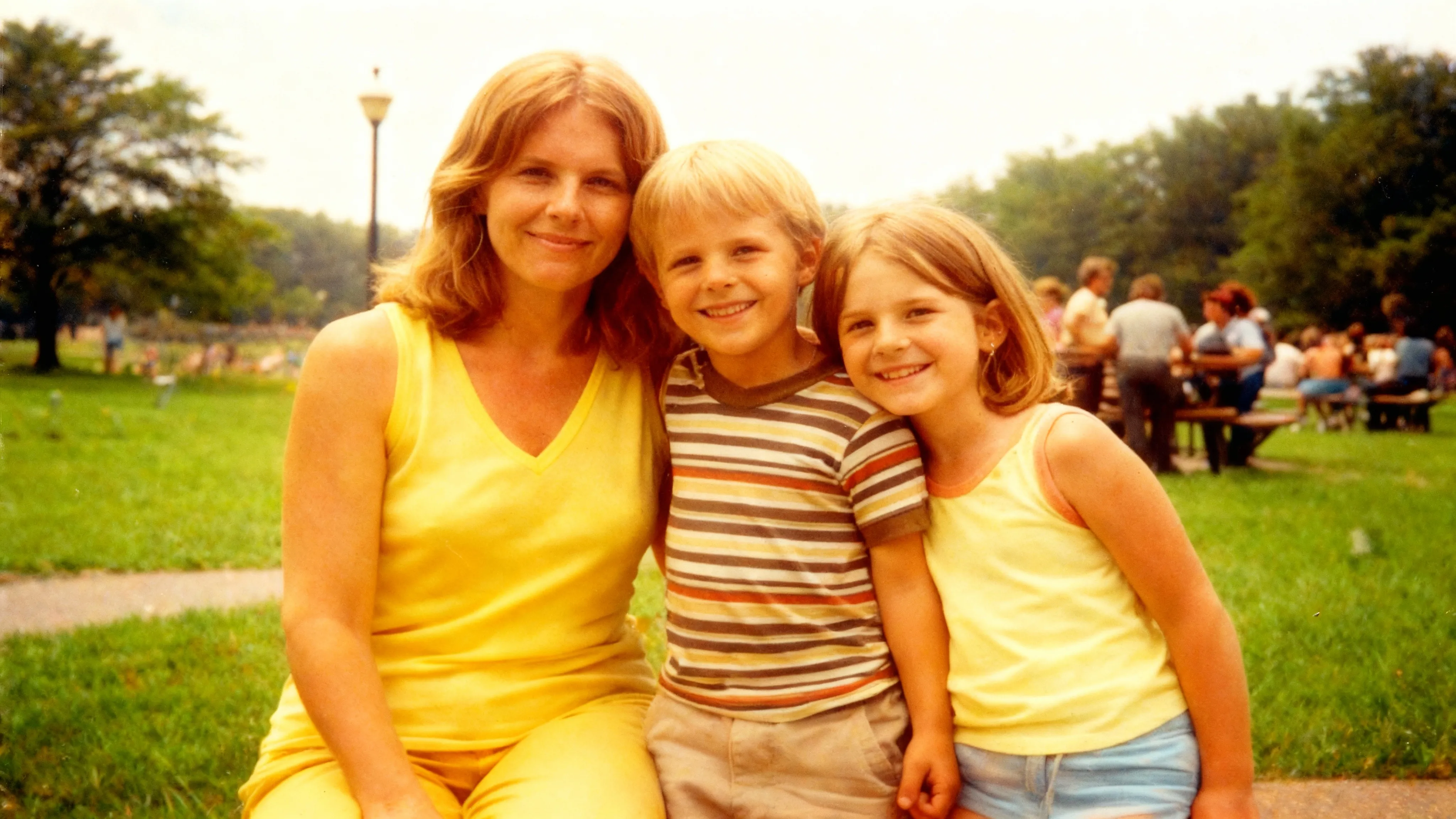
Natural Color Correction
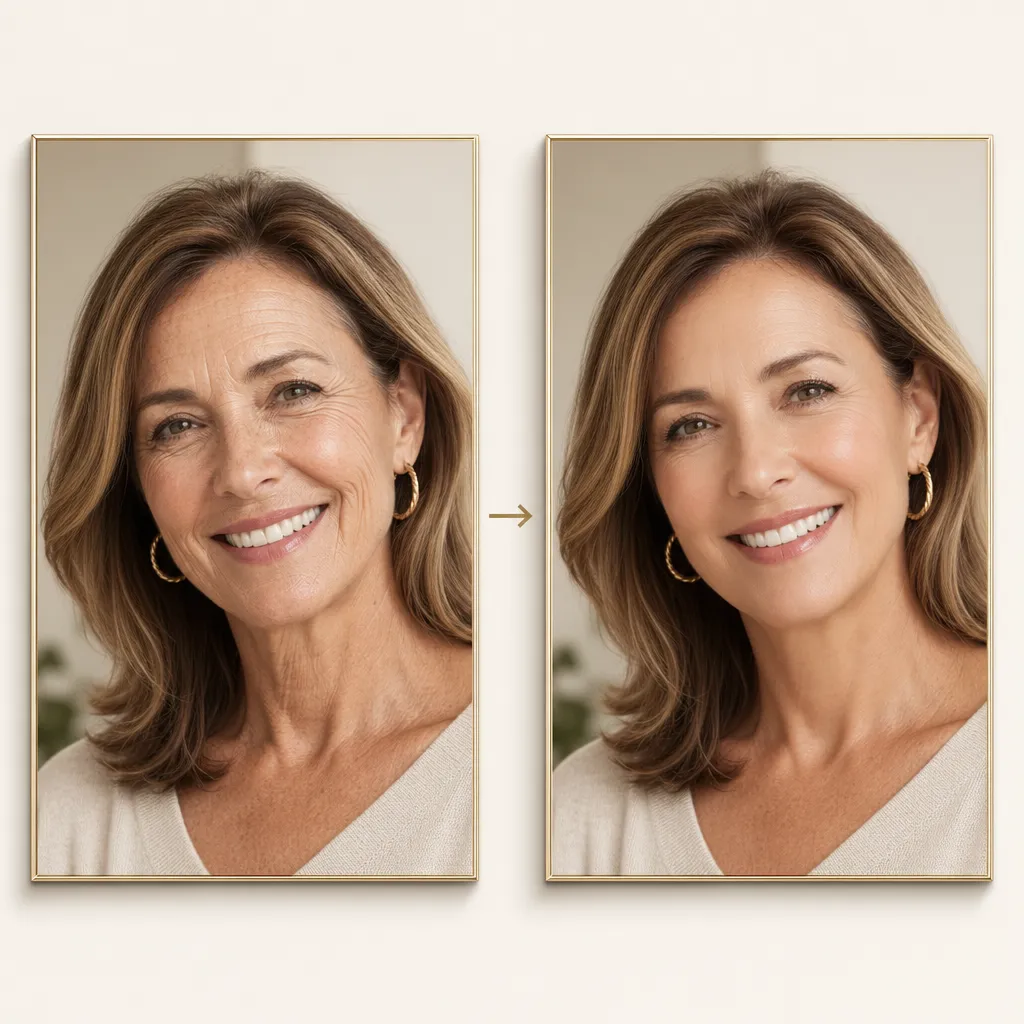
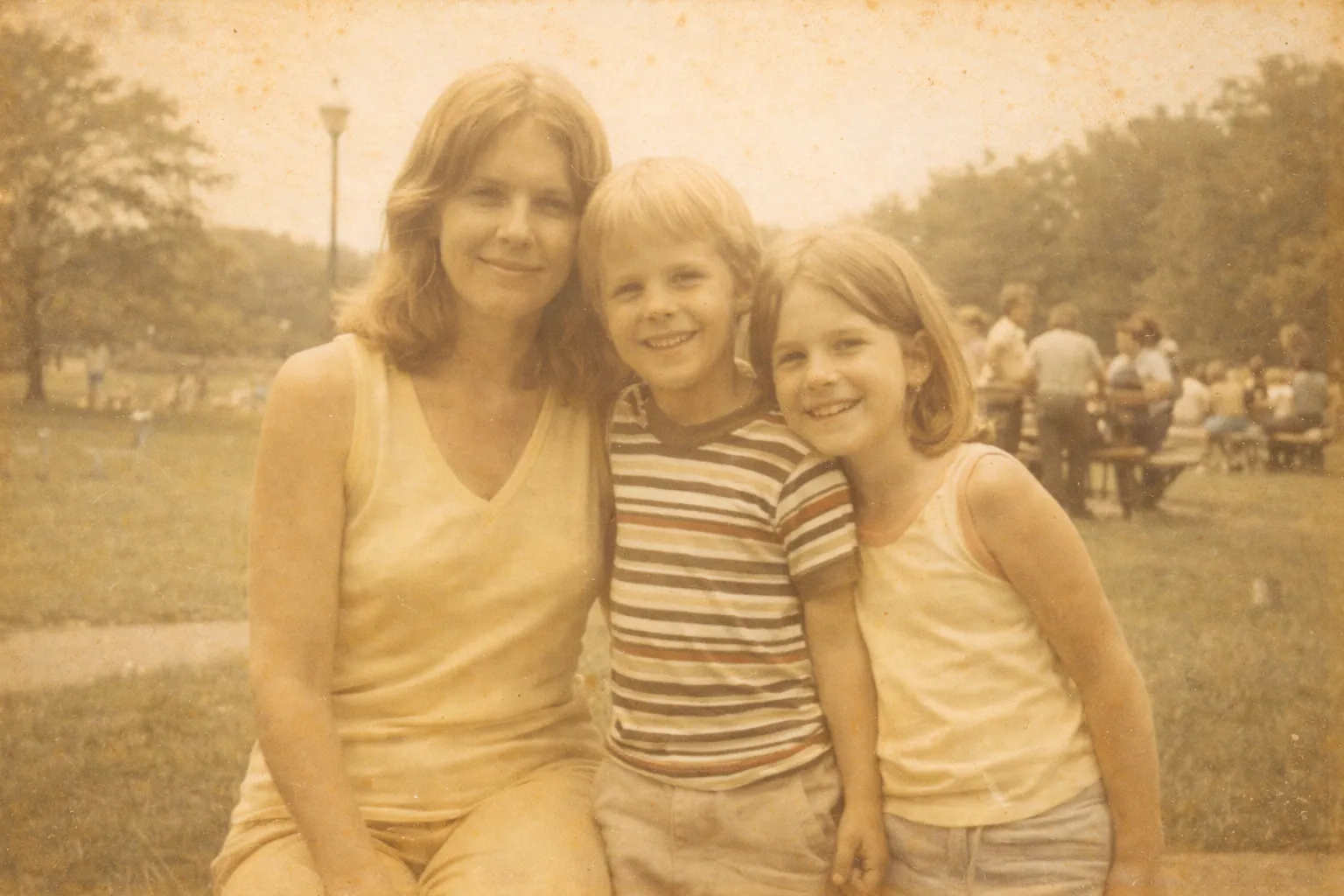
Old prints often suffer from color shifts—yellowed whites, washed-out tones, and poor contrast. The AI photo restoration engine analyzes color balance and restores natural-looking hues while preserving the authentic character of your original photograph. Expect cleaner whites, richer tones, and balanced contrast.
Authentic Photo Enhancement
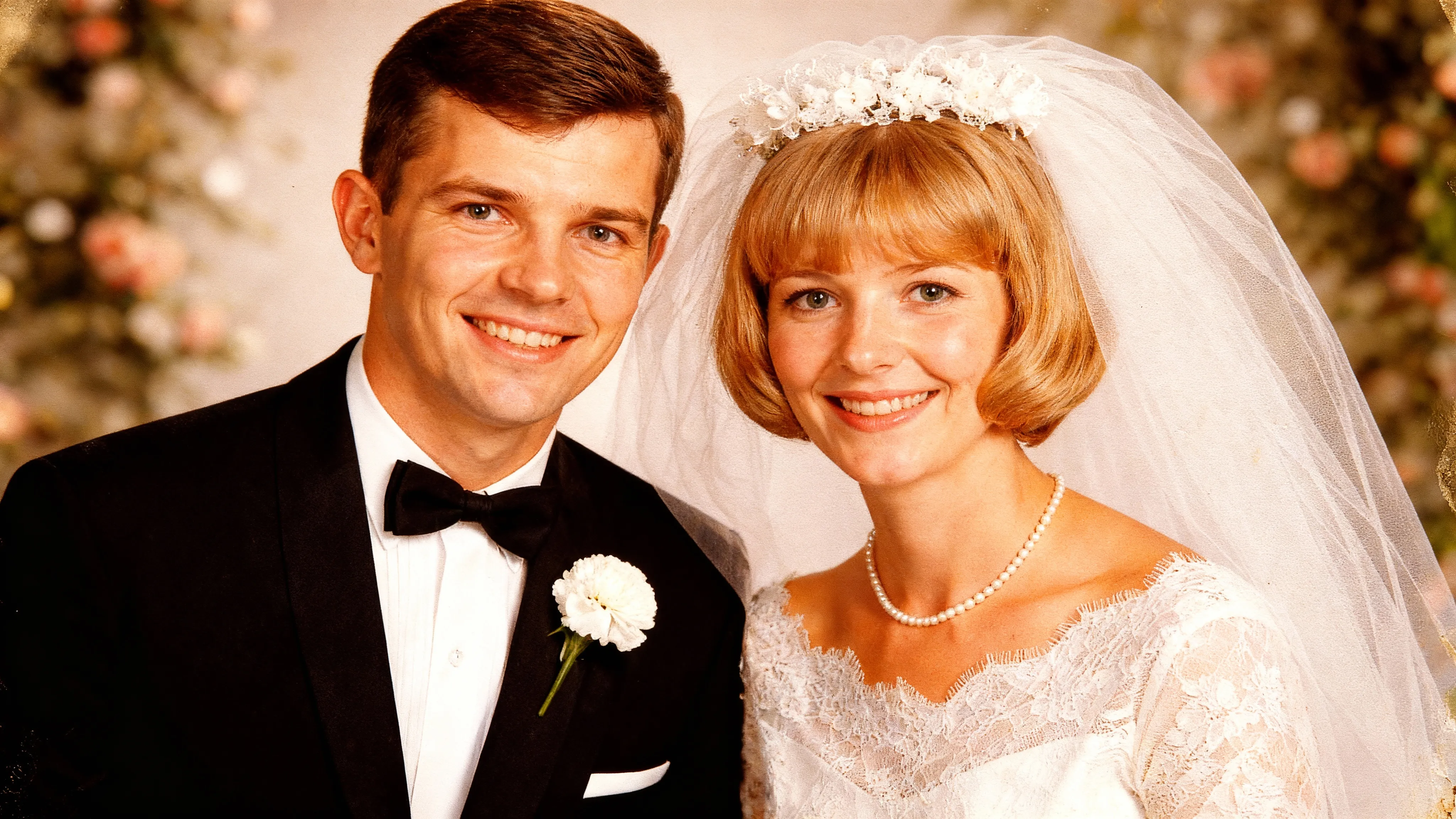
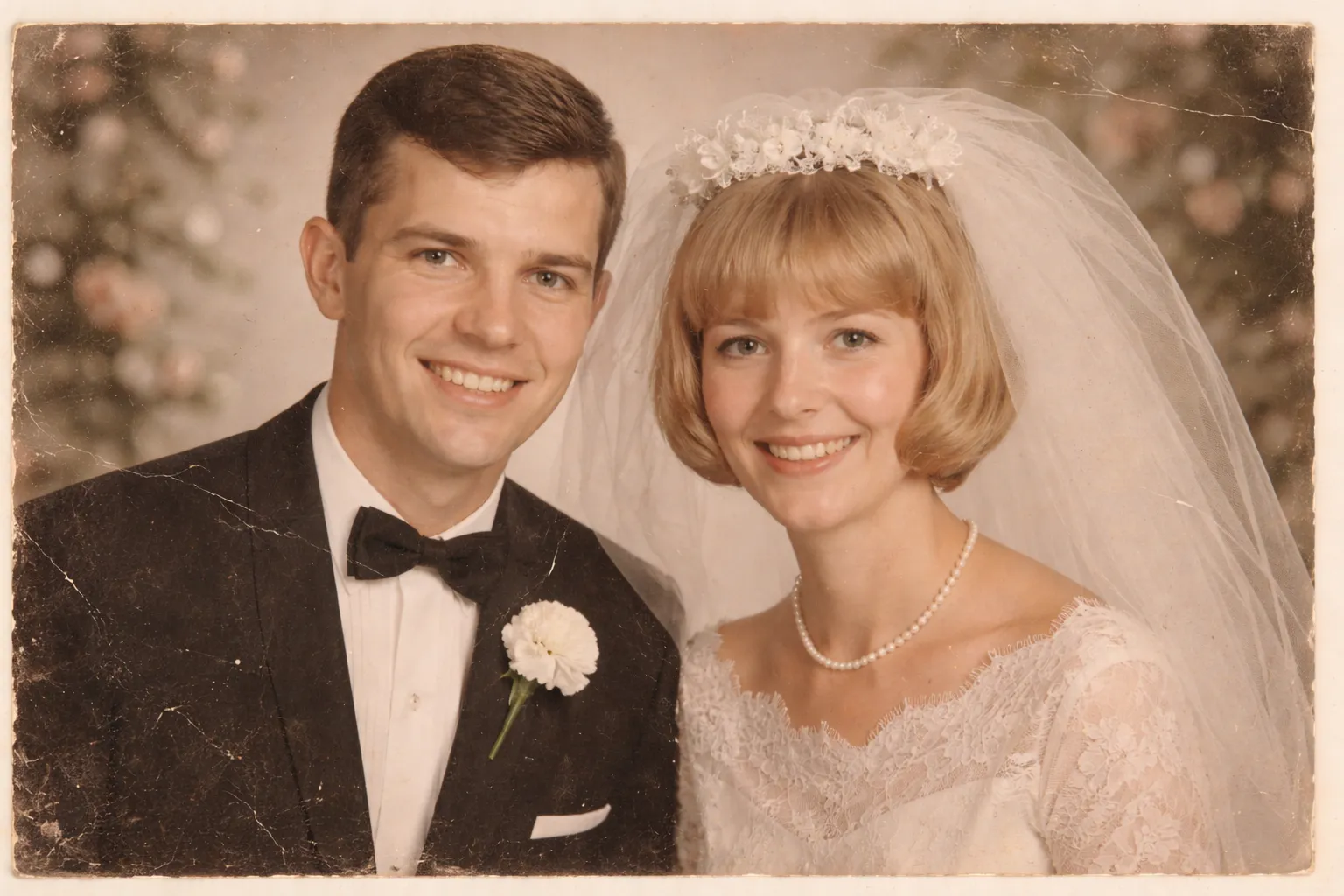
This tool is designed for genuine photo restoration, not creative image generation. The AI focuses on improving what's already in your photo—fixing scratches, enhancing clarity, and correcting colors—without inventing new elements or altering faces. Your restored image stays true to the original composition.

High-Quality PNG Download
Every restored photo is available as a high-quality PNG file, perfect for printing, sharing on social media, or preserving in digital archives. The lossless format ensures your restored memories look crisp whether viewed on screen or printed as physical photos.
Fast, Browser-Based Results
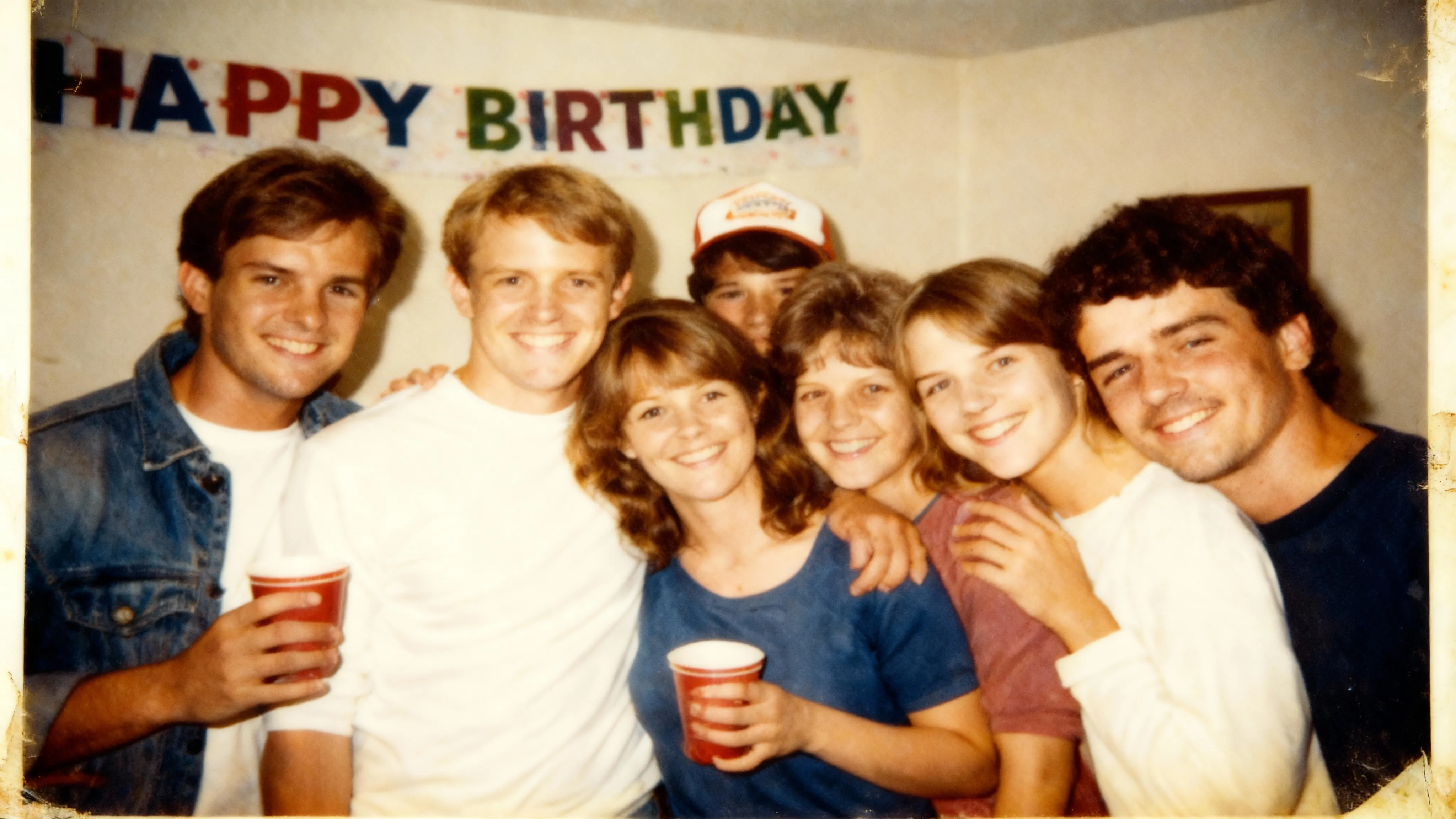
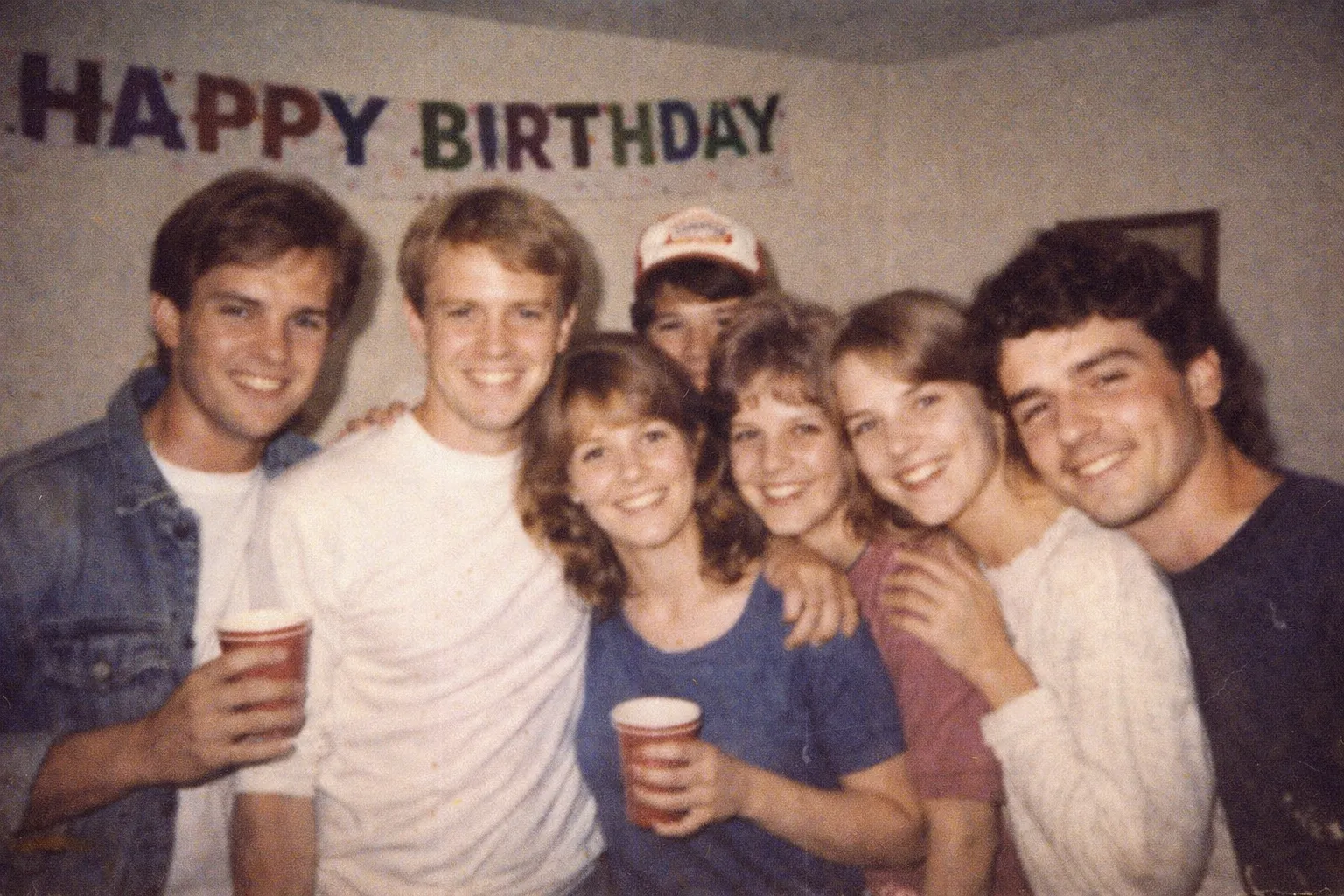
No software installation required. Pixlio's old photo restoration runs entirely in your browser, delivering results in seconds. Use the built-in before/after slider to instantly compare your original image with the restored version and see exactly how much improvement the AI achieved.
How to Restore Old Photos in 3 Steps
Follow this simple workflow to fix damaged photos, improve faded colors, and enhance clarity in seconds.
Popular AI Photo Restoration Use Cases
Whether you're preserving family memories or digitizing historical collections, AI photo restoration helps bring old images back to life.
Family Photos and Cherished Memories
Restore old family photos that have faded over the decades. Wedding portraits, childhood snapshots, and photos of loved ones can look dramatically cleaner after AI photo restoration—preserving your family's visual history for future generations.
Scanned Prints with Dust and Scratches
Scanned photographs often pick up dust, small scratches, and minor surface damage that distract from the image. Enable the Remove scratches option to reduce these artifacts and restore clarity to your digitized prints.
Creators Building Before/After Content
Photo restoration makes compelling content for social media, YouTube, and creative portfolios. Use Pixlio to generate striking before/after comparisons that showcase dramatic improvements—the built-in slider makes sharing results easy.
Archives and Historical Photo Digitization
Organizations, museums, and genealogy researchers can use AI photo restoration to improve scanned historical photographs. Enhance old photo quality across collections of vintage images, making historical records more accessible and visually clear.
AI Photo Restoration FAQ
What is AI photo restoration?
AI photo restoration uses machine learning to enhance old or damaged photographs. It improves image clarity, corrects faded or yellowed colors, and reduces visible scratches and dust marks—all while preserving your photo's original composition and the identity of people in the image.
Can it fix scratched or damaged photos?
Yes. The Remove scratches option effectively reduces light to moderate scratches, dust marks, and minor surface damage commonly found on scanned prints. Heavily damaged photos with large tears or missing sections may see limited improvement, as the AI focuses on restoration rather than reconstruction.
Will it change faces or add new elements?
No. The photo restoration tool is designed to enhance and restore your existing image, not to generate new content or alter identities. Faces, people, and the overall composition remain intact. Results can vary depending on input quality and the extent of damage.
What photos work best for restoration?
Photos with visible but not extreme damage produce the best results. Ideal candidates include faded prints, low-contrast scans, lightly scratched photos, and images with yellowed or washed-out colors. Higher resolution scans generally yield better restored output.
Does AI photo restoration work on black-and-white photos?
Yes. The tool can restore black-and-white photographs by improving clarity, reducing scratches, and enhancing tonal contrast. Note that it restores images as-is and does not colorize black and white photos. For better colorization, try our photo colorizer instead.
What file formats are supported?
Pixlio accepts JPG/JPEG, PNG, and WebP image uploads up to 10MB. For best restoration results, upload the highest quality scan or image file you have available.
Do you store my uploaded photos?
Uploaded images are processed to generate your restored photos and appear in your My Creations gallery. Avoid uploading sensitive or private content you don't want stored. You can manage your creations from your account dashboard.
How much does AI photo restoration cost?
Each restoration uses a fixed amount of Pixlio credits, displayed before you generate. New users receive free credits on signup to try the tool. Additional credits are available through subscription plans or one-time purchases.