 Pixlio AI
Start transforming images with the image to image AI editor below.
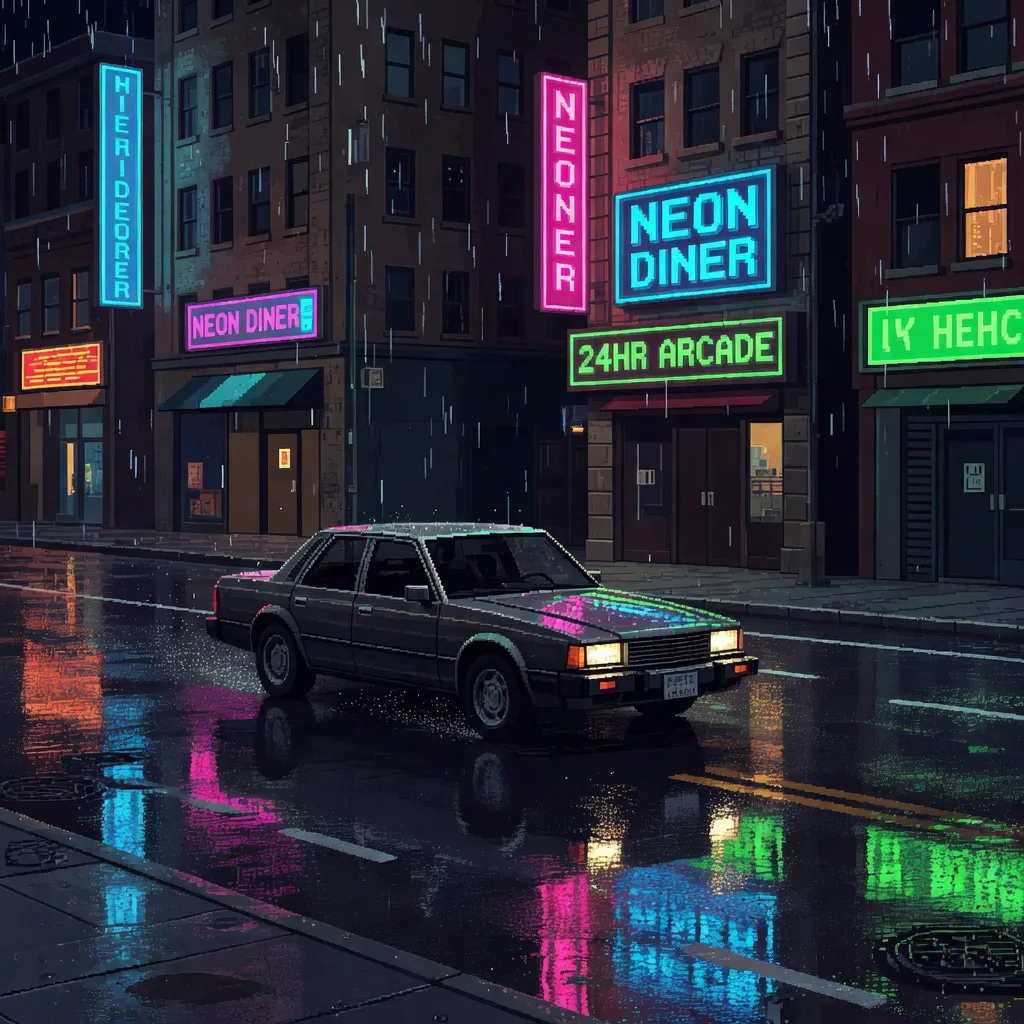
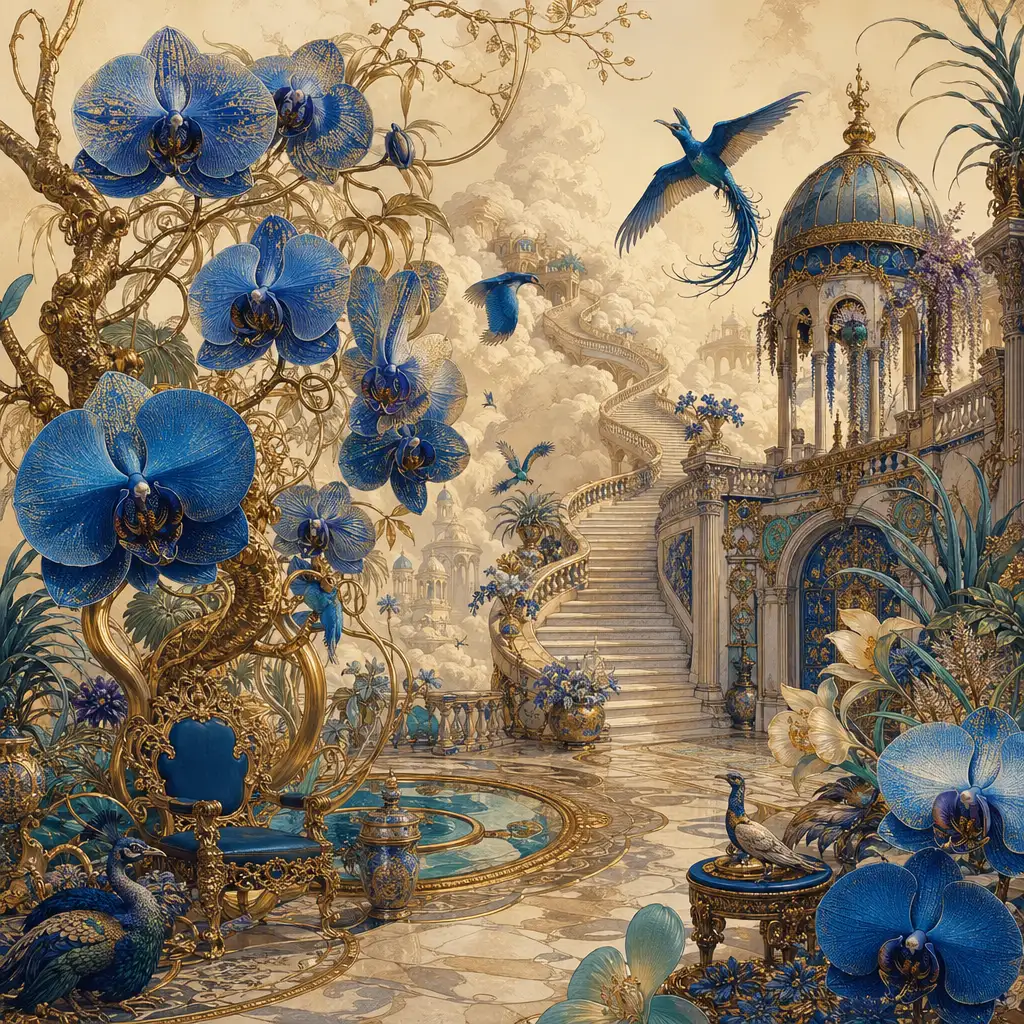
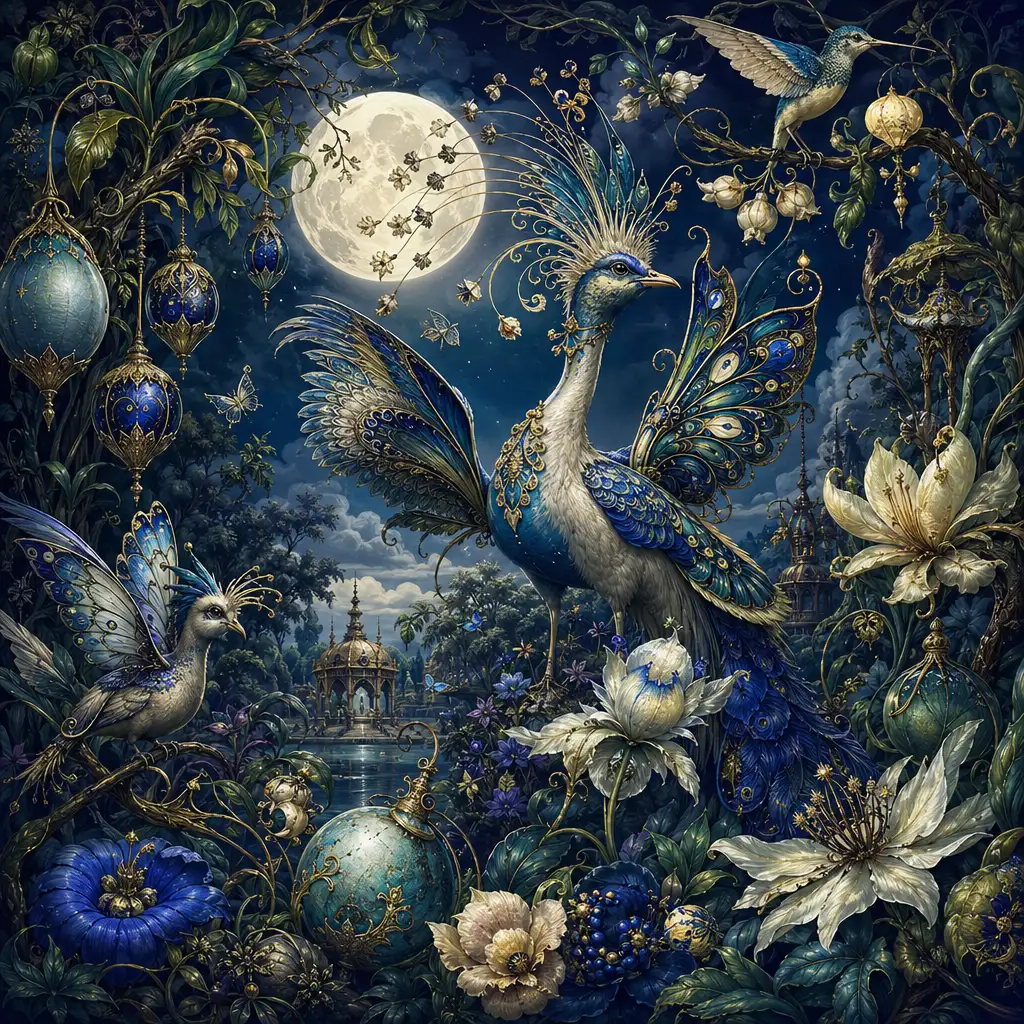
Image to Image AI — Transform and Refine Any Image
Upload an image and describe your vision—Pixlio's image to image AI applies your edits in seconds. Whether you need style changes, composition adjustments, or creative transformations, our AI image editor runs fast and keeps you in control. No steep learning curve, just results.
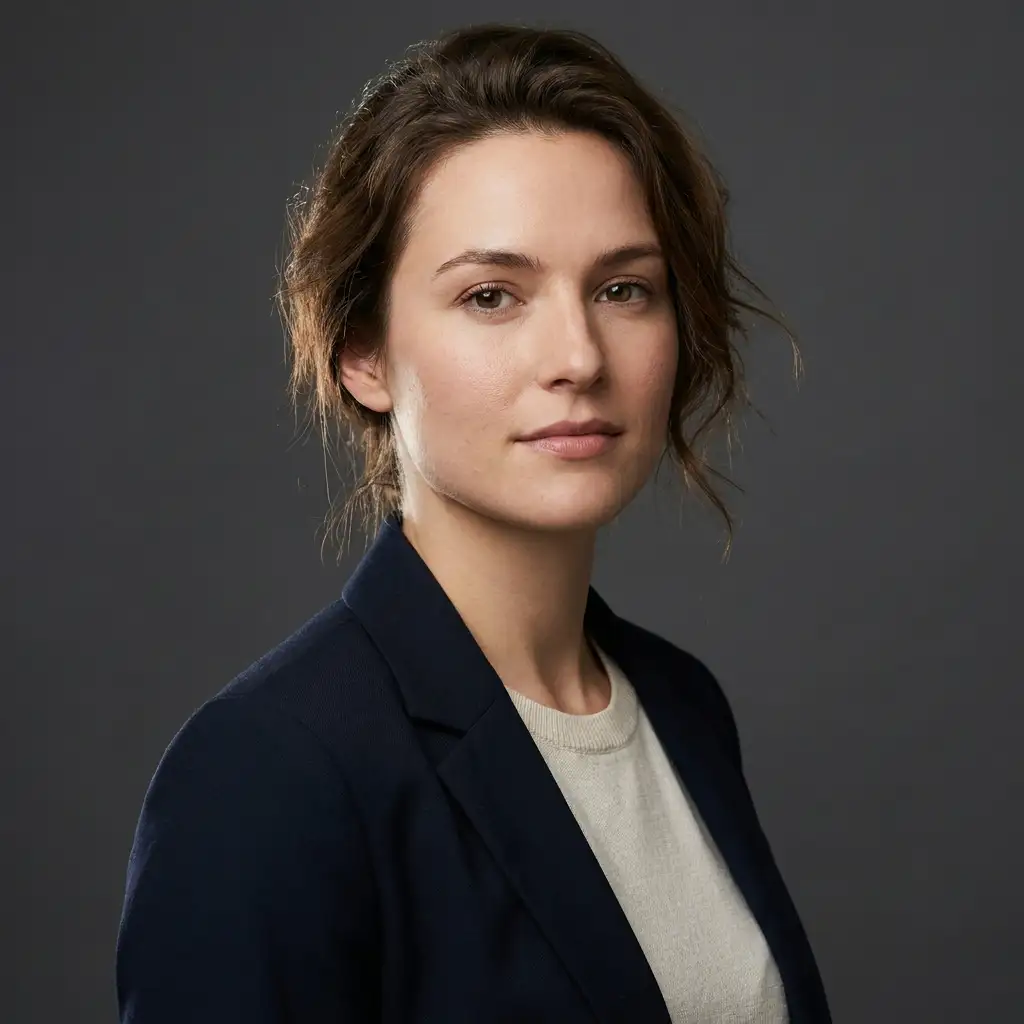
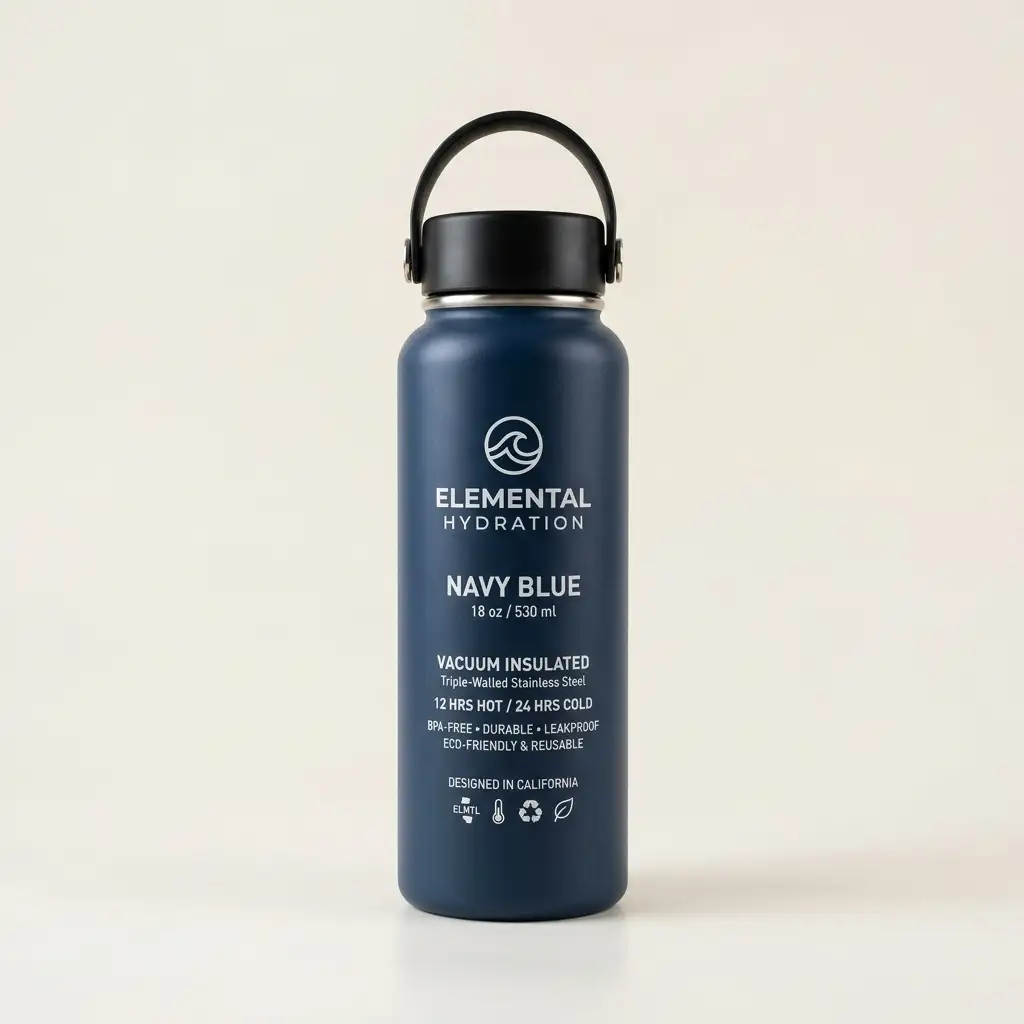
Why Choose Our Image to Image AI Editor
Transform images without wrestling with complex software. Pixlio's image to image AI understands your intent and applies changes in seconds, letting you refine photos, shift styles, and explore variations effortlessly. Perfect for marketers evolving campaign visuals, designers prototyping concepts, or creators adapting existing assets for new platforms. Our AI image transformation tool balances speed with quality, showing credit costs upfront so you stay in control of every edit.
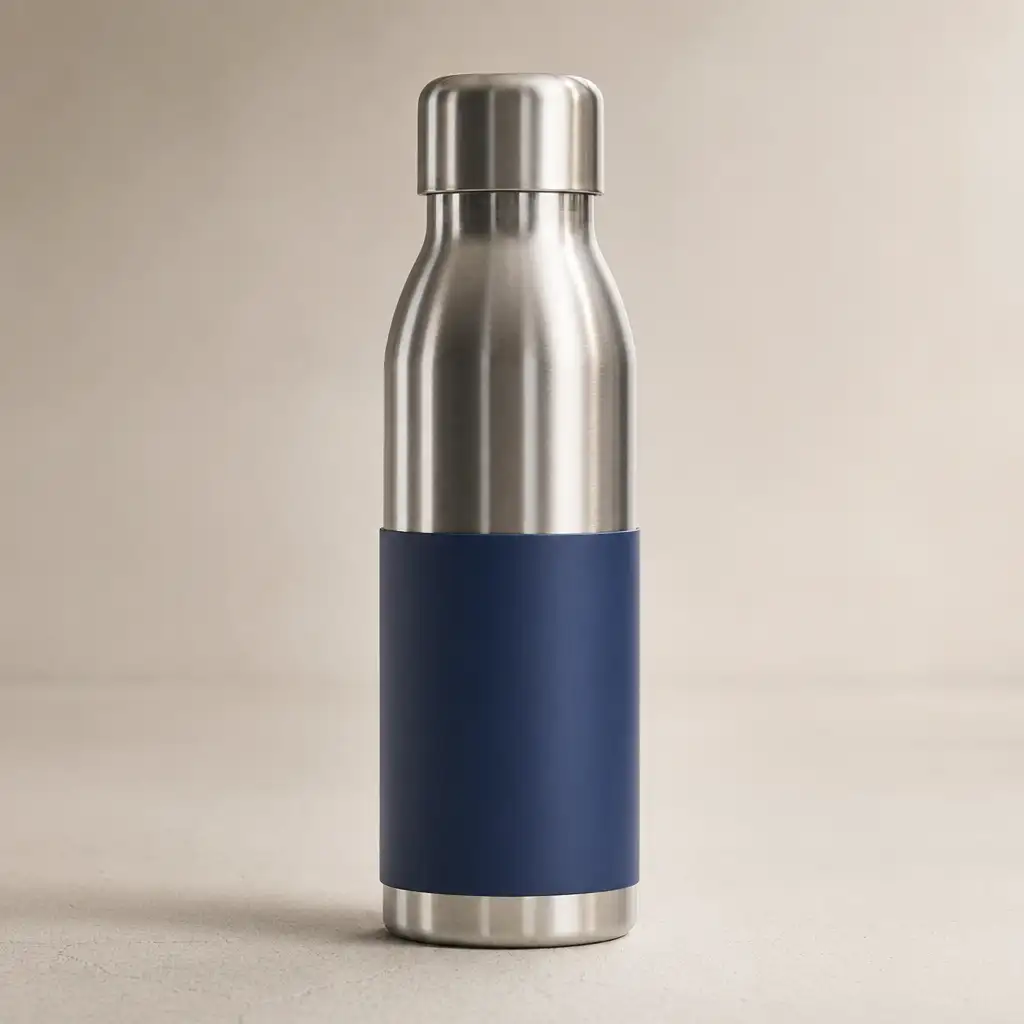
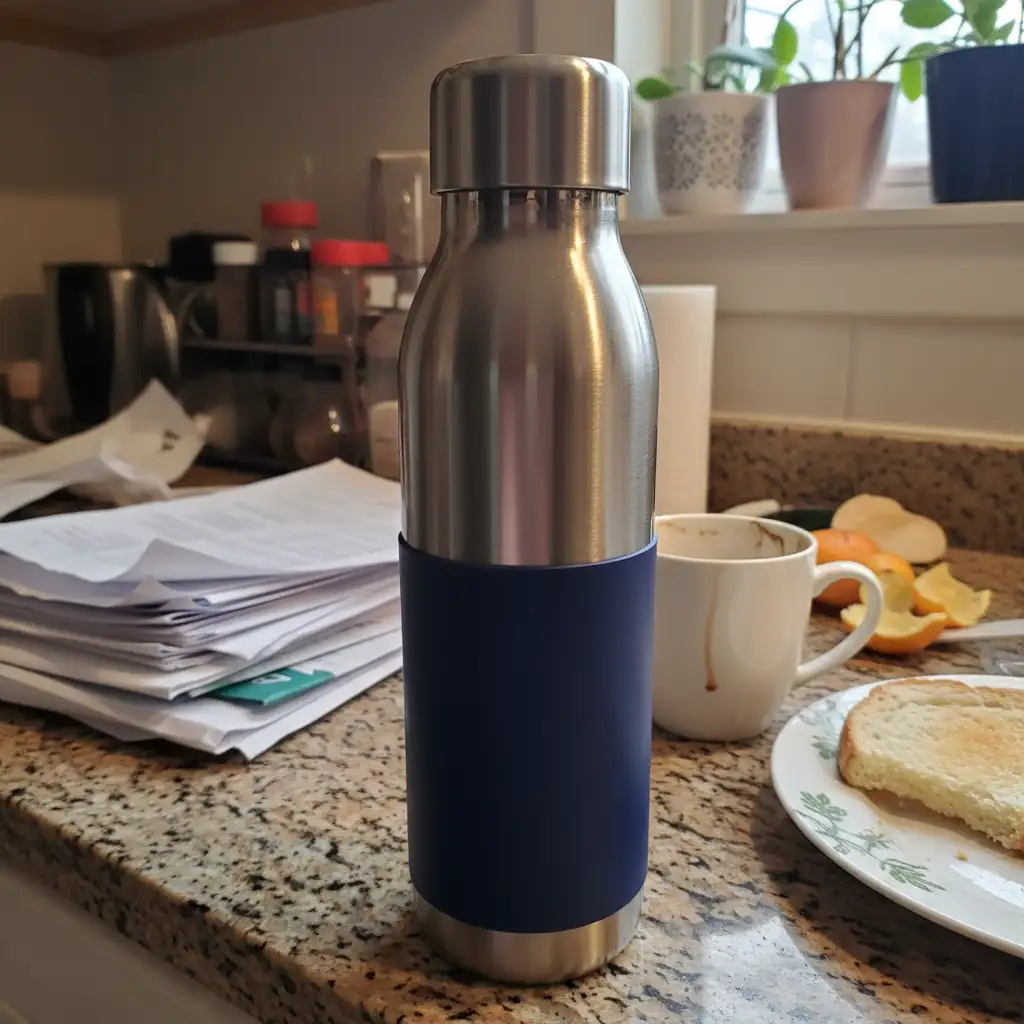
Instant Image Transformations: From Upload to Result in Seconds
Upload any image and watch our image to image AI apply your changes in seconds. Models like Nano Banana Edit and Seedream v5 Lite Edit process transformations rapidly, whether you're adjusting lighting, shifting composition, or applying style changes. The generator adapts to your selected model, exposing options that matter and hiding complexity. Fast iteration means you can try multiple variations quickly, finding the perfect edit without waiting.
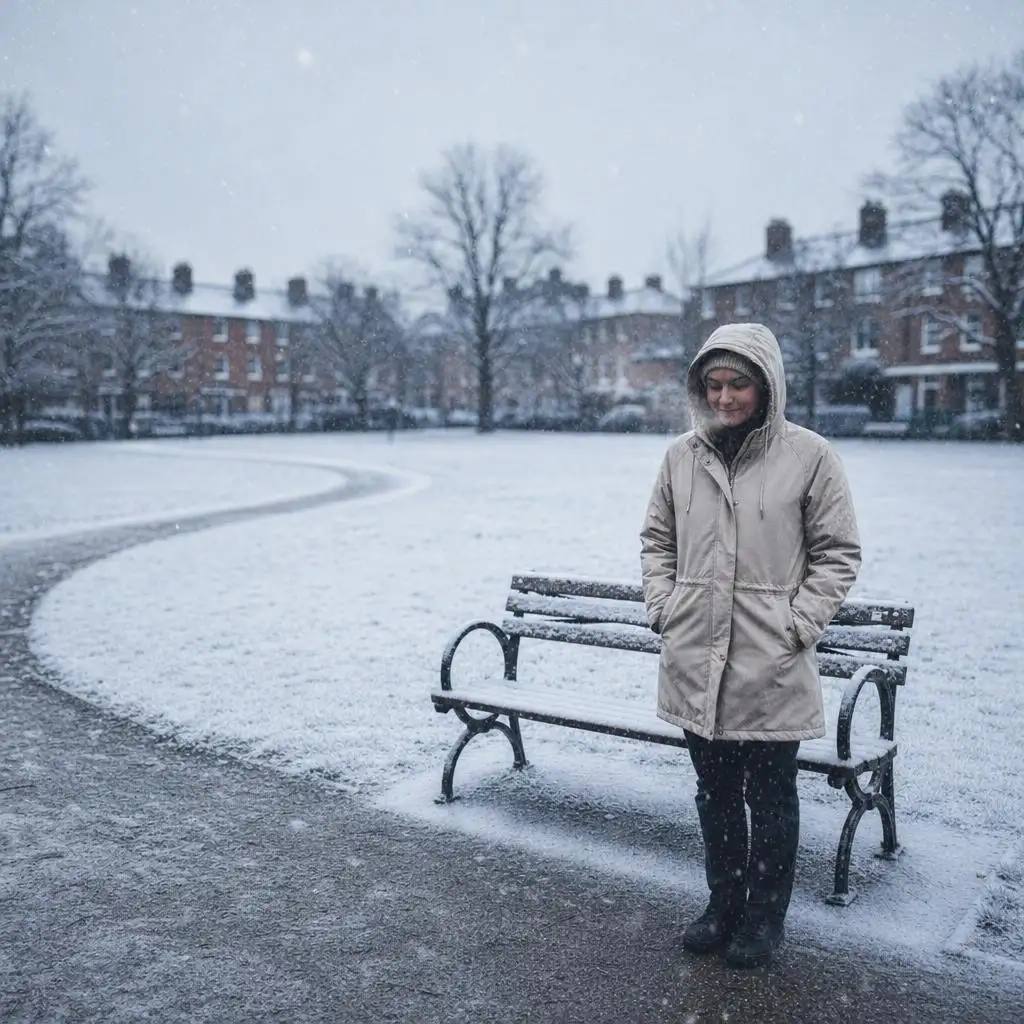
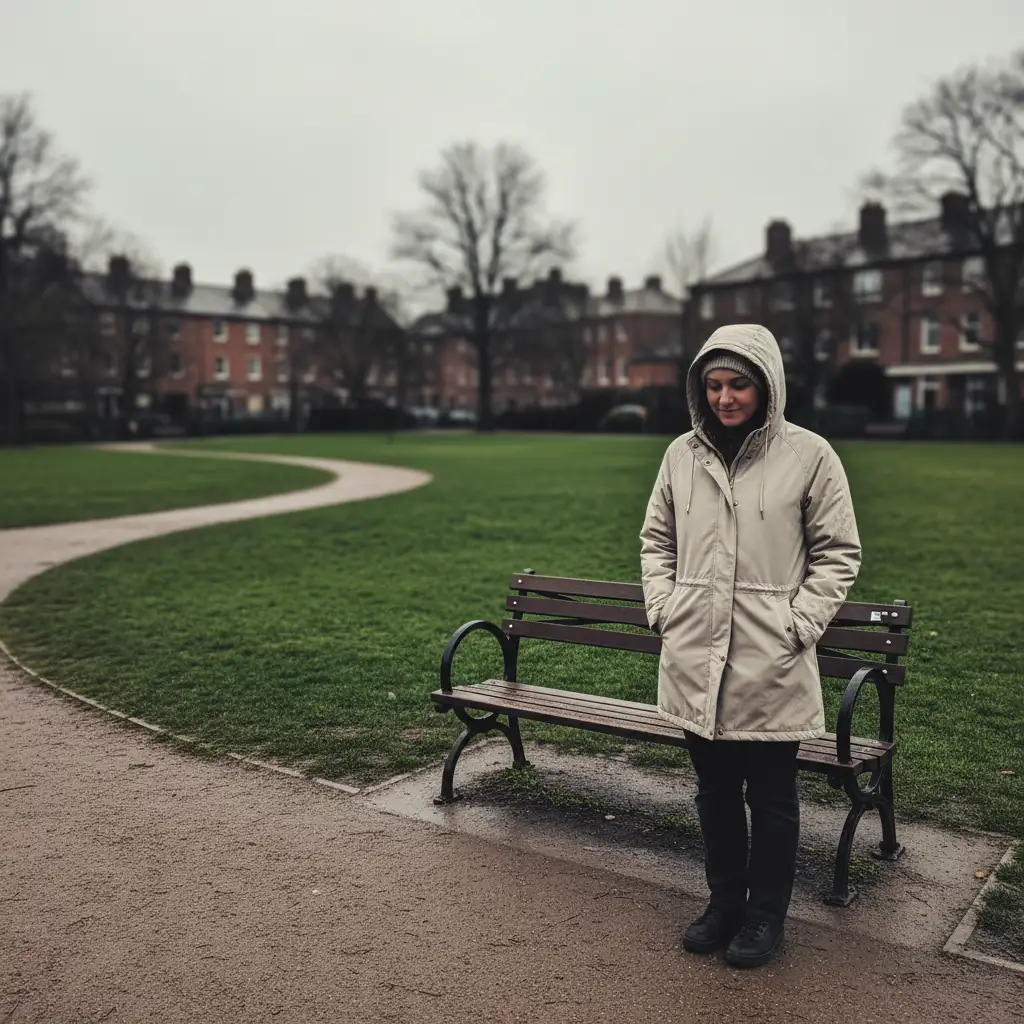
Describe Changes Naturally: No Technical Jargon Required
Edit images by describing what you want in plain language. Our AI image editor interprets prompts like "soften the lighting" or "make the background winter" and applies the transformation intelligently. You don't need to know layer masks or adjustment curves—just explain your vision. This approach keeps the image-to-image workflow accessible for non-designers while giving experienced users precise control through detailed prompts.
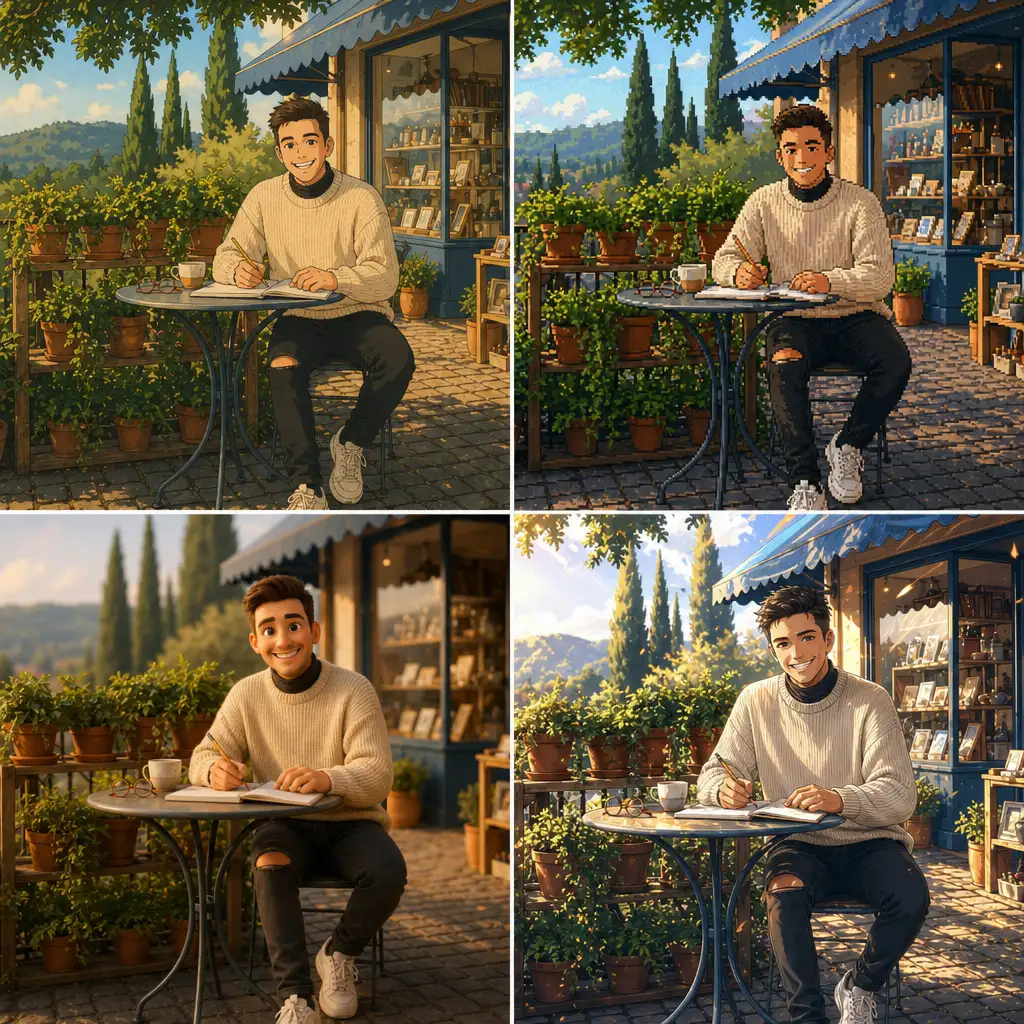

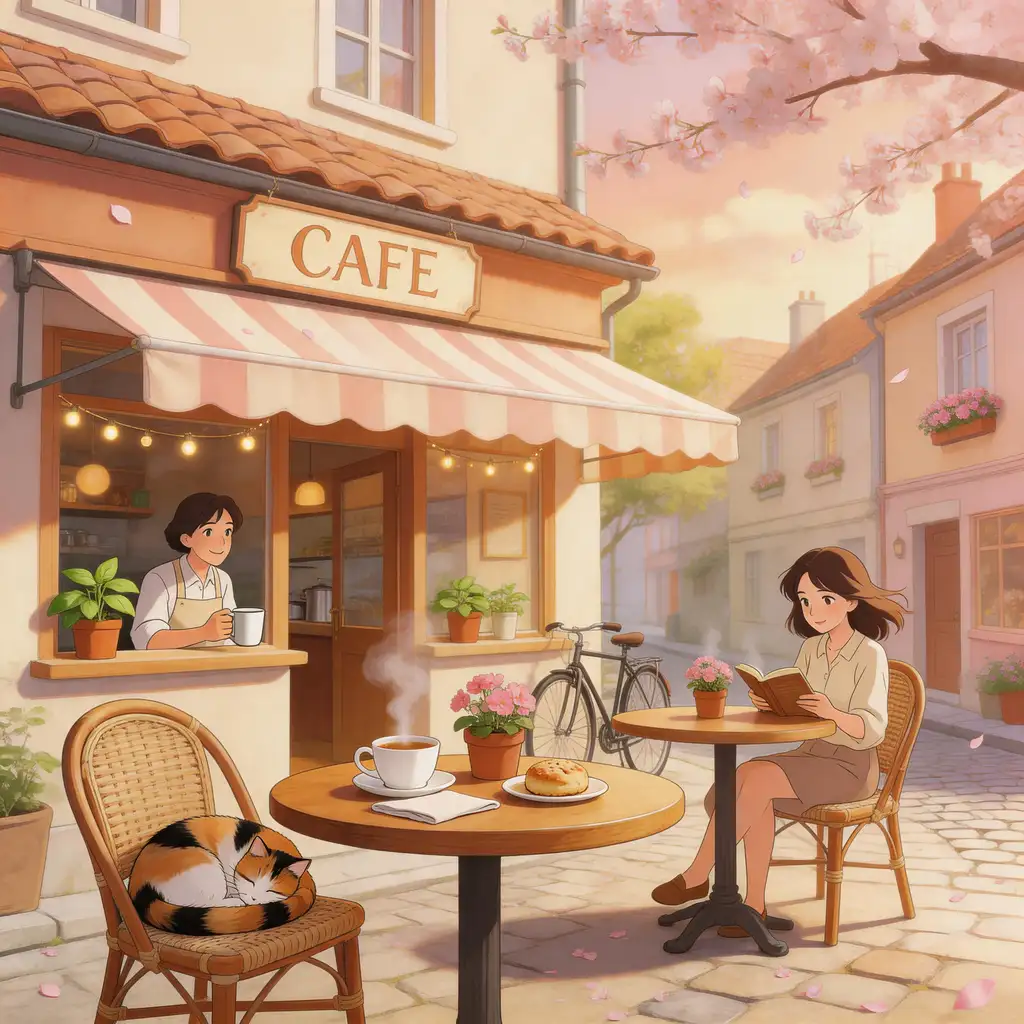
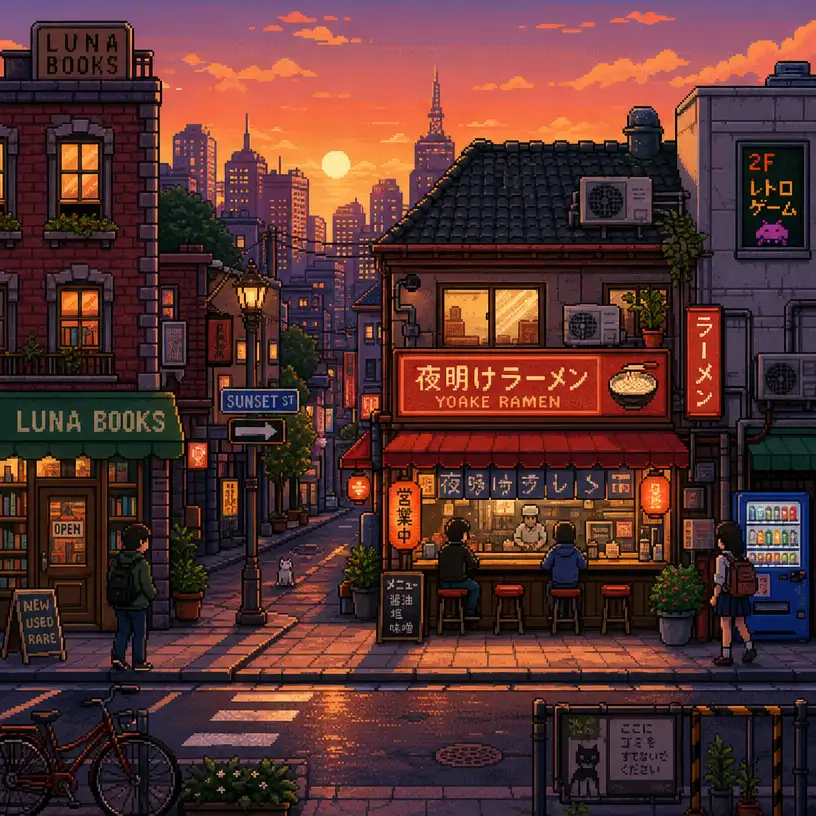
Style Transfer Presets: Ghibli, Pixel Art, Anime, and More
Turn an existing photo into a completely different visual language while keeping the core subject recognizable. Try Ghibli style art for warm hand-painted scenes, pixel art for game-ready retro looks, Pixar-inspired 3D animation for playful character polish, anime for expressive linework, or custom styles tailored to your project. The image to image AI editor lets creators explore multiple directions from the same source image without rebuilding the composition from scratch.
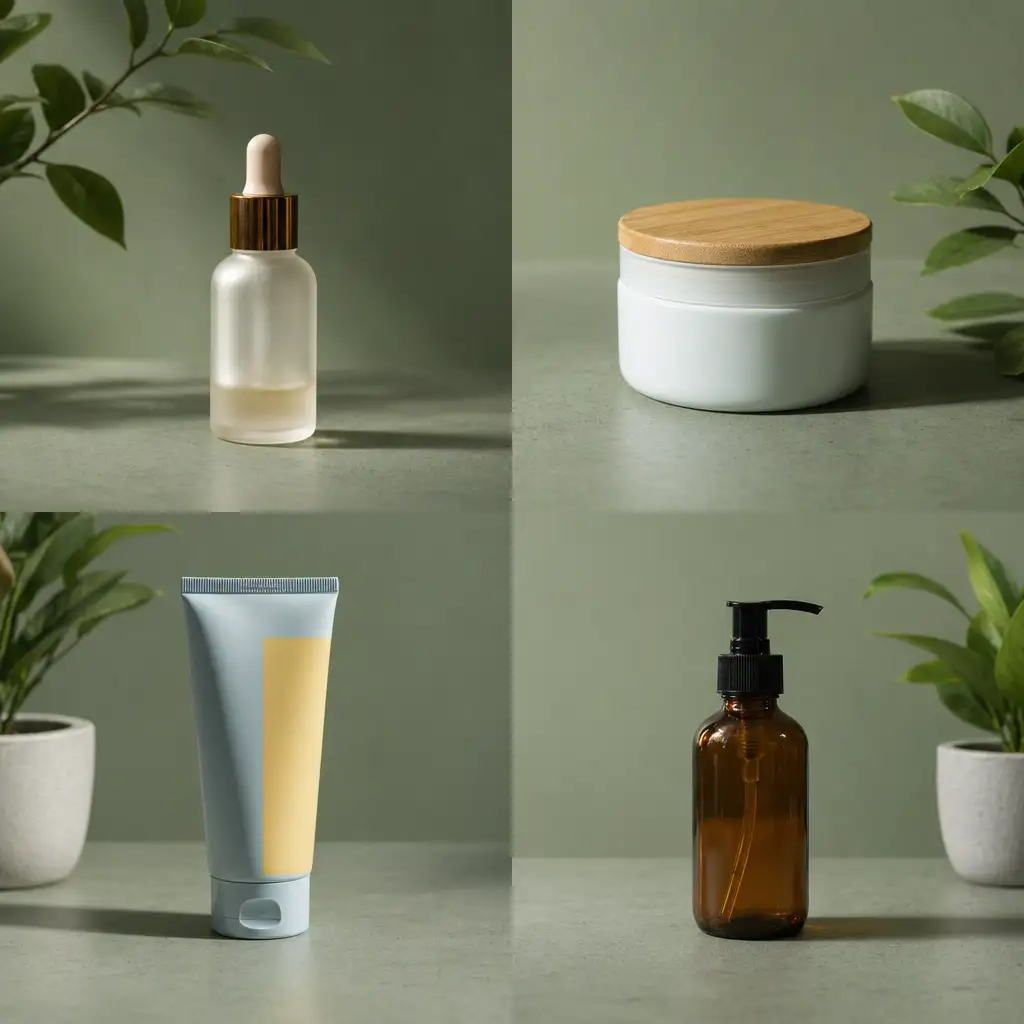
Maintain Visual Consistency Across Your Image Collection
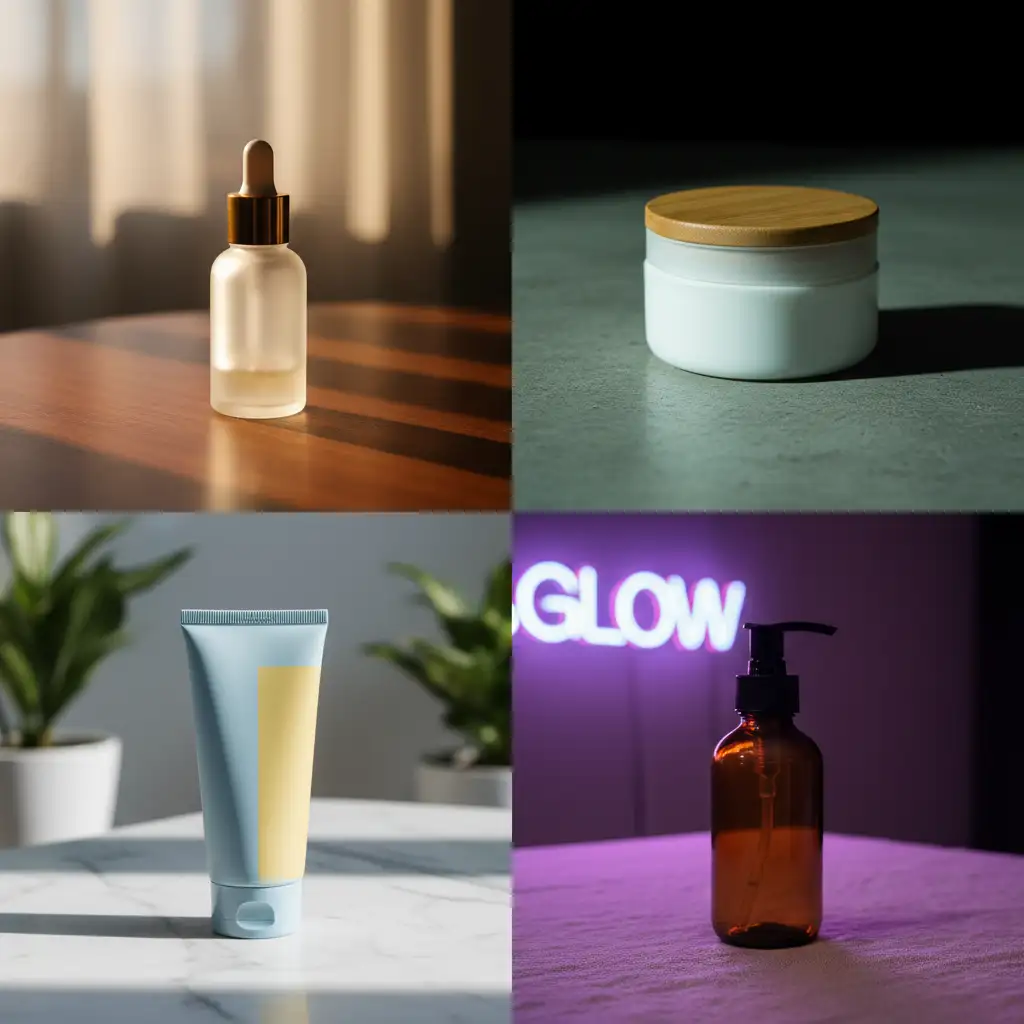
Keep branding, mood, or character features consistent when transforming multiple images. Use seeds to reproduce edits, apply style presets to unify looks, and iterate with small prompt changes to refine results. Whether you're adapting product shots for seasonal campaigns or evolving character concepts across a series, our image to image AI generator helps maintain coherence without starting from scratch every time.
Choose the Right AI Model for Every Image Transformation
Select from specialized models optimized for different image editing tasks. Nano Banana Edit supports multi-image inputs for complex compositions, GPT Image 2 Edit and GPT Image 1.5 Edit provide fine-grained detail with strong prompt adherence, Grok Imagine Image Edit delivers highly aesthetic results, and Seedream v4/v4.5/v5 Lite Edit offer high-fidelity transformations. The interface adapts options per model, showing what's supported and ensuring your AI image transformation workflow stays simple. Switch models freely to match speed vs. quality needs.
How Image to Image AI Works: Three Simple Steps
Upload your starting image, describe the changes you want, then generate and refine—Pixlio's image-to-image editor keeps the process straightforward. You'll go from original photo to polished transformation in minutes, with controls that make sense whether you're doing quick touch-ups or deep style changes. No layer stacks, no manual selections, just natural language prompts and fast AI-powered results.
Image to Image AI: Common Questions Answered
What is image to image AI and how does Pixlio implement it?
Image to image AI takes an existing photo or illustration and transforms it based on your written instructions. Pixlio integrates fast, modern models in a simple web interface so you can upload an image, describe changes, and get refined results in seconds—no Photoshop expertise or complex software required. It's useful for adapting existing assets to new contexts, exploring style variations, or making targeted edits without manual selection tools.
Which models are available for image transformation and how do I choose?
You can select from Nano Banana Edit (supports multiple input images), Nano Banana 2 Edit (enhanced editing with web-search grounding), Nano Banana Pro Edit (studio-quality precision), GPT Image 2 and GPT Image 1.5 Edit (strong prompt adherence), Grok Imagine Image Edit (highly aesthetic results), and Seedream v4/v4.5/v5 Lite Edit (high-fidelity transformations). The UI adapts to each model, showing supported options and image limits. For complex multi-image compositions, use Nano Banana Edit; for fine-grained detail, try GPT Image 2 or GPT Image 1.5 Edit; when fidelity matters most, choose Seedream v5 Lite Edit.
What types of edits can I make with image to image AI?
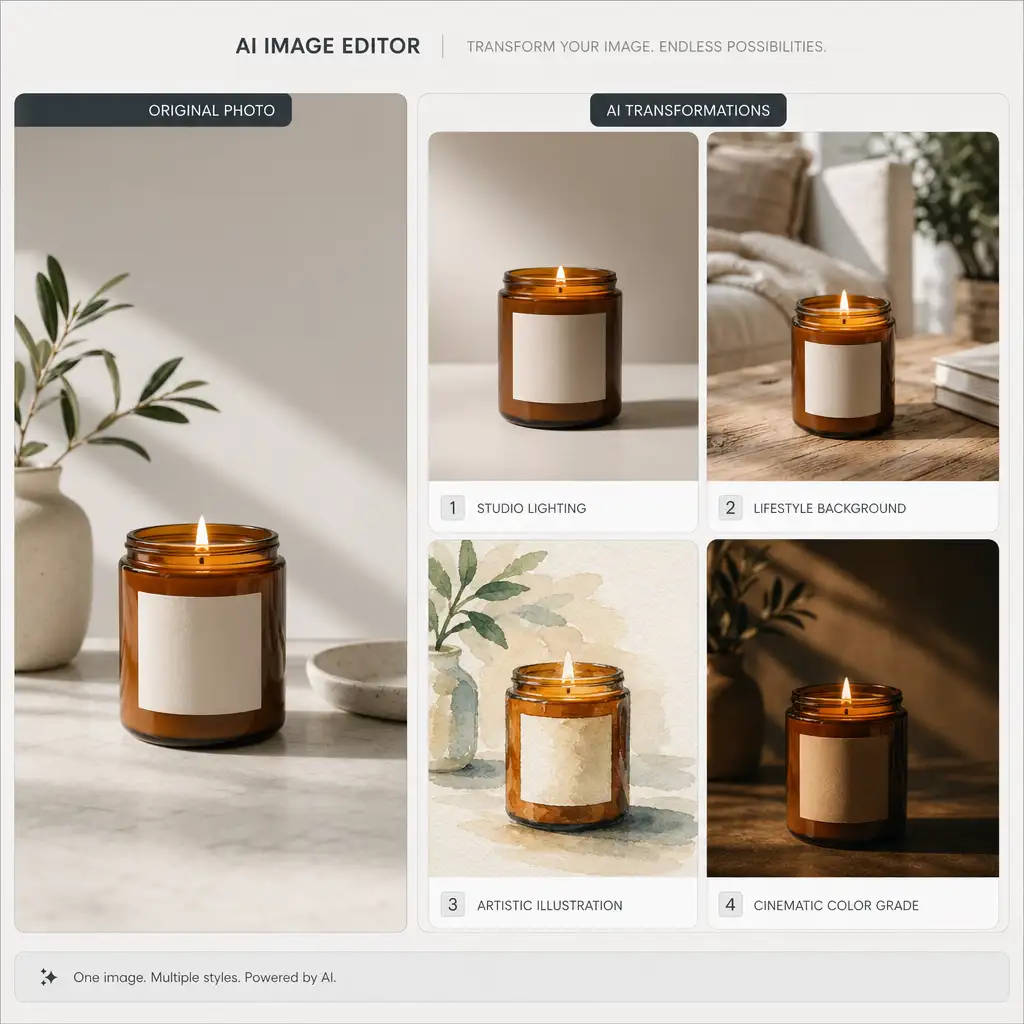
You can adjust lighting and mood, change backgrounds or environments, shift artistic styles, modify seasons or time of day, refine compositions, apply color grading, enhance details, or blend multiple images. The AI image editor interprets your prompt and applies transformations intelligently. You're not limited to predefined filters—describe any change in natural language and the model will attempt it, giving you creative flexibility without technical barriers.
How do I maintain consistency when editing multiple images?
Set a seed to reproduce the same transformation logic across different source images. You can also reuse prompts with minor tweaks, apply the same style preset, and keep model settings consistent. This is especially useful for batch processing product photos, unifying a photo set's look, or maintaining character features across multiple angles. The image-to-image workflow lets you iterate systematically without random variation.
Can I upload multiple images at once for editing?
Yes, if the selected model supports it. Nano Banana Edit allows multiple input images, useful for composition blending or reference-guided transformations. The interface shows how many images the current model accepts and enforces limits automatically. For single-image edits, all models work with one upload. Check the model description in the UI to understand input constraints before uploading.
What file formats and sizes does the image to image AI accept?
Upload JPEG, PNG, or WebP files up to 10 MB each. Most photos and illustrations fall comfortably within this limit. The generator processes your images and returns results in JPEG (smaller, good for most uses) or PNG (lossless, best for pixel-exact work). If your file exceeds the limit, resize or compress it before uploading. Modern phone and camera photos typically work without adjustment.
How fast are image transformations and what do they cost?
Most image to image AI runs complete in a few seconds, depending on model and resolution. Before you generate, the UI displays an estimated credit cost based on your settings. Costs vary by model—faster engines are generally cheaper, high-fidelity models cost more. This transparency helps you plan edits efficiently. If you run low on credits, you can top up or subscribe, and the estimate ensures no surprises.
Can I refine a transformation further after generating it?
Absolutely. Use Continue Edit to feed the result back into the AI image editor, make prompt adjustments, and iterate until you're satisfied. This keeps your workflow fluid—no need to export, re-import, or lose context. You can also copy the seed and prompt from View Details to reproduce a specific result or branch into new variations. The image-to-image generator is built for exploration and refinement.