 Pixlio AI
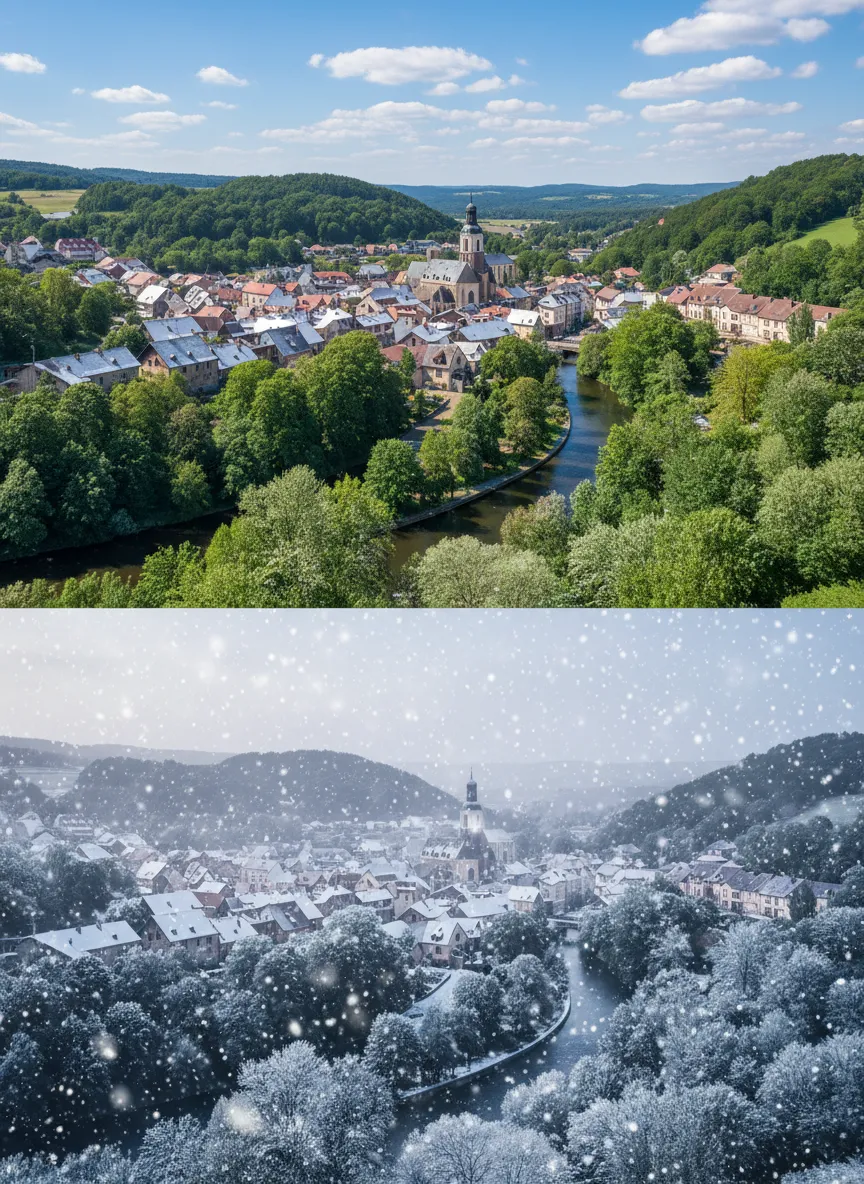
Use the tool below to add snow to photo instantly with AI.
Add Snow to Photo — Transform Image into Winter Scene with Pixlio AI
Want to add snow to photo without complex editing software? Pixlio's free AI tool makes it simple. Upload any landscape, product shot, or outdoor scenery and watch as realistic snowflakes, frosty atmosphere, and winter magic transform your image in seconds. Our intelligent snow effect generator analyzes your photo's composition and lighting to create natural-looking winter scenes that feel authentic. Perfect for seasonal marketing, holiday content, or simply bringing winter vibes to your favorite images. Looking to add snow to portraits or photos with people? Try our specialized AI Snow Photo Generator designed specifically for face-preserving winter transformations.
Why Use Pixlio AI to Add Snow to Photo
Adding snow to photos has never been easier. Pixlio's AI-powered tool delivers professional winter effects without requiring design skills or expensive software. Whether you need a light dusting or a dramatic snowstorm, you have complete creative control over how snow appears in your images.

Realistic Winter Effects That Look Natural
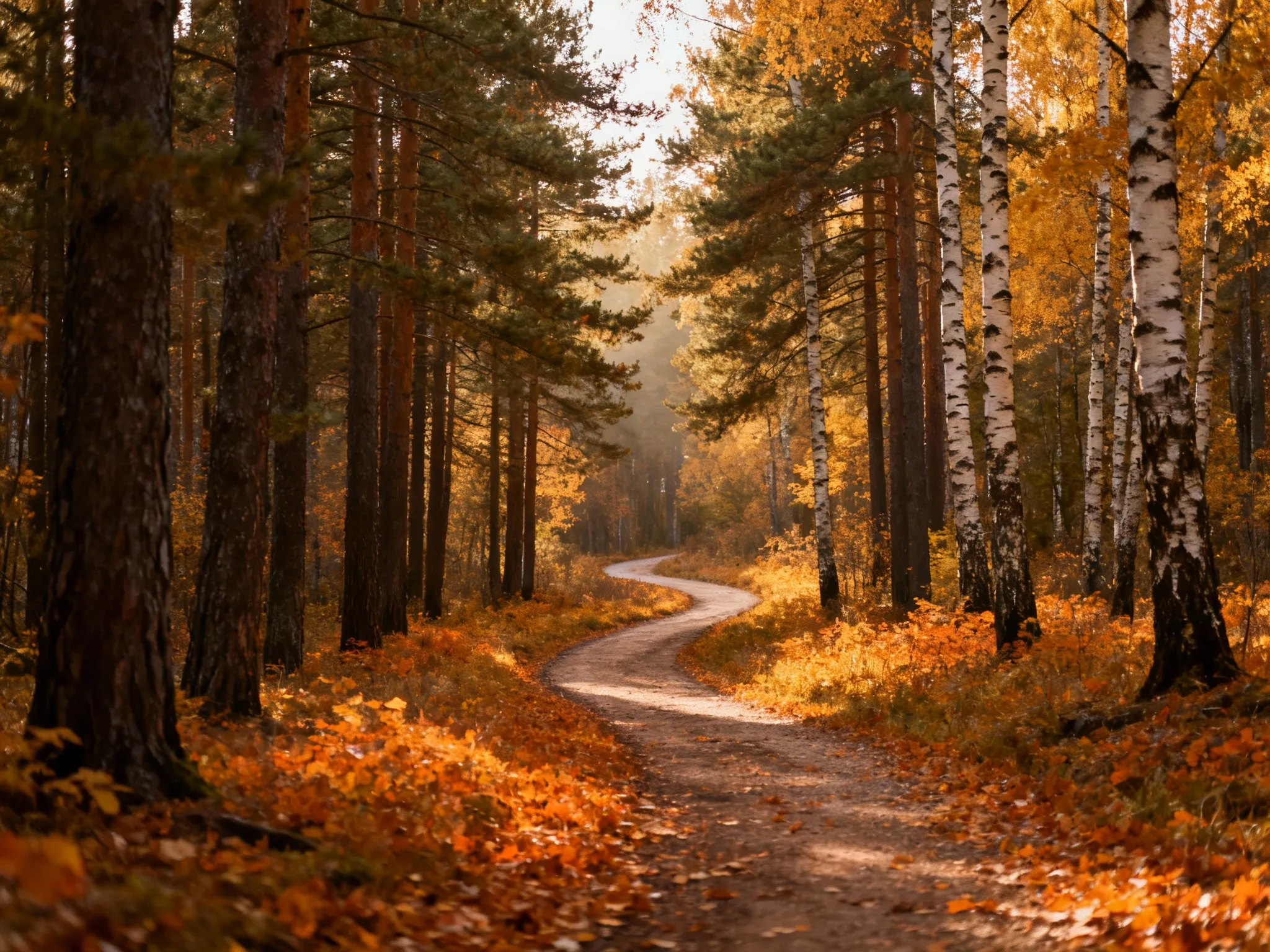
When you add snow to photo using Pixlio AI tool, you get more than simple overlays. The technology analyzes your image's depth, lighting, and composition to place snowflakes realistically throughout the scene. Snow appears at varying distances, creating authentic depth perception. Pixlio AI adjusts snow opacity based on atmospheric conditions in your original photo, ensuring the winter effect integrates seamlessly rather than looking pasted on. From gentle flurries drifting across mountain landscapes to heavy snowfall blanketing city streets, the results look like you captured the moment during an actual winter storm.
Adjustable Snow Intensity for Every Vision
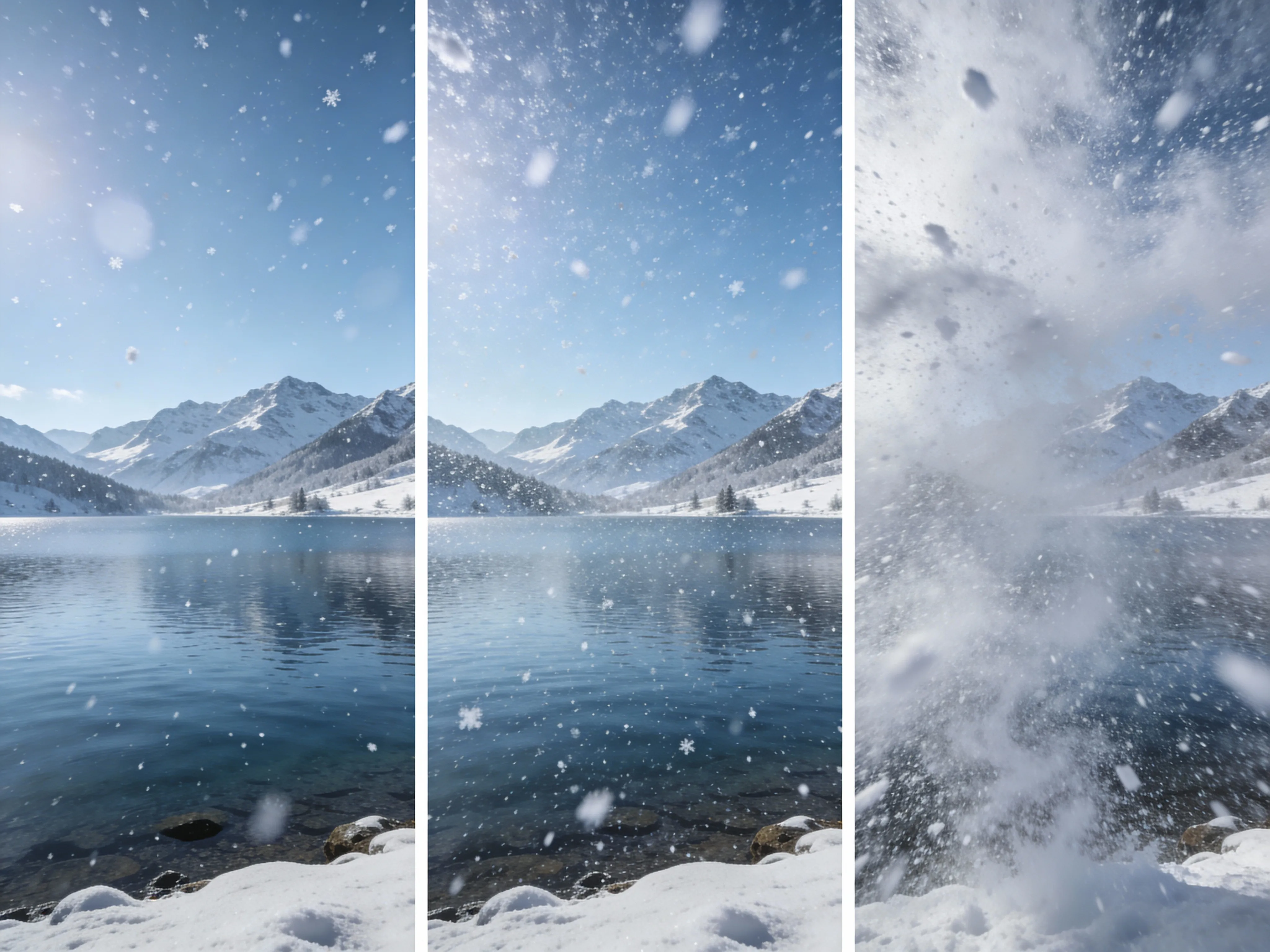
Not every winter scene calls for a blizzard. Pixlio's add snow to photo tool offers three intensity levels so you can match your creative vision perfectly. Light intensity adds subtle, gentle snowfall ideal for creating soft winter atmosphere without overwhelming your subject. Medium intensity delivers balanced snowfall that's noticeable yet natural—great for most seasonal content needs. Heavy intensity creates dramatic snowstorm effects with dense, swirling snowflakes for impactful visual statements. Each intensity level is carefully calibrated to maintain image quality while delivering the winter effect you want.

Browser-Based Convenience, No Downloads Required
Add snow to photo directly in your web browser without installing software or plugins. Pixlio's tool runs entirely online, making it accessible from any device with internet access. Simply upload your image, adjust your settings, and generate your winter scene. The streamlined interface keeps the process fast and intuitive—ideal for busy professionals, content creators, and anyone who needs quick winter photo effects. Your original files stay on your device until you choose to upload them, and generated images download directly to your computer for immediate use.
How to Add Snow to Photo in 3 Simple Steps
Transforming your images into winter wonderlands takes less than a minute. Our streamlined process ensures you can add snow to photo quickly without technical expertise. Follow these three steps to create stunning seasonal imagery.
Perfect for Every Winter Photography Need
Our add snow to photo tool serves diverse creative and professional needs. From nature photographers seeking seasonal variety to e-commerce businesses preparing holiday campaigns, realistic winter effects elevate visual content across industries. Discover how different users transform their images with AI-generated snow.
Landscape & Nature Photography
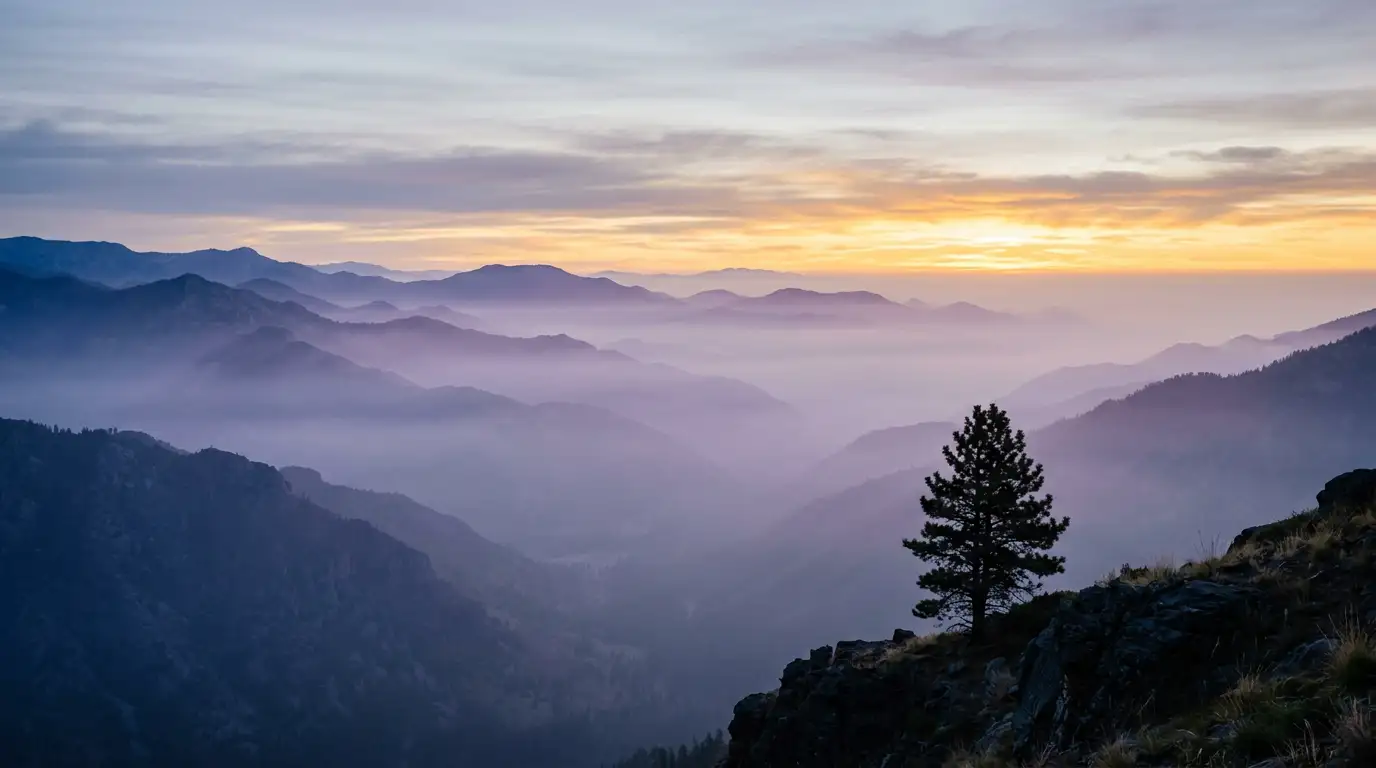
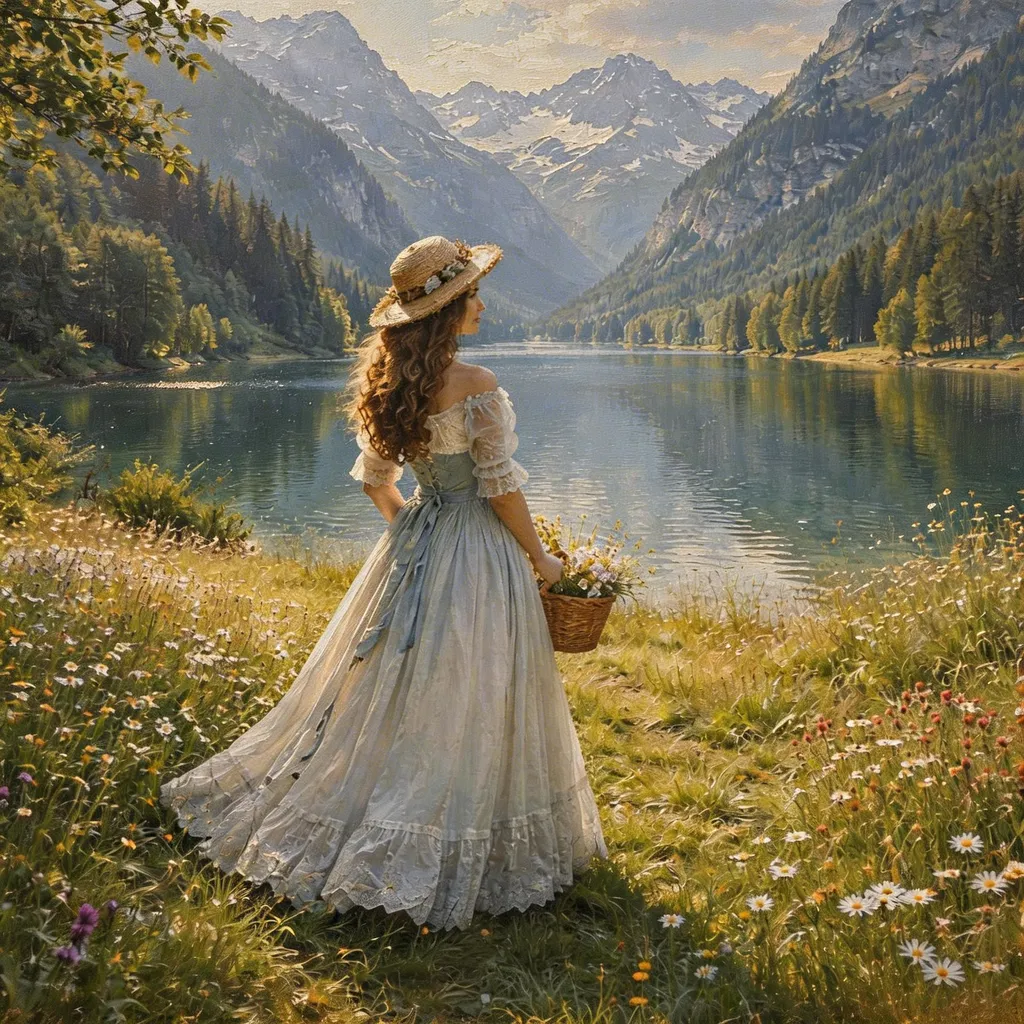
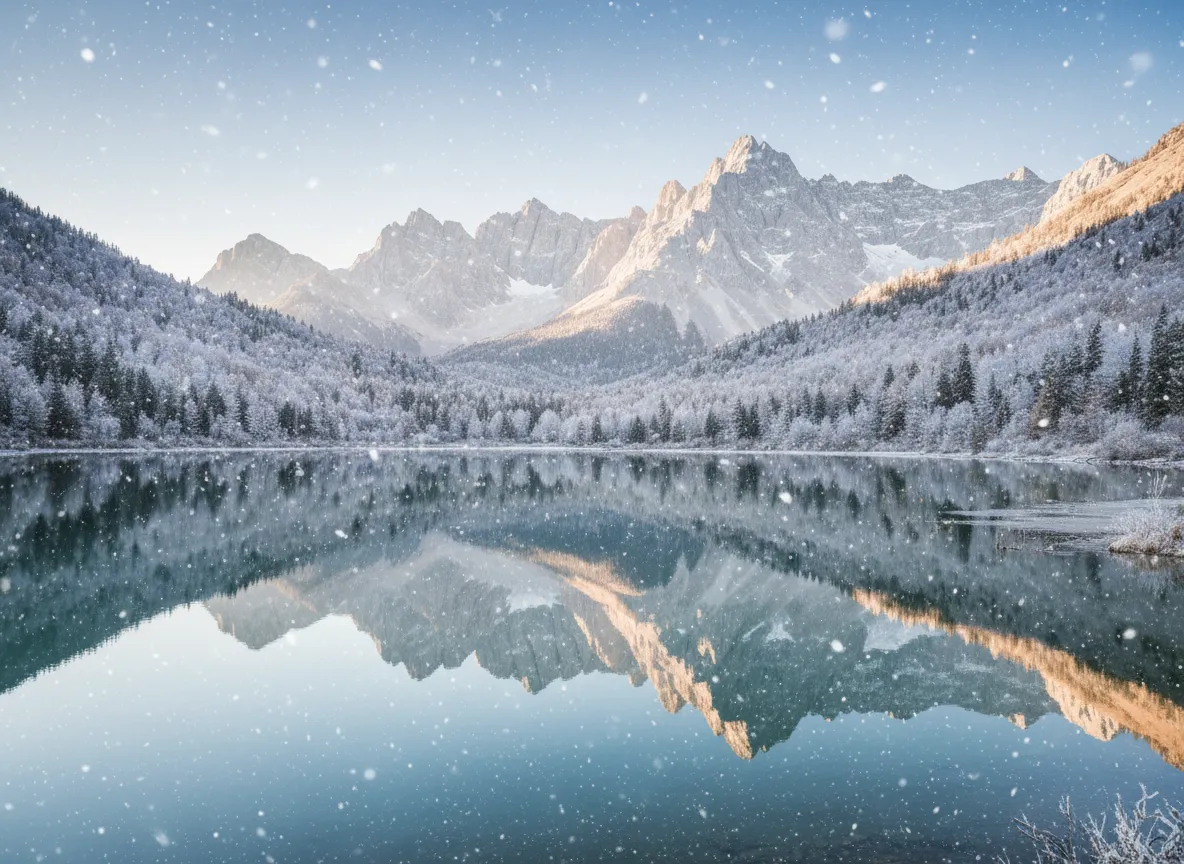
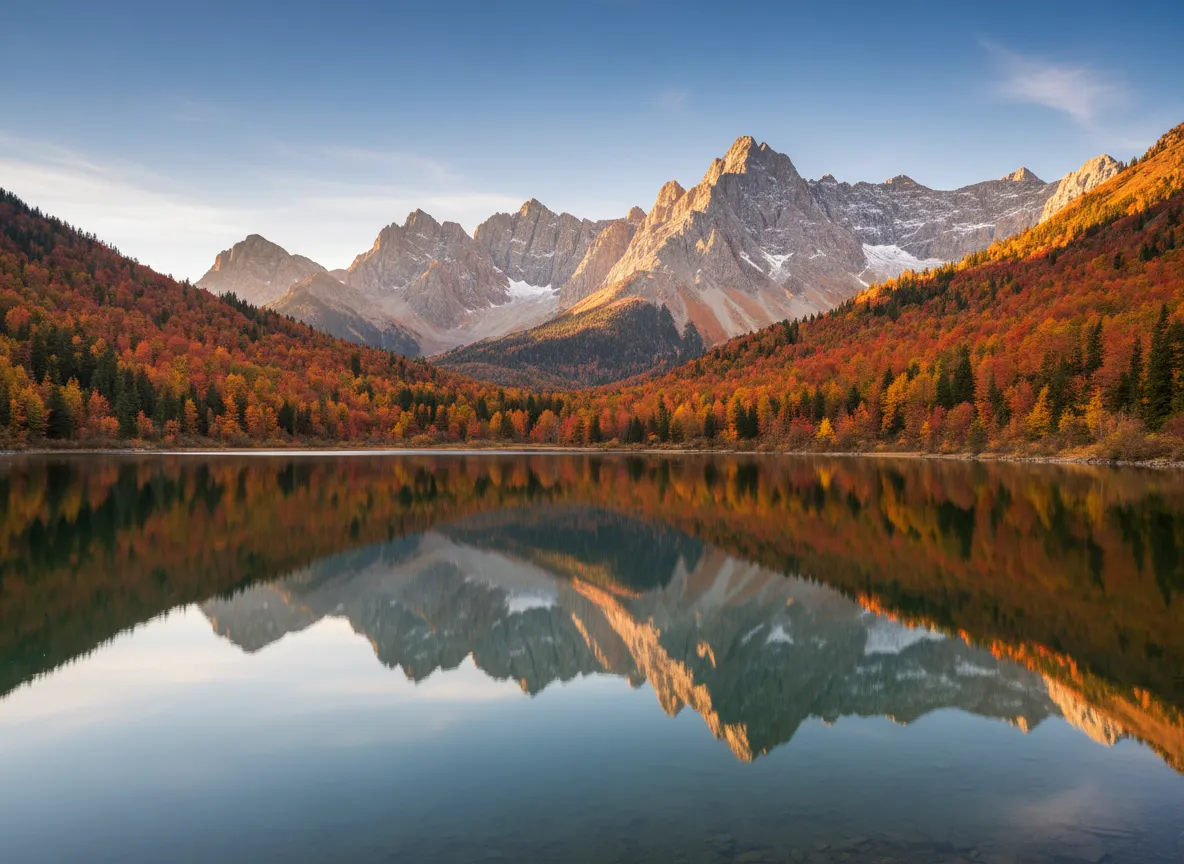
Transform summer and autumn landscapes into winter wonderlands without waiting for snowfall. Add snow to photo of mountain vistas, forest paths, lakes, and countryside scenes to expand your seasonal portfolio. Travel photographers use our tool to create winter versions of popular destinations, while stock photographers diversify their libraries with snow-covered variations. The AI preserves natural details—tree bark texture, rock formations, water reflections—while adding realistic snowfall that matches each scene's lighting and atmosphere.
Product & E-commerce Photography
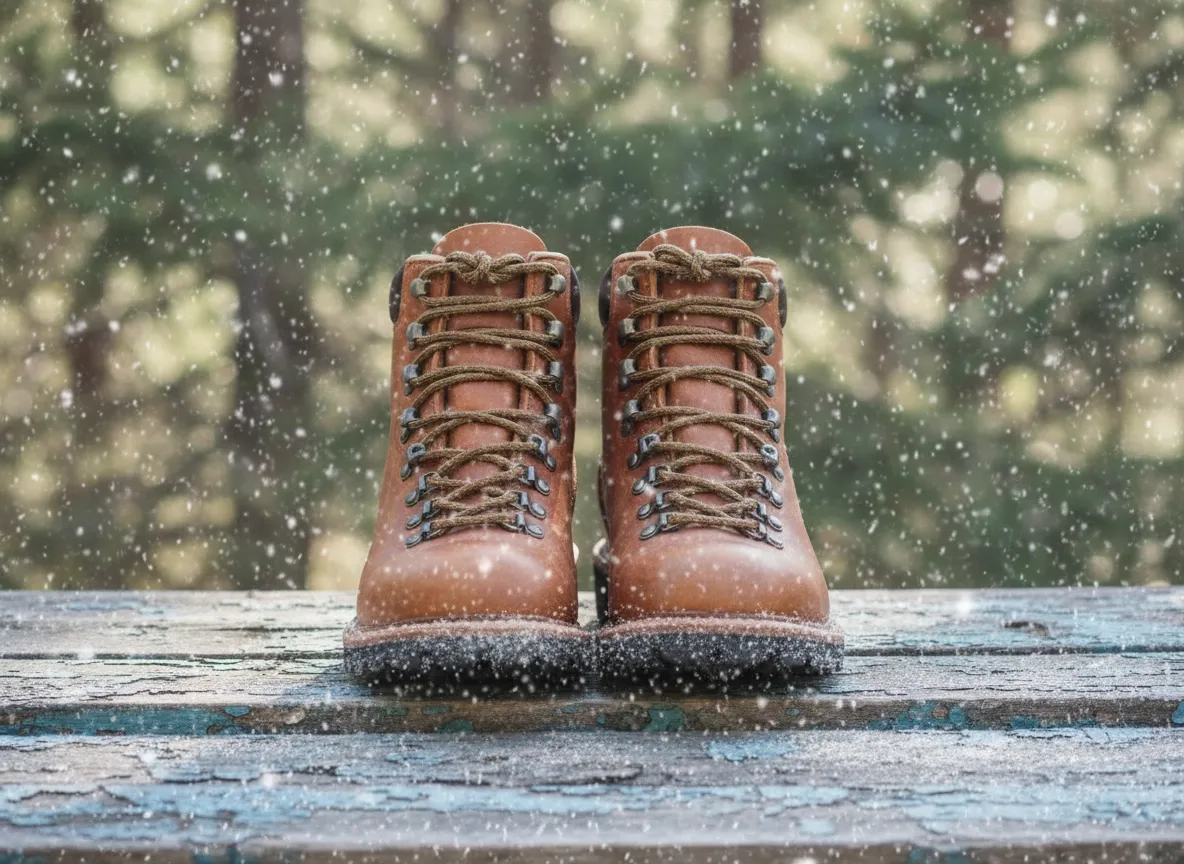
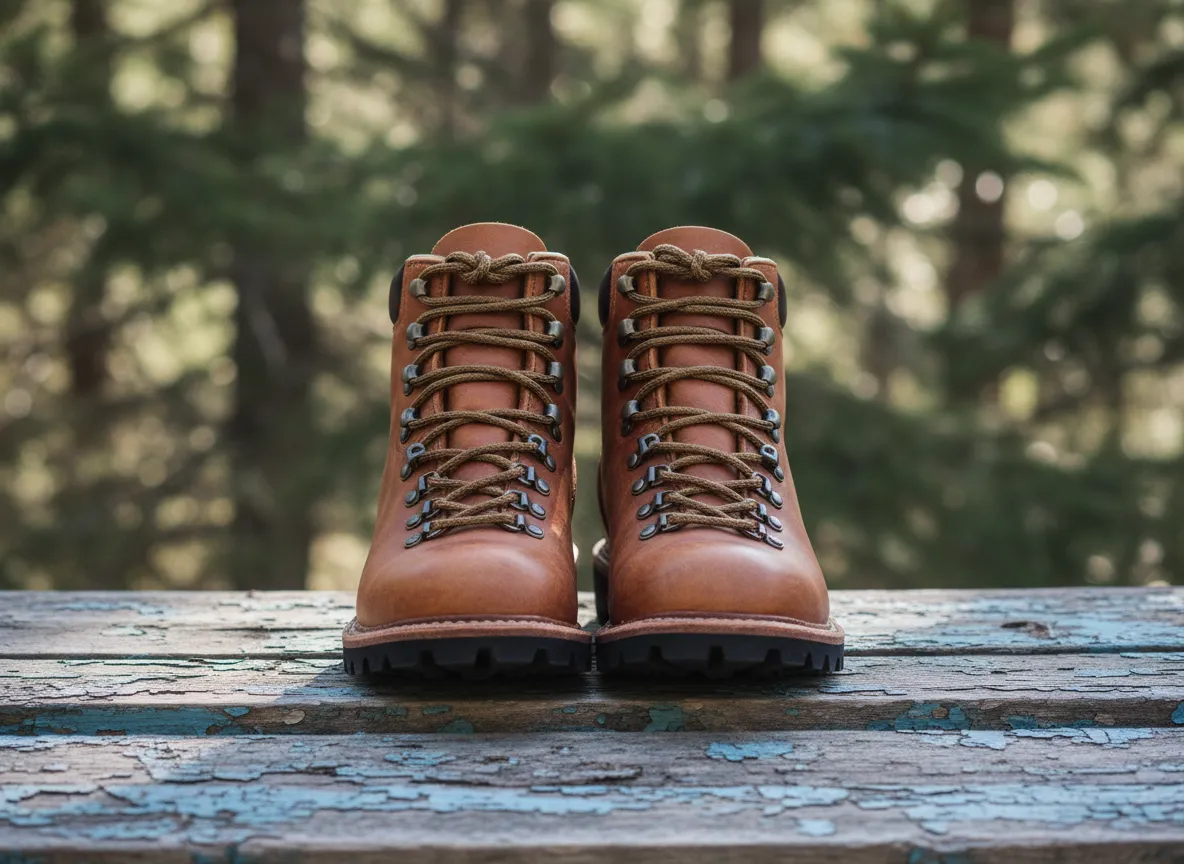
Prepare your product catalog for holiday shopping season by adding snow to product photos. Create cohesive winter-themed imagery for seasonal promotions, gift guides, and holiday marketing campaigns. Our tool works excellently with outdoor gear, home décor, fashion accessories, and any products that benefit from seasonal styling. Add snow to photo backgrounds while keeping your products crisp and clearly visible. Pixlio AI intelligently focuses snowfall on the environment rather than obscuring your merchandise.
Architecture & Real Estate
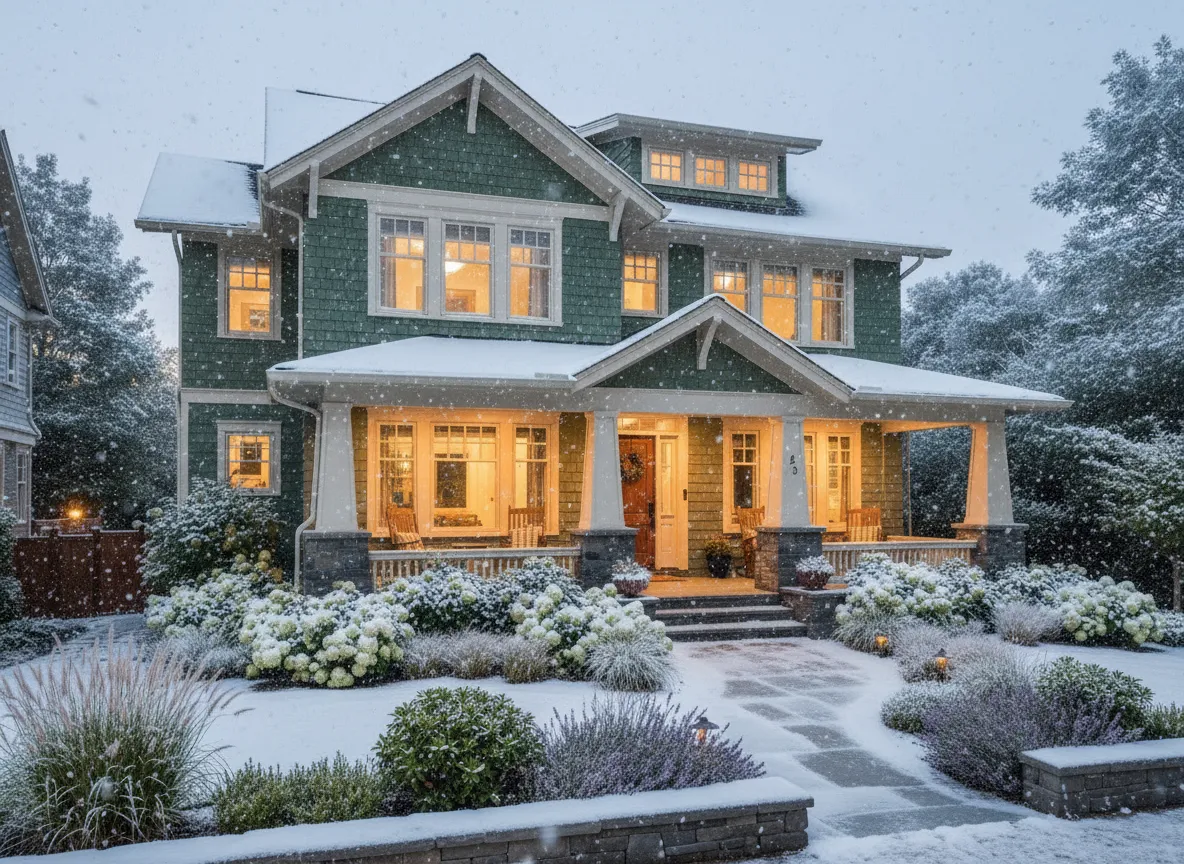
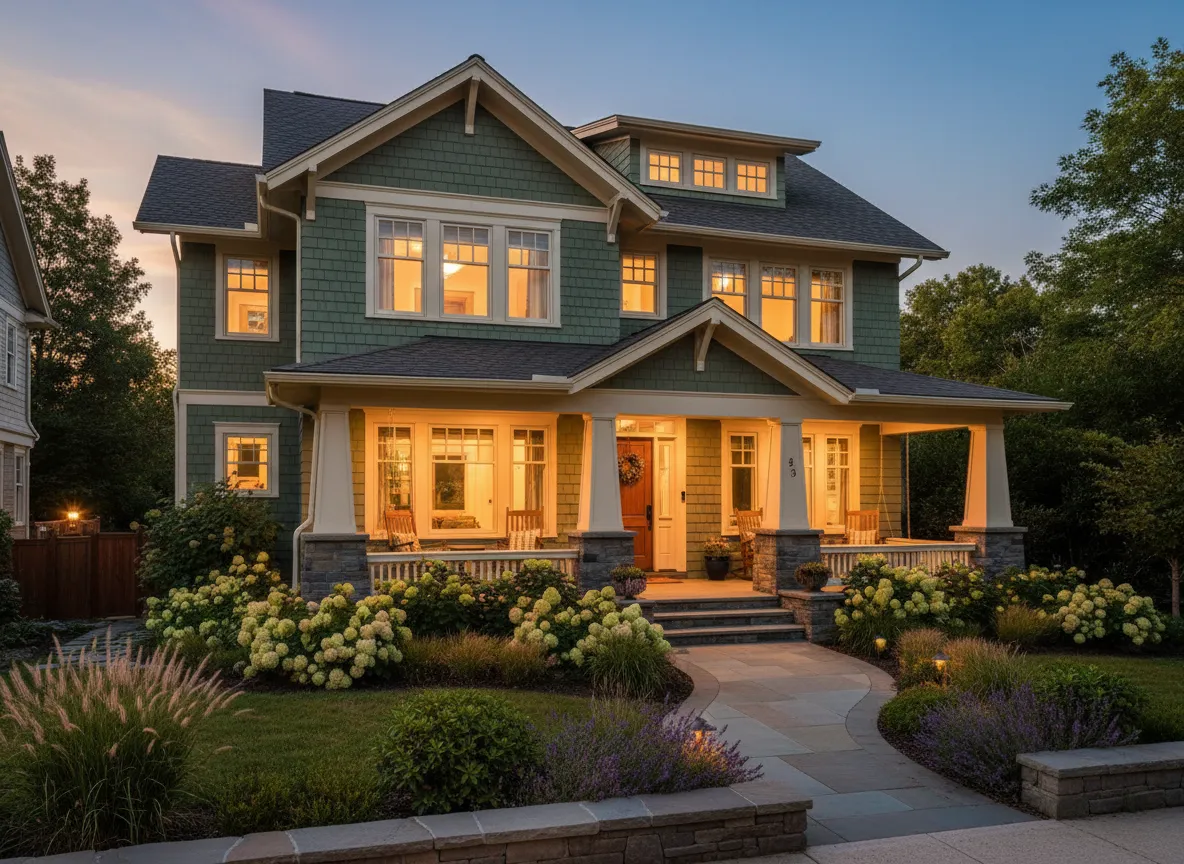
Showcase properties in charming winter settings by adding snow to real estate photos. Help potential buyers envision cozy winter evenings in their future home with snow-dusted exteriors and winter landscaping. Architects and designers use our tool to present projects in different seasonal contexts, demonstrating how buildings interact with winter weather. Add snow to photo of commercial properties, residential listings, or architectural portfolios to create compelling seasonal marketing materials that stand out in competitive markets.
Add Snow to Photo: Common Questions
How does the add snow to photo tool work?
Pixlio AI analyzes your uploaded image to understand its composition, lighting, and depth. It then generates realistic snowfall that integrates naturally with your scene. The snow placement considers perspective and atmospheric conditions, creating authentic winter effects rather than simple overlays. The entire process takes just seconds, delivering professional results without manual editing.
Is Pixlio's add snow to photo tool free to use?
Yes, you receive free credits when you sign up, allowing you to add snow to photos immediately. Each generation uses a certain number of credits, and you can see the estimated cost before creating your winter image. Additional credits are available through affordable plans if you need to process more images.
What types of photos work best for adding snow effects?
Landscape photography, product shots, architecture images, and outdoor scenery produce excellent results. Clear, well-lit photos with good contrast transform most effectively. Both daylight and evening photos can be enhanced with snow effects. For portrait photography or images with people, we recommend our specialized AI Snow Photo Generator which preserves facial features while adding winter atmosphere.
What's the difference between this tool and the AI Snow Photo Generator?
This add snow to photo tool is optimized for landscapes, products, architecture, and scenery without people. The AI Snow Photo Generator is specifically designed for portraits and photos featuring people, with technology that preserves natural facial features while adding snow effects. Choose based on your image content for optimal results.
Can I control how much snow appears in my photo?
Absolutely. We offer three snow intensity levels: Light for gentle, subtle snowfall; Medium for balanced winter atmosphere; and Heavy for dramatic snowstorm effects. You can also switch Photo mode between Scene (no people) and People (portraits). In People mode, optional style presets help you fine-tune the winter aesthetic.
What file formats can I use to add snow to photo?
Our tool accepts JPG, PNG, and WebP image formats. Files up to 10MB are supported for optimal processing. Higher resolution source images generally produce better results, though the Pixlio AI works well with various image qualities.
Can I use photos with added snow for commercial purposes?
Pixlio AI creates licensable outputs designed for everyday creators, businesses, and content producers. Users can add snow to photos for marketing campaigns, e-commerce listings, and professional projects. Review your specific plan details and our Terms of Service for complete information about commercial usage rights.
How long does it take to add snow to a photo?
Most snow effect generations complete in just a few seconds. Upload your image, choose Photo mode and snow intensity (and a style preset in People mode), then click generate. The AI processes your photo quickly, delivering winter-ready results almost instantly, so you can experiment with different settings.
More AI Image Tools
Explore our collection of AI-powered image tools designed for different creative needs and styles