 Pixlio AI
Start creating videos with the AI video generator below.
Your active render and selected creations appear here.
Pixlio AI Video Generator: Turn Words, Images, and References Into Video
Need a video clip but don't have a camera crew or editing suite? Pixlio's AI video generator creates clips from text, animates a still image with start and end frames, or guides the result with reference media. All from one workspace with a growing library of AI models.
Three Ways to Create Video With One AI Video Generator
Quick social clip, animated product shot, or reference-guided cinematic scene—the AI video maker handles each workflow in a single interface instead of bouncing between model-specific tools.
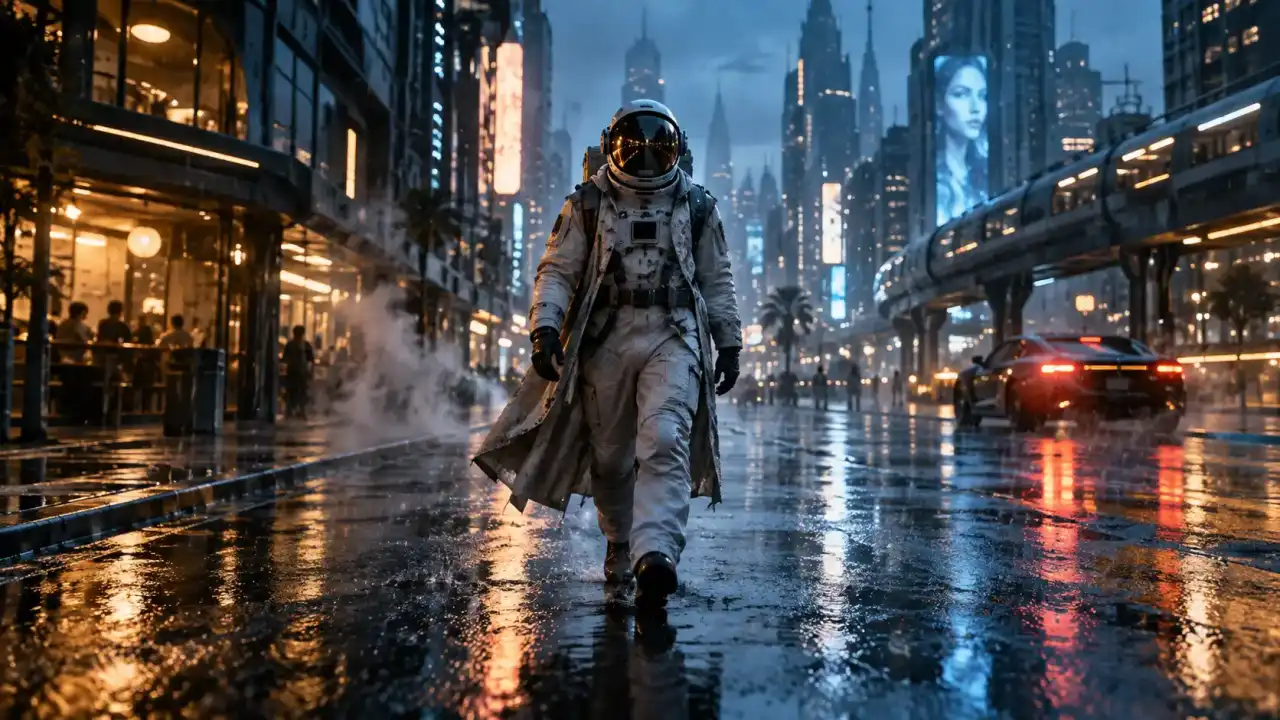
From a Prompt to a Finished Clip
Have a concept but no footage? Describe the subject, motion, camera angle, lighting, and mood in a text prompt, pick a model, and generate. Every model supports Text to Video, which means you can run the same prompt through different engines, compare the outputs, and keep the one that works best.
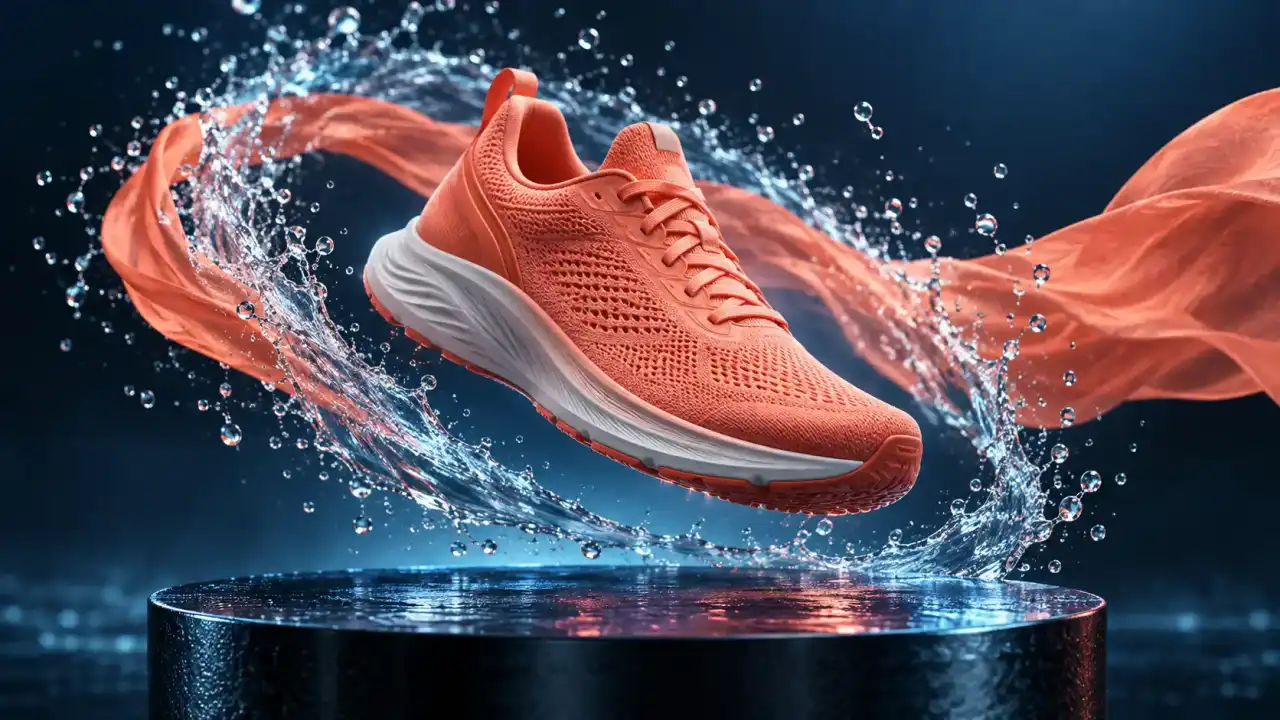
Turn a Photo Into Motion With Keyframe Control
Already have product photos or concept art? Upload a start frame, optionally set an end frame on supported models, and the AI video creator fills in the motion between them. Static product shots become short animated showcases; illustrations and moodboard stills gain movement without frame-by-frame effort.
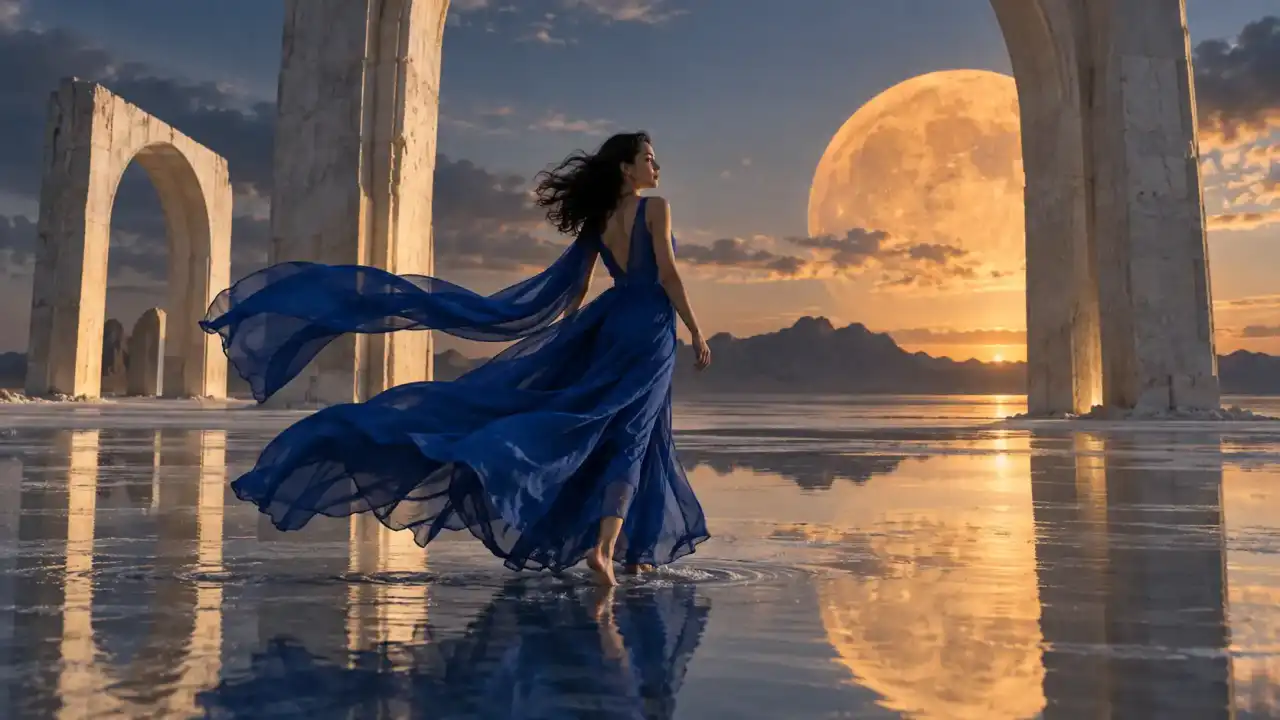
Feed It References and Shape the Output
Reference to Video mode goes beyond a text prompt. Depending on the model, you can combine images, video clips, audio files, documents, and even a webpage URL as creative input. Seedance 2.0 combines up to twelve image, video, and audio references, Gemini Omni Flash accepts up to ten images and three short videos, Grok accepts up to seven reference images, both Wan AI models mix media across five input types, and MiniMax H3 Max takes up to twelve files—giving you far more control over look, motion, and sound.
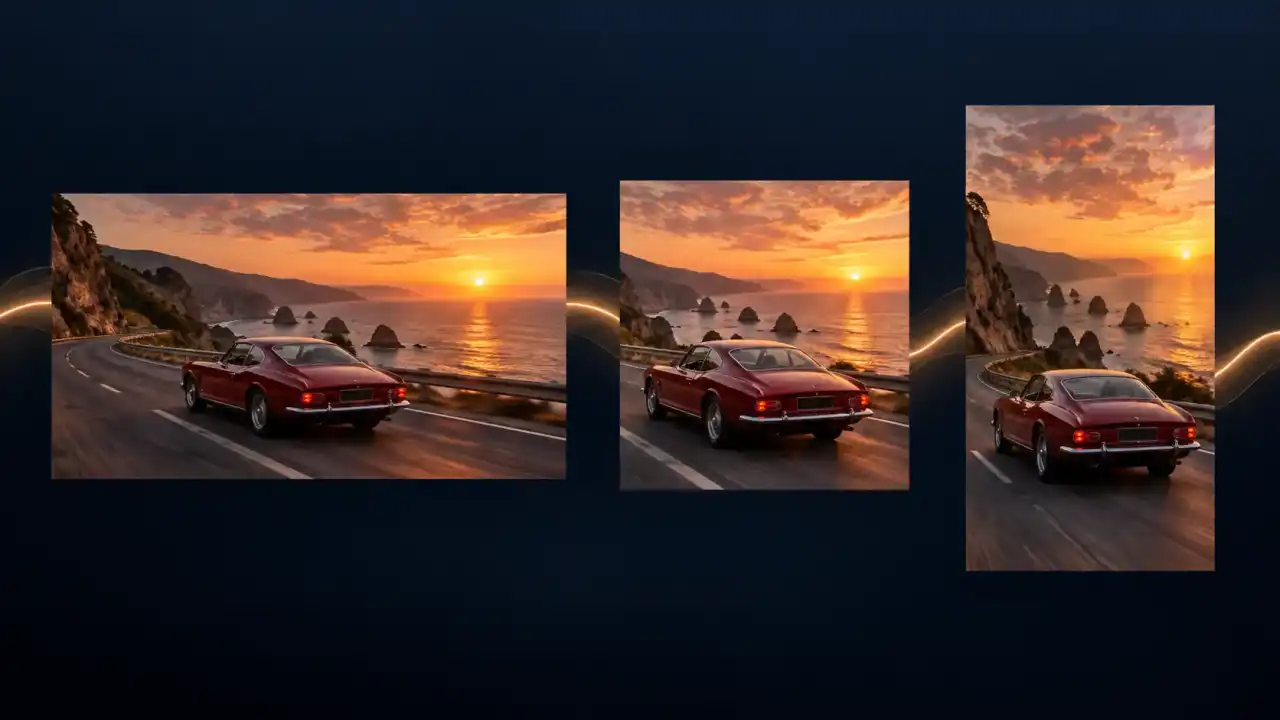
Dial In Settings That Actually Change the Output
Controls adapt to whichever model and mode you select. Aspect ratios cover landscape, portrait, square, and ultrawide where supported. Duration runs from 1 to 30 seconds, resolution goes up to 4K on eligible models, and you can toggle synchronized audio or lock a seed for more repeatable iterations. A live credit estimate keeps the cost visible the whole time.
Why Creators Pick Pixlio's AI Video Generator
Multiple models and three generation modes under one roof. The AI video maker shapes itself around your project instead of locking you into a single model's quirks.

Compare Models Side by Side in One Place
Seedance 2.5 for long-form clips, Seedance 2.0 for 4K mixed-reference video, Gemini Omni Flash for fast multimodal video with native audio, Wan 3.0 and Wan 3.0 Prime for advanced mixed references, and Grok for built-in audio. The model picker lays out capabilities, plan access, and starting credit cost upfront—pick the engine that matches your project instead of juggling separate platforms.
Try the AI Video Generator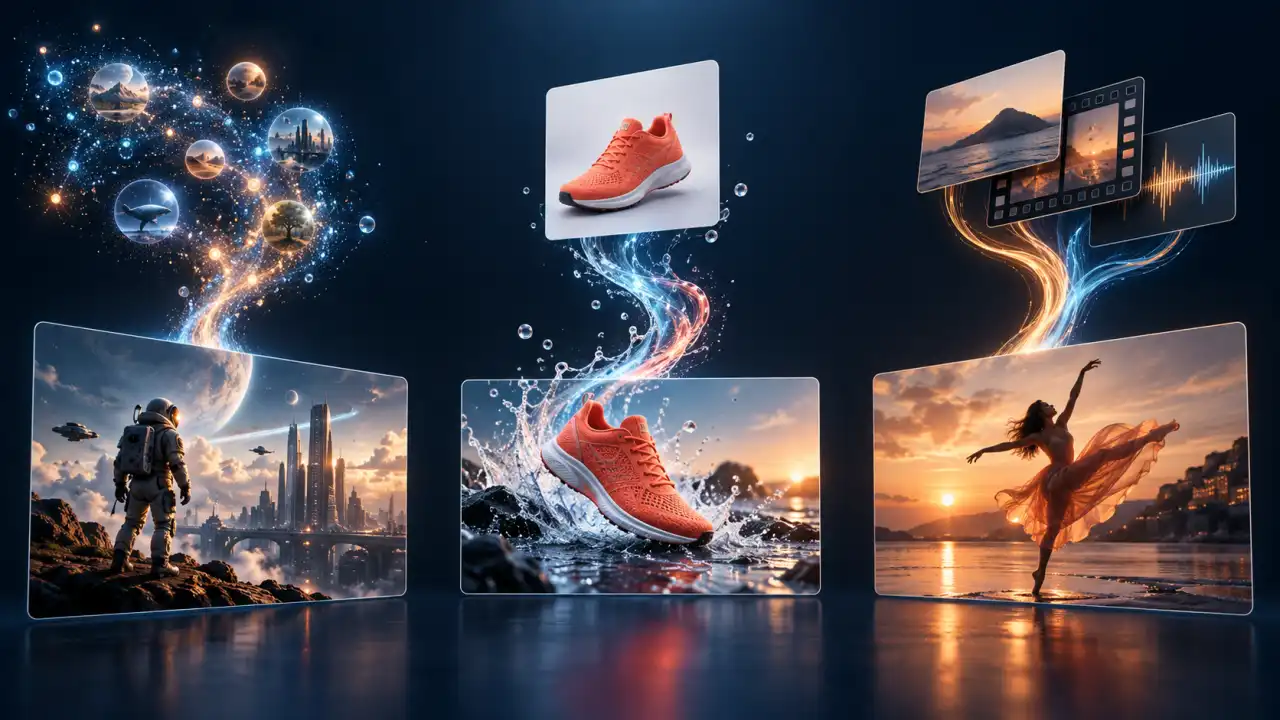
Pick Your Starting Point: Text, Image, or Mixed References
Write a prompt from scratch, animate an existing image with keyframe control, or hand the model a mix of reference assets. Only the inputs and settings that apply to your selected model and mode appear on screen—nothing is grayed out, nothing is buried in an advanced menu.
Try the AI Video Generator
Add Sound and Match Any Screen Format
Seven models offer a toggle for synchronized audio generation; Grok produces built-in audio on its own. Aspect ratios include landscape, portrait, square, and ultrawide depending on the model and mode, so clips come out sized for the platform you're targeting.
Try the AI Video Generator
See What a Video Will Cost Before You Generate
A live credit estimate sits below the Generate button and recalculates whenever you change model, duration, resolution, or audio. Draft cheaply with a lightweight model, then step up to a higher-quality option for the final take. You always know the price before you commit.
Try the AI Video GeneratorHow to Create Videos With This AI Video Generator
Most people go from sign-up to a downloaded clip in under five minutes. The AI video maker stays out of the way so you can focus on the creative idea, not the interface.
Who Uses Pixlio's AI Video Generator?
A single clip for a pitch deck or a batch of social content—the AI video creator plugs into creative and business workflows without replacing your existing stack.
Content Creators and Social Media Teams
TikTok, Reels, YouTube Shorts, Stories—each platform wants video, and none of them wait for your production schedule. Describe a scene or animate an existing image, match the aspect ratio to the platform, and download a clip that's ready to publish.

Marketers and Product Teams
Product photos don't have to stay static. Upload one as a start frame, describe the setting, and generate a short animated showcase for a campaign pitch or investor deck. Concept footage and mood reels that would normally need a videographer take minutes instead of days.

Artists and Visual Storytellers
Illustrations, mood pieces, cinematic prototypes—Reference to Video mode takes the guesswork out by letting you supply images, clips, and audio that steer the tone and visual direction. Wan 3.0 and Wan 3.0 Prime go further for Pro and Max users: feed either model a written brief as a document or paste a webpage URL, and thinking mode draws from that material.
Iterators and Model Explorers
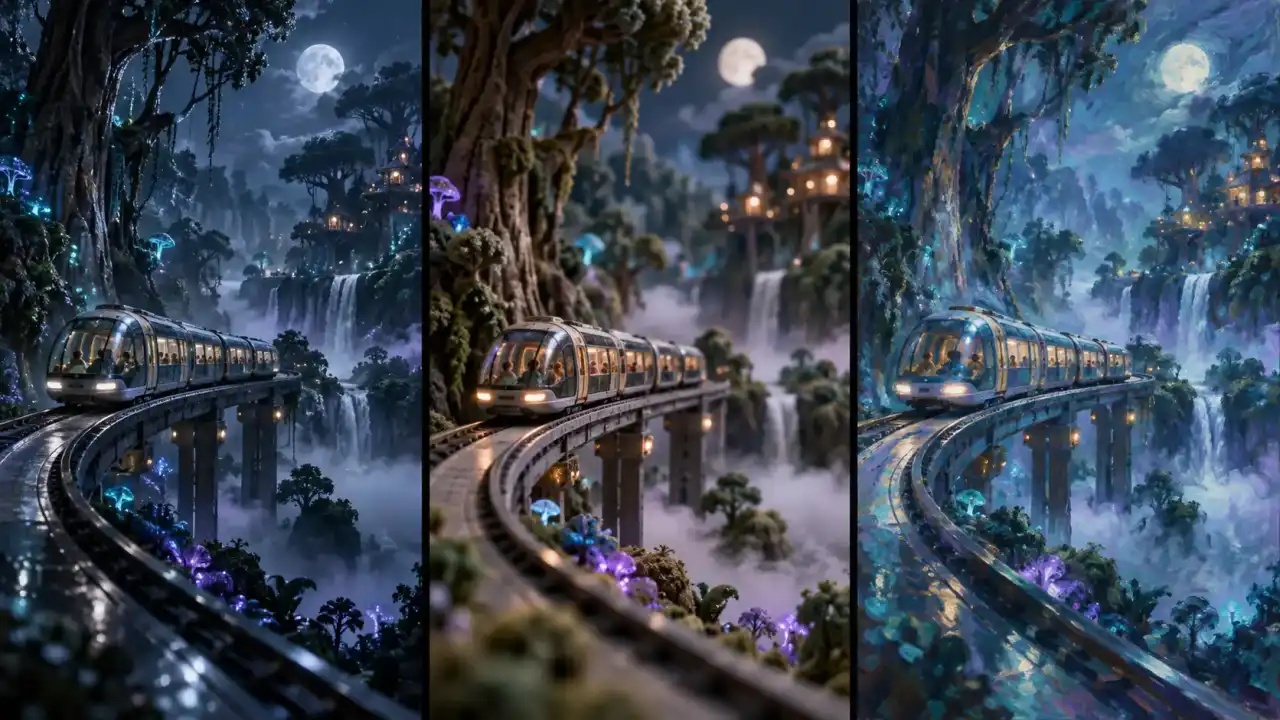
Running the same prompt through Seedance, Wan, and Veo used to mean three browser tabs and three different UIs. Here you switch models in a dropdown, pin a seed for more repeatable iterations, and flip between results in your recent history without losing context.
AI Video Generator Questions Answered
What is an AI video generator and how does it work?
An AI video generator turns written descriptions, still images, or reference media into video clips using AI models. You choose a model, enter a prompt or upload source material, configure duration and resolution, and the AI renders your clip. Most generations finish within a few minutes, and you can preview, download, or revisit results from your creation history.
What generation modes are available?
Three modes are available. Text to Video creates a clip from a written prompt alone and works with every model. Image to Video animates a start frame (and optionally an end frame on supported models) based on your prompt. Reference to Video lets you guide the result with images, videos, audio files, documents, or even a webpage URL—available on Seedance 2.0, Gemini Omni Flash 1.1, Grok Imagine Video 1.5, Wan 3.0, Wan 3.0 Prime, and MiniMax H3 Max.
Which AI models can I use in this AI video maker?
Multiple models are available, including Seedance 2.5, Seedance 2.0, Seedance 1.5 Pro, Kling 3.0, Kling 3.0 Turbo, Kling 3.0 Omni, Gemini Omni Flash 1.1, Veo 3.1 Lite, Veo 3.1 Fast, Grok Imagine Video 1.5, Wan 3.0, Wan 3.0 Prime, MiniMax H3 Max, and MiniMax H3 Max Turbo. They differ in duration range, resolution ceiling, audio support, and reference capabilities. The model picker breaks this down per model along with credit cost, so you're not guessing which one to try.
How long can my videos be, and what's the highest resolution?
Duration and resolution depend on the model. Some models reach up to 30 seconds, while Seedance 2.0, Kling 3.0, Kling 3.0 Omni, Gemini Omni Flash 1.1, and Veo 3.1 Fast support 4K output. Kling 3.0 Turbo offers 720p for 3–8 seconds to every signed-in user with credits; 1080p and longer clips require Pro or Max. Veo 3.1 Lite offers 4, 6, or 8 seconds at 720p to every signed-in user with credits; adding an end frame uses 8 seconds, and 1080p requires Pro or Max. The controls update when you switch models so you always see what's available. Pro and Max also grant access to premium-only models like Seedance 2.5, Seedance 2.0, Kling 3.0, Kling 3.0 Omni, Veo 3.1 Fast, and MiniMax H3 Max.
Can the AI video creator generate videos with audio?
Yes—on supported models. Seedance 2.5, Seedance 2.0, Seedance 1.5 Pro, Kling 3.0, Kling 3.0 Omni, Veo 3.1 Lite, Veo 3.1 Fast, Wan 3.0, and Wan 3.0 Prime expose a toggle to generate synchronized audio alongside the video. Kling 3.0 and Veo 3.1 Lite start with audio off. Seedance 2.0 includes audio at no extra credit cost. Gemini Omni Flash 1.1 produces native synchronized audio, and Grok Imagine Video 1.5 produces built-in audio automatically. MiniMax H3 Max and H3 Max Turbo do not include generated audio. Enabling audio may increase the credit cost on other models.
Is the AI video generator free to use?
You get free credits when you sign up—enough to test models and produce your first clips. After that, generation is credit-based: the estimated cost appears before you hit Generate and updates as you change settings. Subscription plans and credit packs are available for ongoing use.
Can I close the page while a video is generating?
Yes. Video generation runs on the server and can take several minutes depending on the model and settings. You can safely close the tab or navigate away—your clip will keep rendering in the background. When it's done, find it in My Creations.
What file formats can I upload?
For start and end frames or reference images, the tool accepts JPG, PNG, and WebP up to 30 MB each, except Kling 3.0 and Kling 3.0 Omni frames, which are limited to 10 MB, and Veo 3.1 Lite and Fast frames, which are limited to 8 MB. Kling 3.0 Turbo accepts JPG or PNG first frames up to 30 MB. All three Kling models require frames to be at least 300 pixels per side with an aspect ratio from 0.4 to 2.5. Reference videos support MP4, MOV, M4V, and WebM. Reference audio supports MP3, WAV, M4A, and OGG. Documents accept PDF or TXT. Other uploaded files are limited to 30 MB. You can also paste a public HTTPS URL for video, audio, and document references.