 Pixlio AI
Use the tool below to match or correct skin tone online with AI.
Change Skin Color and Fix Uneven Skin Tone with Skin Color Changer
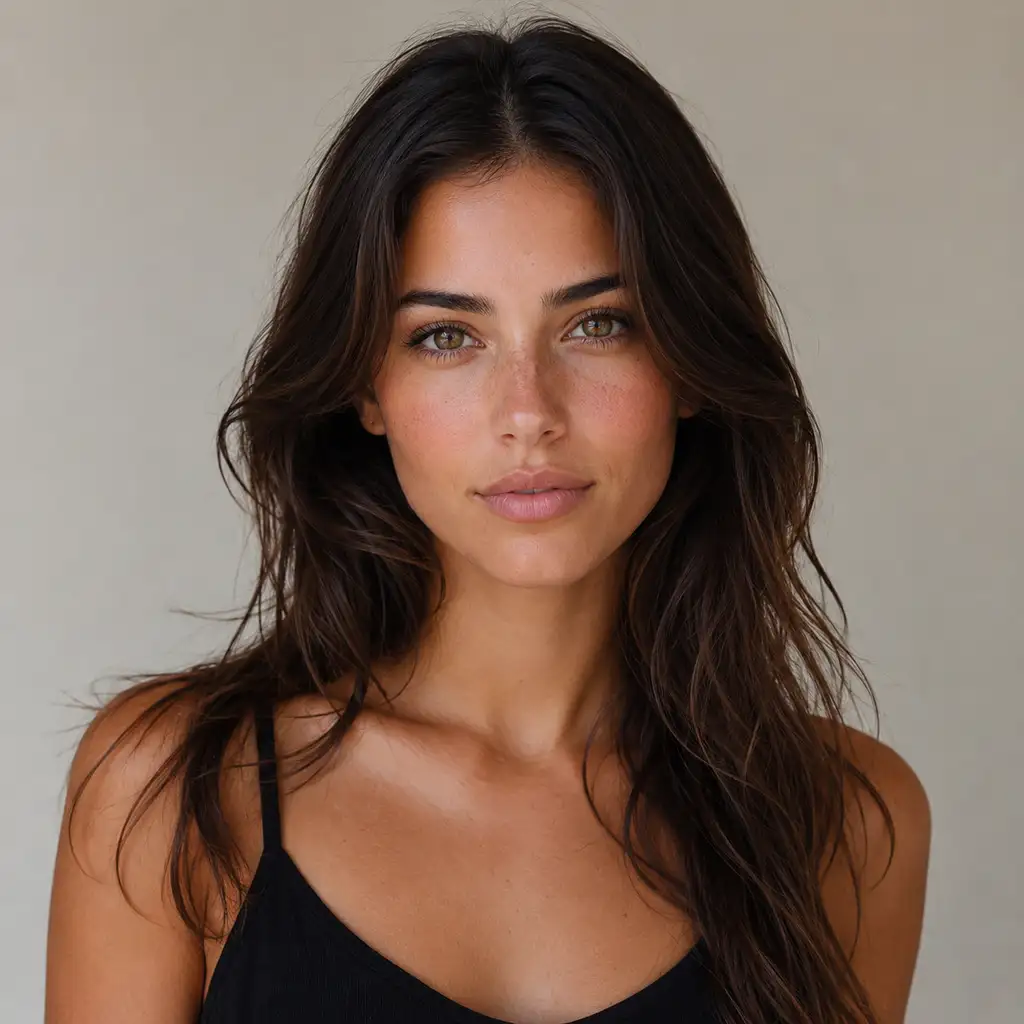
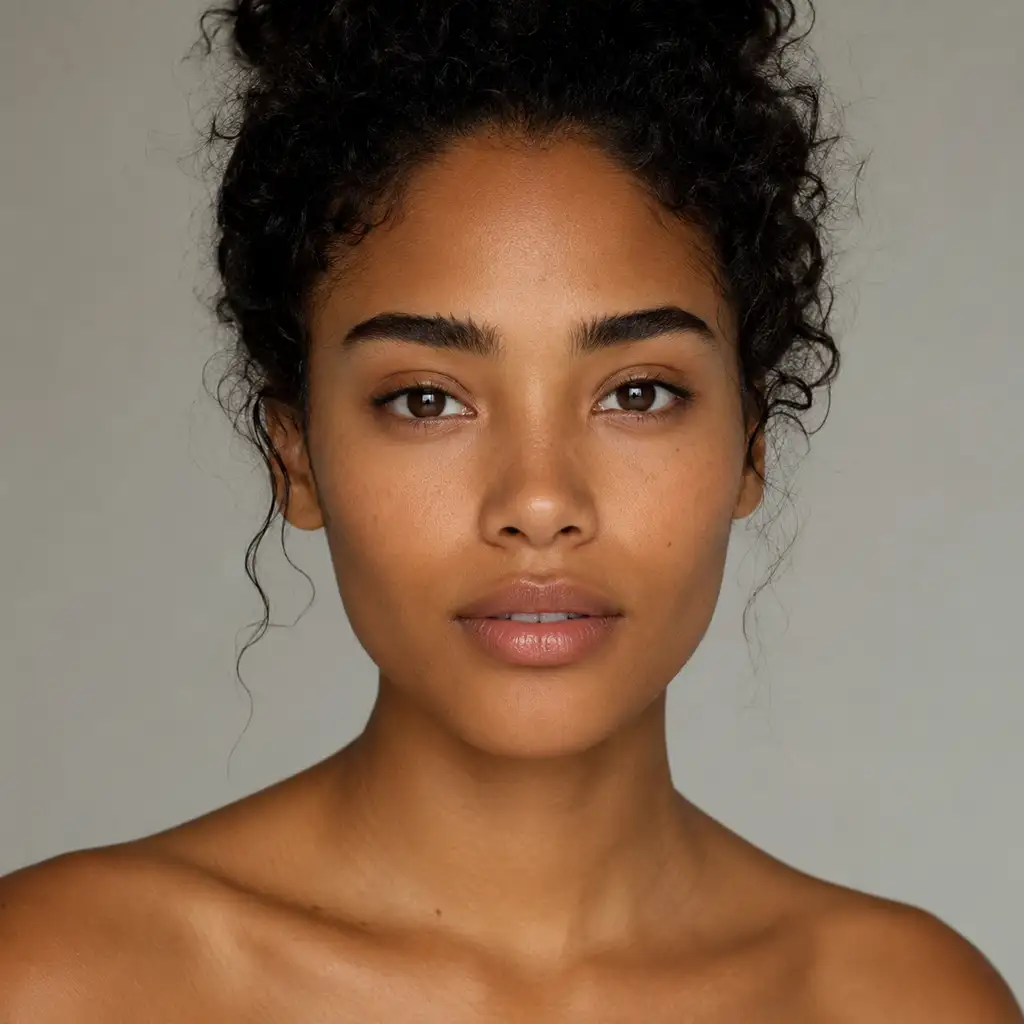
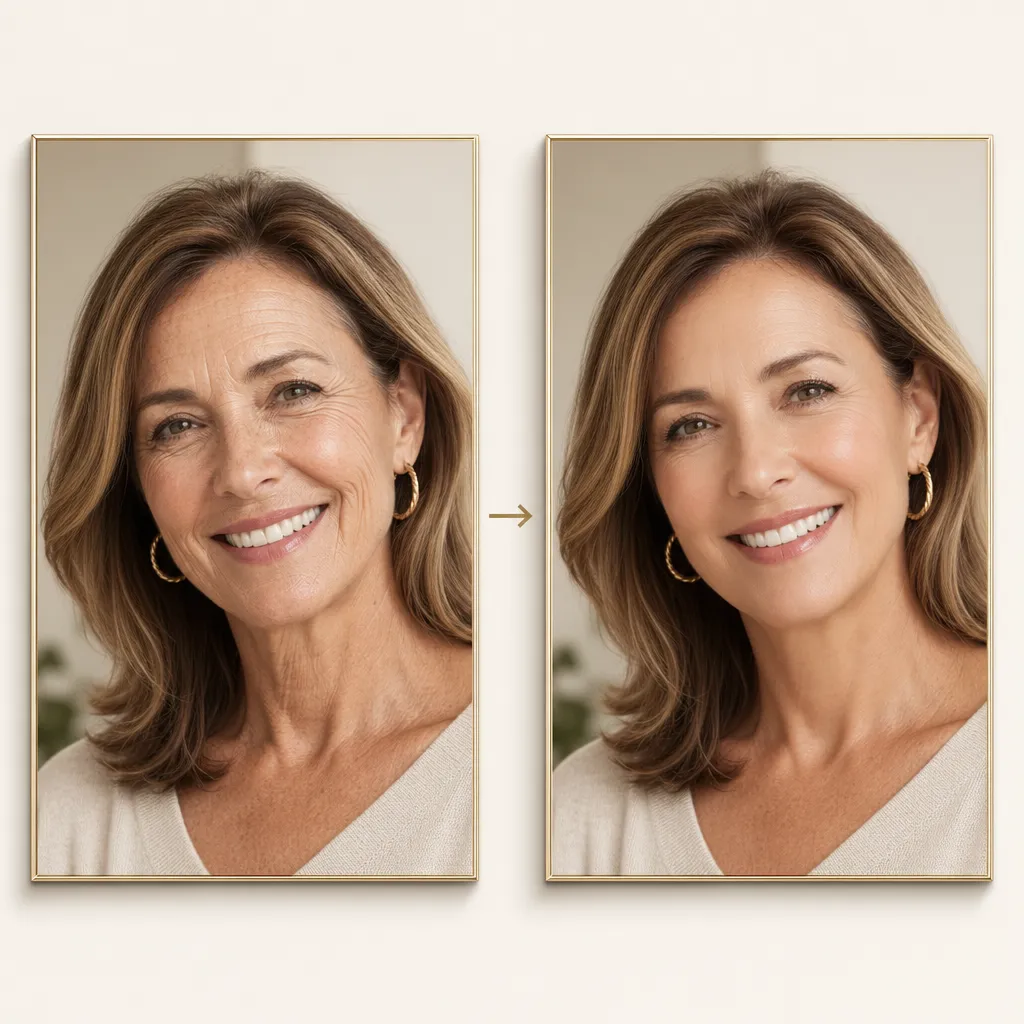
Skin tones can look mismatched, discolored, or uneven due to lighting, makeup, or camera settings. Pixlio's AI skin color changer corrects those problems in seconds. Whether your neck looks orange compared to your face or a color cast threw off the entire shot, this skin color changer gets you a natural, consistent result.
Why our Skin Color Changer Delivers Natural, Accurate Results
Most editing tools treat skin tone as an afterthought. Pixlio's skin color changer is purpose-built for correction—matching, balancing, and fixing tone while preserving everything that makes a person look like themselves.
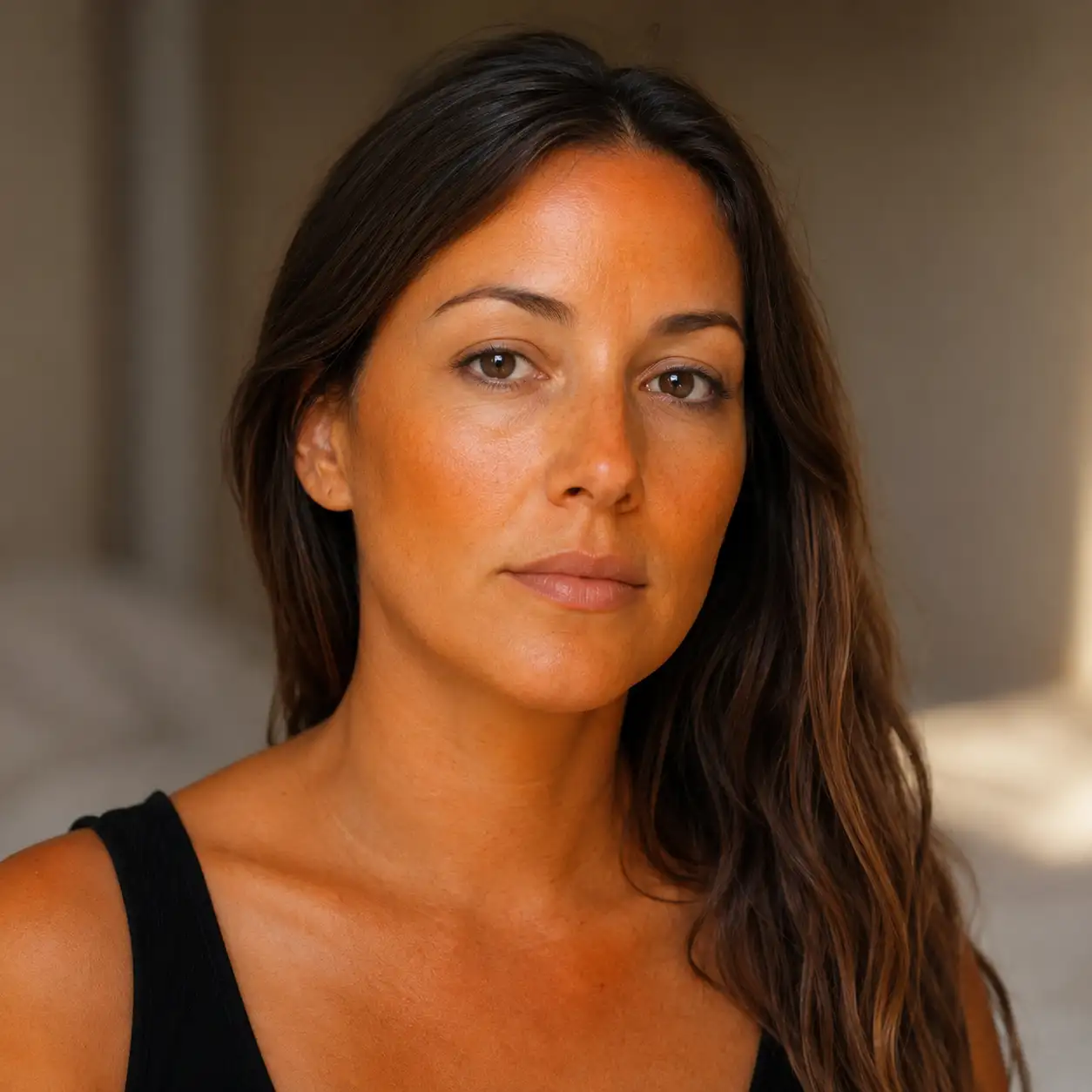
Auto Fix Removes Orange, Gray, and Ashy Skin Color Casts Instantly
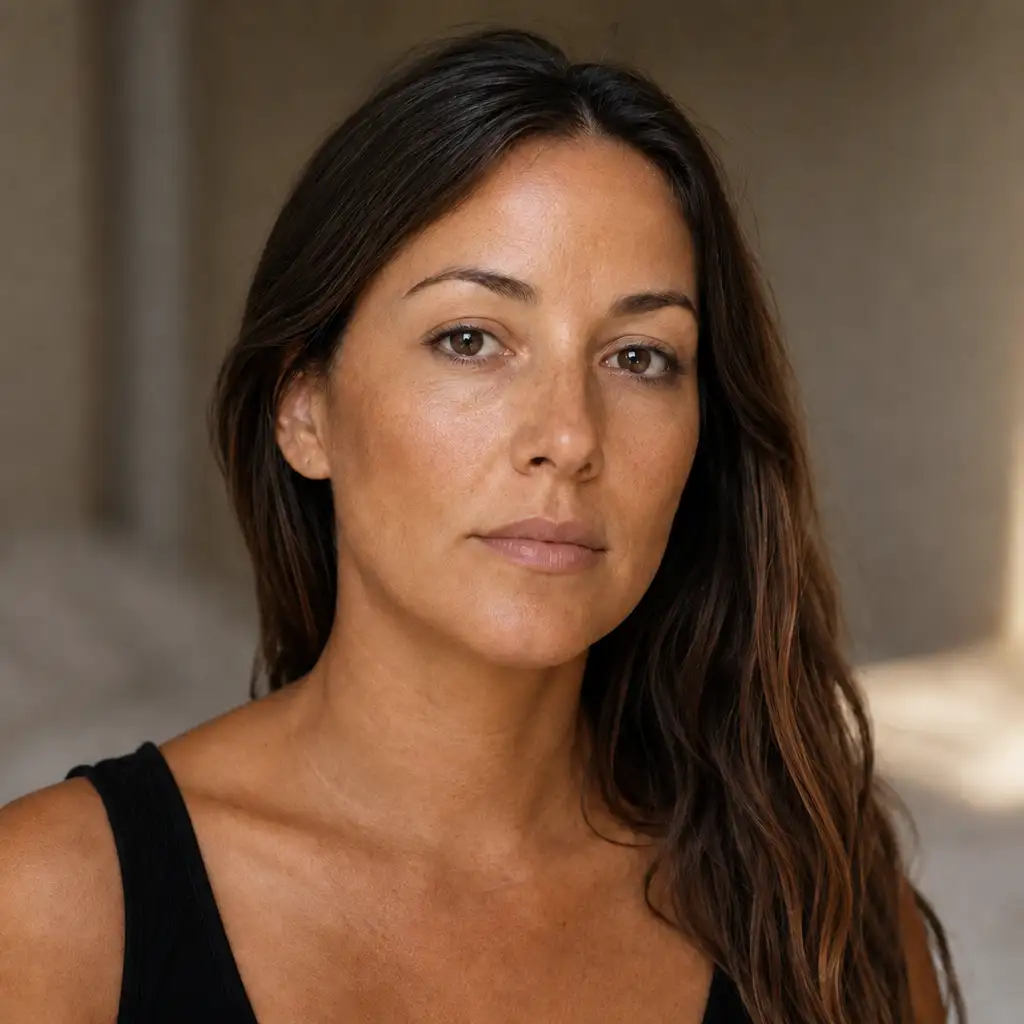
You shot a great portrait, but the skin looks orange under warm indoor lighting or washed-out gray from a cloudy day. Instead of wrestling with HSL sliders, upload the photo and let Auto Fix handle the correction. Pixlio's AI skin color changer detects uneven, orange, gray, green, yellow, and ashy tones, then change skin color to a natural, balanced result. The edit preserves shadows and highlights so the photo still looks like it was taken in the same environment—just with accurate skin color.
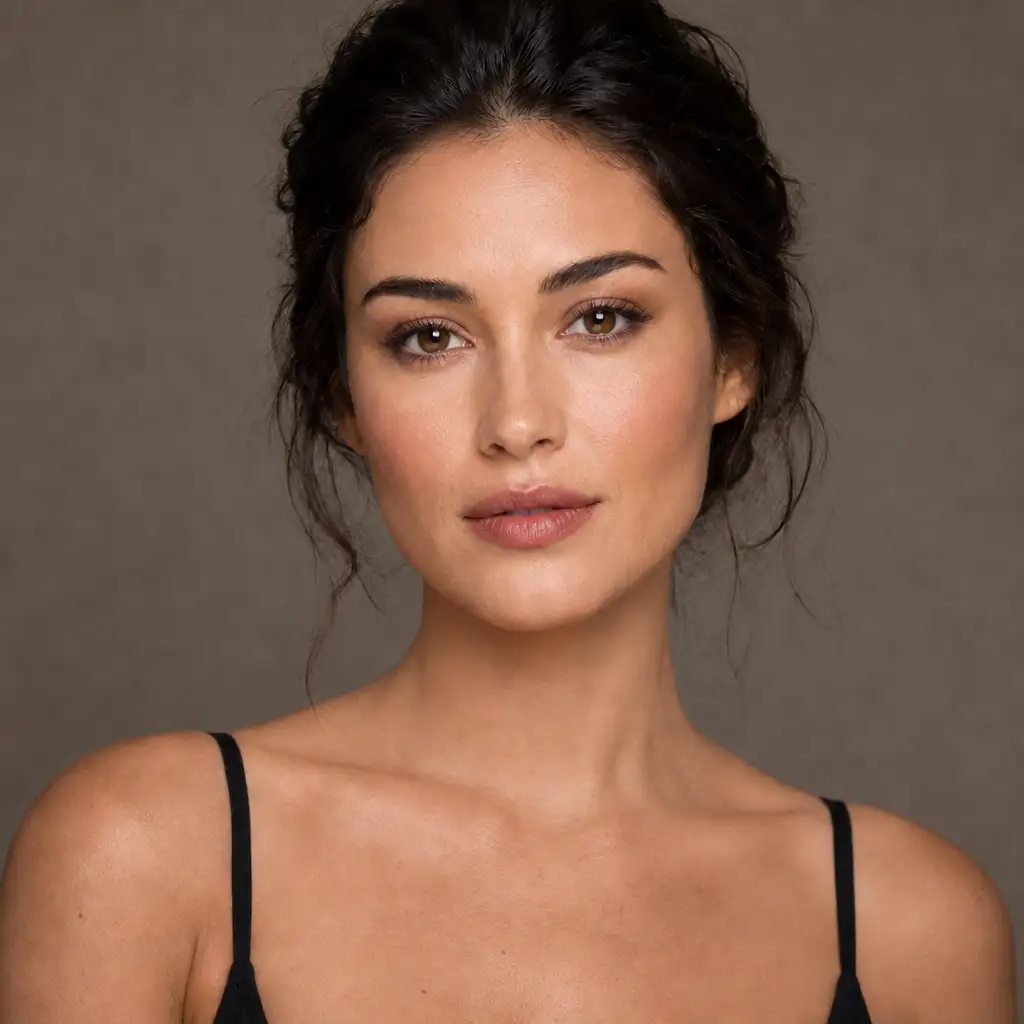
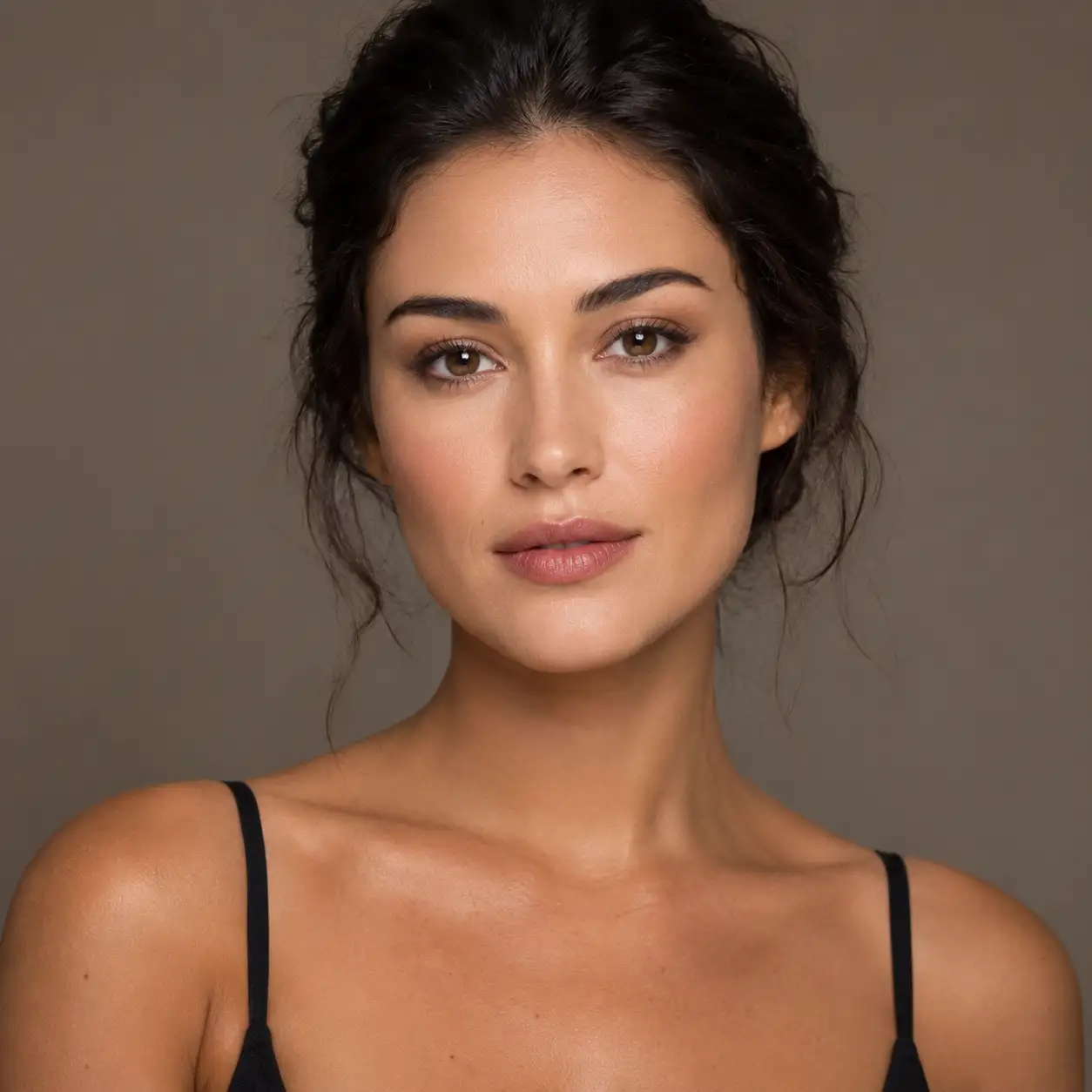
Match Skin Areas to Correct Face-to-Neck Tone Differences in Photos
One of the most common complaints in portrait editing is a face that does not match the neck, chest, or hands. Foundation lines, sunburn, and uneven lighting all contribute. With Match Skin Areas, you click a reference skin region in your uploaded photo—say, a naturally lit chest area—and the tool applies that tone to the target zone. The blending is handled automatically so you avoid harsh edges or an obviously edited look. Your face and body finally match in one step.
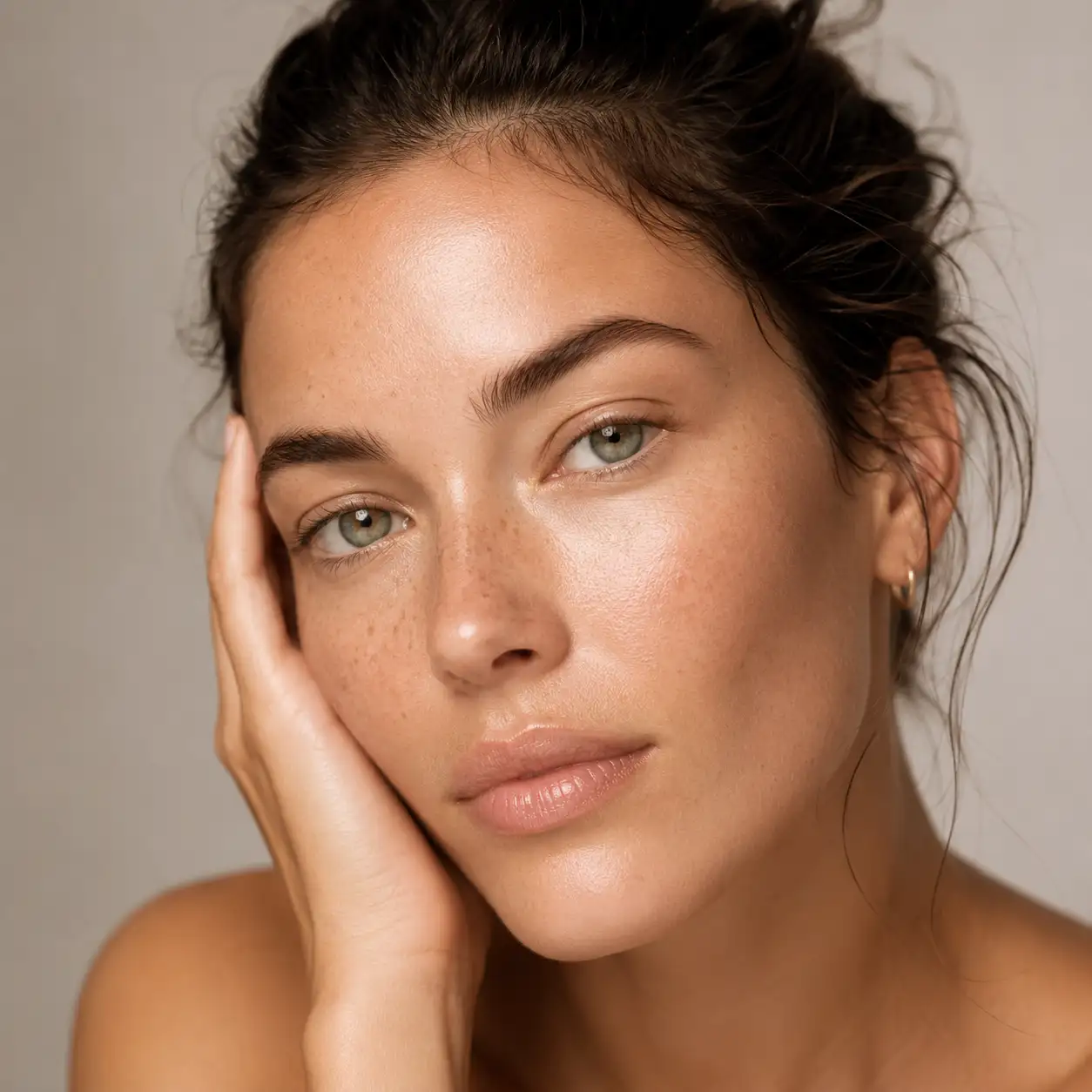
Your Identity and Skin Texture Stay Intact After Every Skin Color Edit
The biggest fear with AI skin editing is ending up with plastic, over-smoothed, or unrecognizable results. Pixlio's skin color changer is built around preservation: facial identity, expression, body shape, pores, freckles, and natural character all remain untouched. The tool corrects tone without reshaping features or removing texture. Deeper skin tones keep their depth and richness instead of turning ashy or artificially lightened. You can change skin color and get a corrected photo that still looks unmistakably like you.
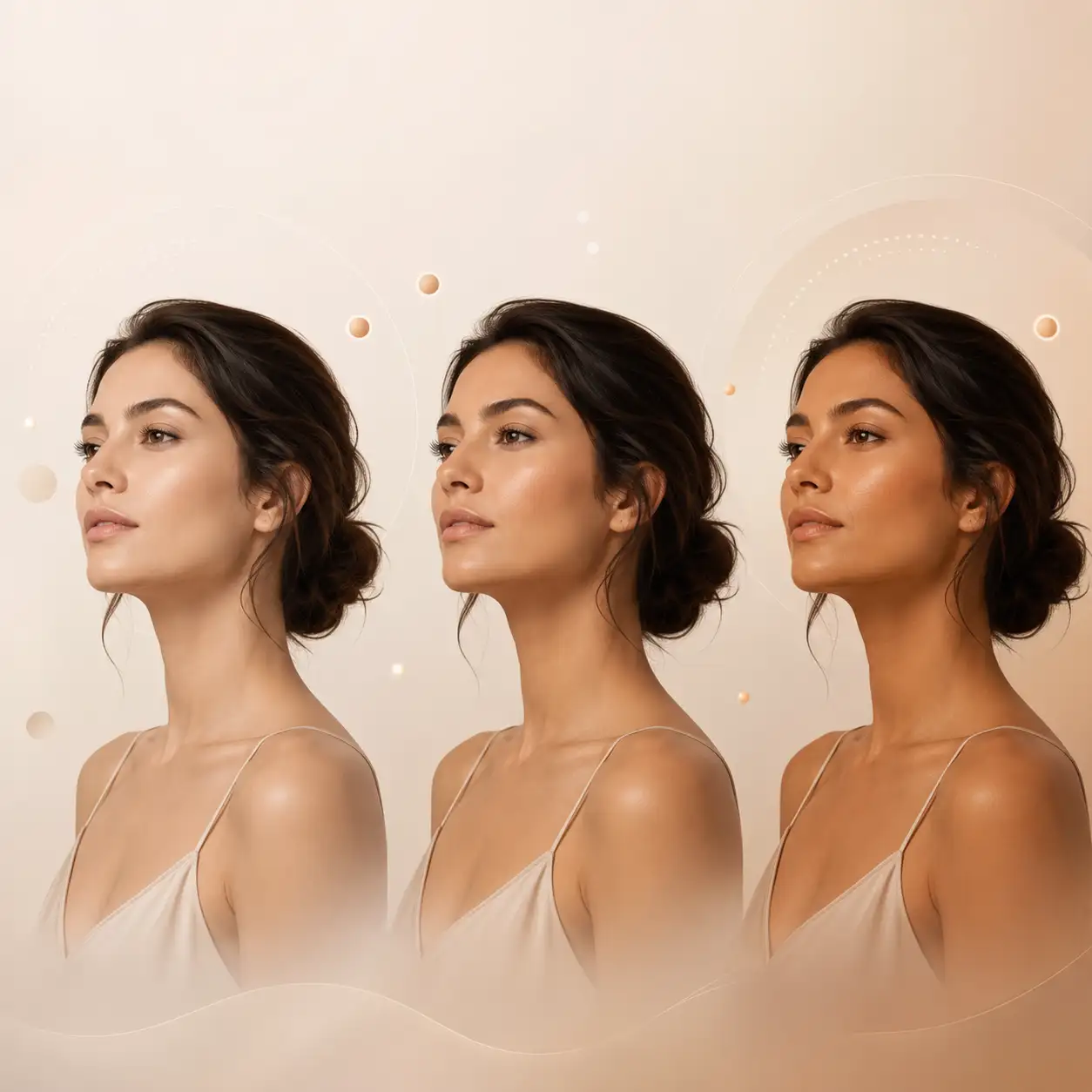
Fine-Tune Every Skin Color Correction with Three Strength Levels
Not every edit needs the same intensity. Pixlio offers three strength presets: Subtle for minimal correction with maximum preservation, Balanced for a visible improvement that still looks natural, and Strong for larger shifts when you need an explicit fix or want to preview a noticeable change. Pick the level that fits your photo, then compare before and after to make sure you are satisfied with the result.
How to Change Skin Color Online Free in Three Steps
Correcting skin tone takes less than a minute. No design software, no complex prompts—just upload, choose, and generate.
Who Benefits from Pixlio's AI Skin Color Changer?
From quick selfie fixes to professional retouching shortcuts, this tool serves anyone who needs consistent, natural-looking skin tone without a manual editing workflow.
Selfies and Portraits That Finally Look Right
Your selfie came out great, but your face and neck are two different shades. Upload the photo, run Auto Fix or Match Skin Areas, and download a version where everything looks consistent—no need to reshoot or retouch by hand.
Faster Photography and Retouching Workflows
Photographers spend hours on local masks, HSL adjustments, and selective saturation to balance skin tones across a shoot. Pixlio's AI skin color changer replaces that manual work for single-image corrections—fix a mismatched face-and-neck, remove a color cast, and move on.
Preview a Subtle Tan or Undertone Shift Before Committing
Curious how a warmer, sun-kissed tone would look? Use the Add Subtle Tan goal to preview a natural shift without leaving a color cast or changing your skin's character. A practical way to change skin color online free before a real tan or foundation change.
Consistent Skin Tones for E-commerce and Content Teams
Product shots and brand content featuring people need consistent skin tones across lighting setups. Use skin color changer to balance tone across images without reshooting, so every model or team member looks naturally consistent in your final content.
AI Skin Color Changer FAQ
What is an AI skin color changer?
An AI skin color changer is a tool that change skin color in uploaded photos. Pixlio's version focuses on correction—matching mismatched areas, removing color casts, and previewing subtle tone shifts—while preserving your identity, texture, and natural skin depth.
Can I change skin color online free with Pixlio?
Yes. Pixlio offers free credits on signup, so you can upload a photo, correct skin tone, and download the result at no cost. Additional credits are available with Pro and Max plans for heavier usage.
What photo formats does the skin color changer accept?
Pixlio accepts JPG, JPEG, PNG, and WebP uploads up to 15 MB. For the most accurate corrections, use a clear, evenly lit photo where skin is visible.
How does Auto Fix fix uneven skin tone in photos?
Auto Fix detects common issues—orange, gray, green, yellow, ashy, or mismatched tones—and corrects them toward a natural, balanced result. It preserves lighting direction and shadows so the photo keeps its original character.
Does the skin color changer alter facial features or identity?
No. The tool corrects and balances skin tone only. It does not reshape faces, change expressions, adjust body shape, or heavily smooth skin. Freckles, pores, and natural texture are preserved throughout the edit.
Is it safe to upload selfies to the skin color changer?
Photos are processed to create the requested result and handled according to Pixlio's privacy policy. Use photos you own or have permission to edit. The tool is designed for correction and matching, not for misrepresenting identity or ethnicity.
More AI Image Tools
Explore our collection of AI-powered image tools designed for different creative needs and styles








This tool is designed to match, correct, balance, or preview skin tone. It should not be used to misrepresent identity or ethnicity. Use photos you own or have permission to edit. Best results come from clear, evenly lit images. In correction modes, the tool does not intentionally change facial identity, expression, body shape, or race-coded features.