 Pixlio AI
Use this tool to apply vintage sepia tones to your photo.
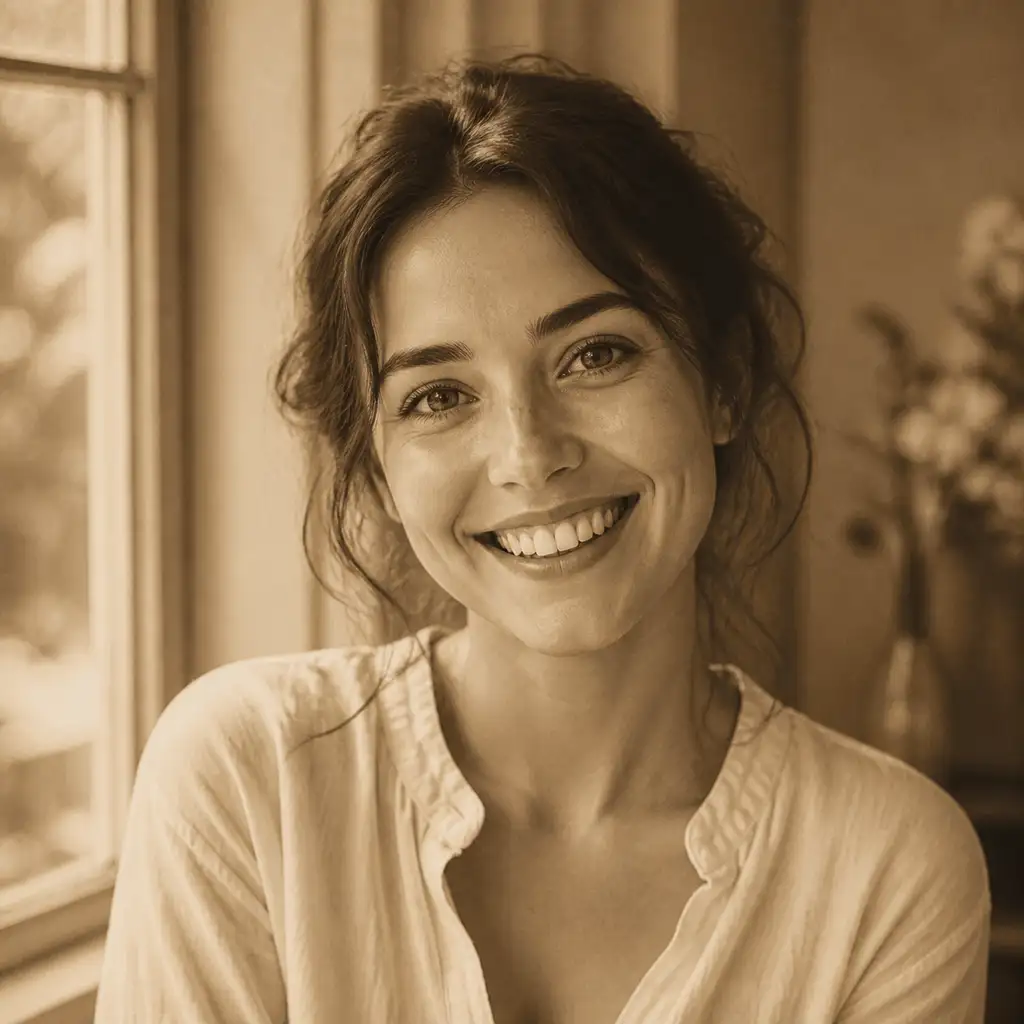
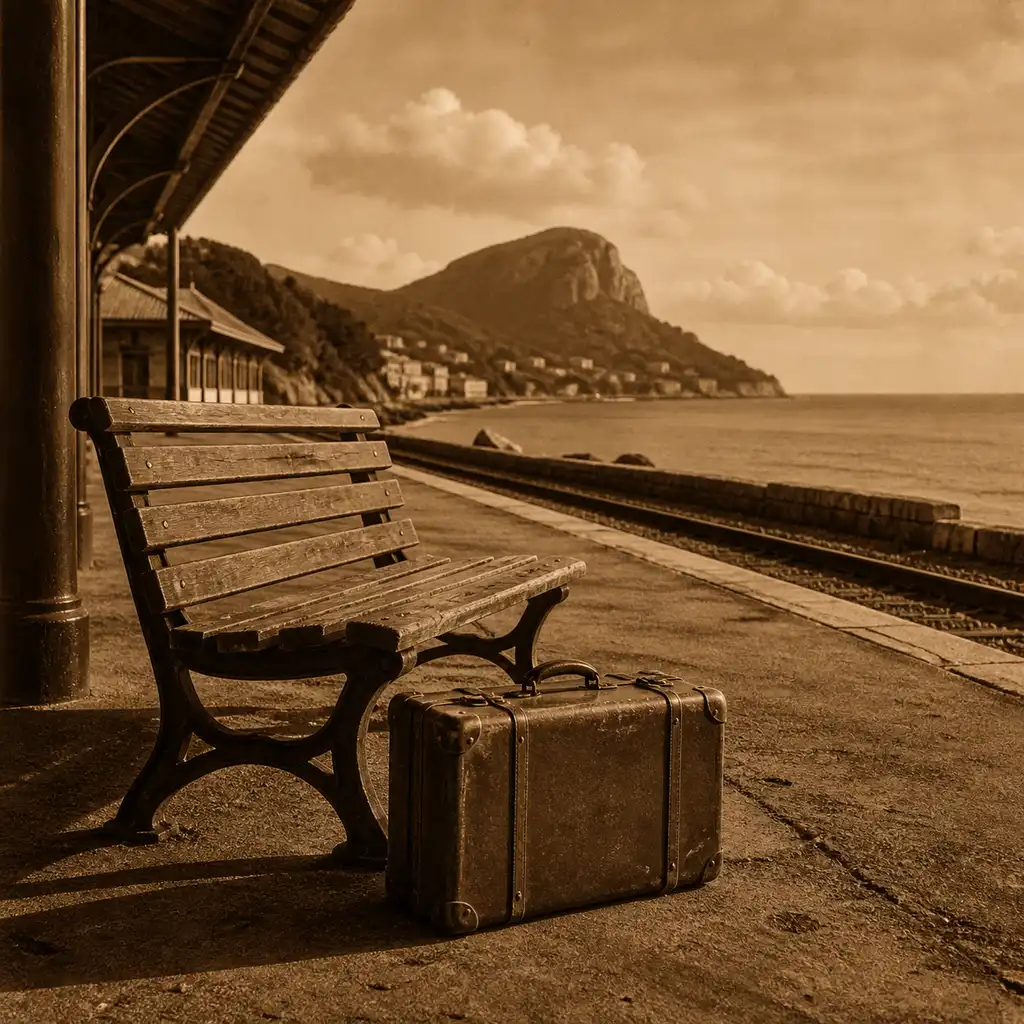
Apply a Beautiful Sepia Filter to Your Photos Without Losing Faces or Detail
Want the warmth of vintage film without flattened skin or muddy tones? Pixlio's sepia filter lets you upload any photo, pick from three carefully tuned styles, and download a result that still looks like you. No manual split toning, no complex editor—just a genuine analog mood in seconds.
What Makes This Sepia Filter Different from Generic Brown Overlays
Most sepia tools dump a flat brown tint over your entire image. Pixlio's sepia photo filter delivers authentic vintage character while protecting the parts of your photo that matter most—faces, skin, and fine detail.


Your Sepia Filter Result Still Looks Like You Thanks to Identity Protection
The most common complaint about AI filters is losing your likeness. Pixlio's sepia photo filter automatically detects faces and skin regions, then applies the vintage treatment while keeping your expression, skin texture, and facial structure intact. Whether you are editing a selfie or a group portrait, the people in your photo remain recognizable—not washed out behind a wall of brown.
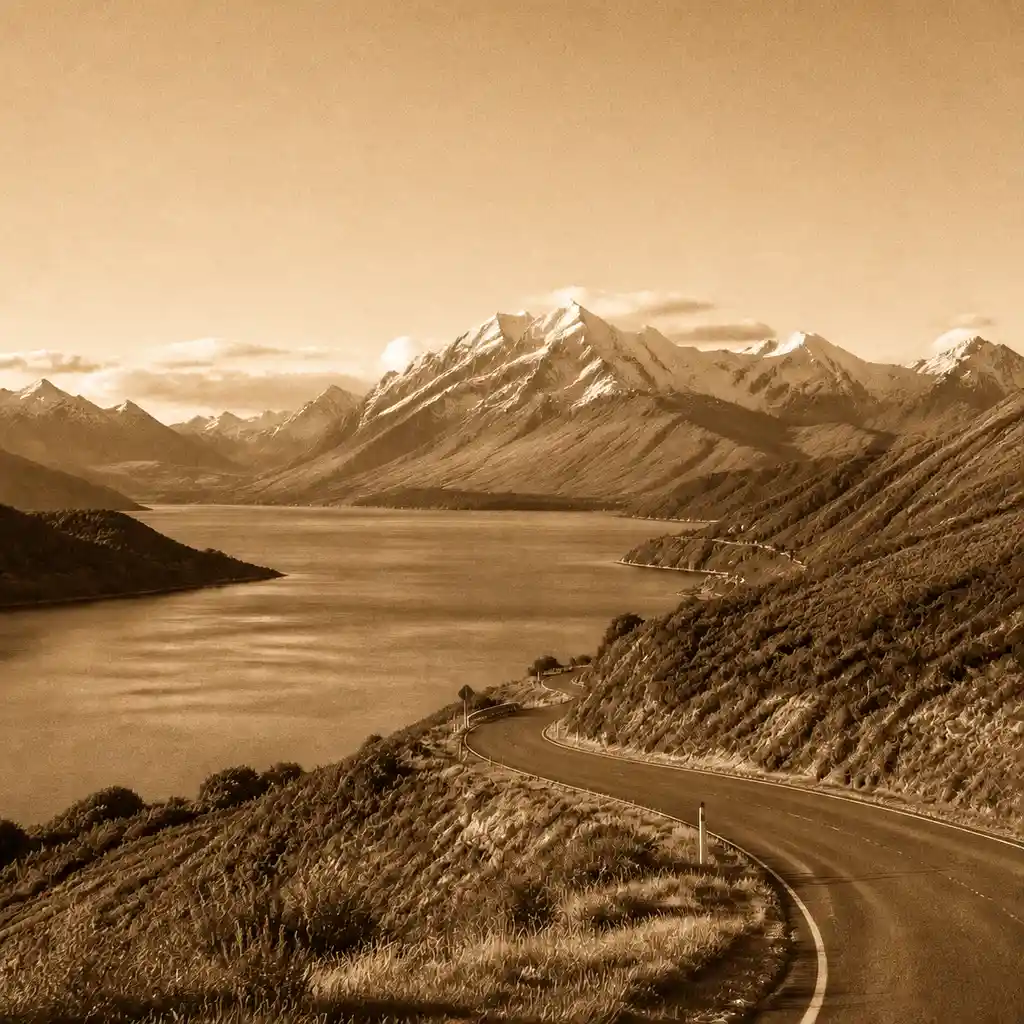

Choose From Three Sepia Tone Filter Styles That Actually Look Different
One-size-fits-all sepia rarely matches the mood you have in mind. This sepia tone filter gives you three named styles: Subtle Sepia for light warmth that keeps portraits natural, Classic Sepia for the recognizable warm-brown vintage balance, and Deep Vintage for dramatic toning with grain and fade. Pick the one that fits your photo instead of guessing at slider positions.
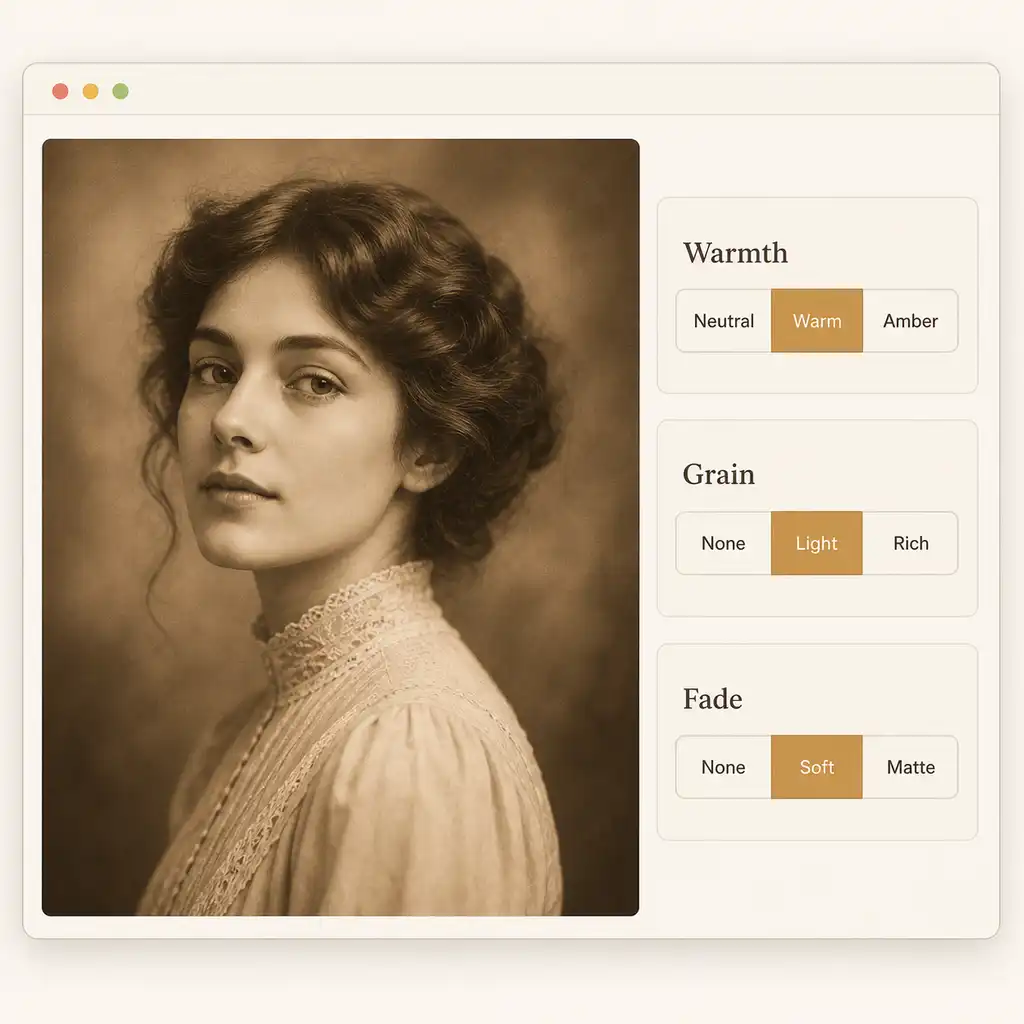
Fine-Tune Warmth, Grain, and Fade to Perfect Your Sepia Filter
Real analog film was not just brown—it had character. After choosing a style, shape your result with three compact controls: Warmth moves from neutral to amber, Grain ranges from none to rich film texture, and Fade softens highlights from crisp to matte. These let you dial in the exact vintage aesthetic without a full editing panel or guessing at technical terms.
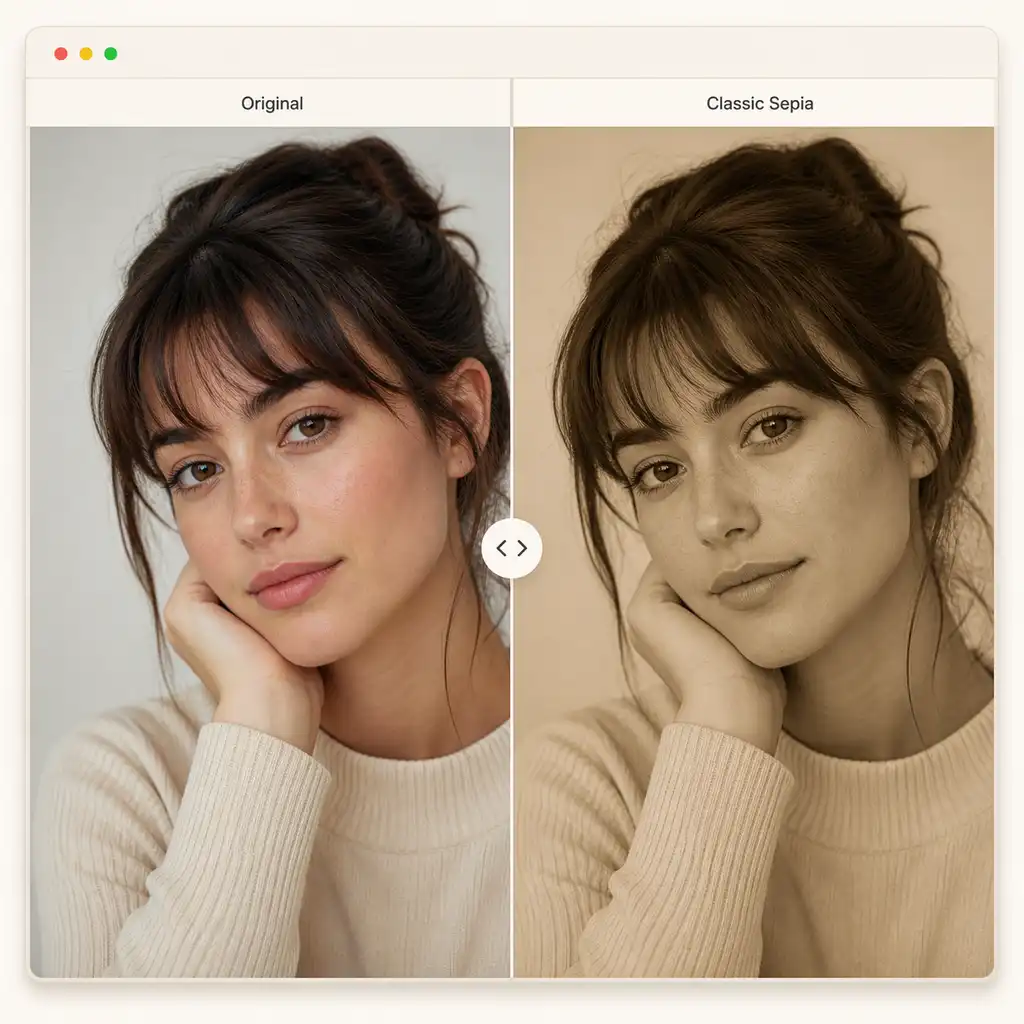
Compare Your Original and Sepia Filter Result Side by Side Instantly
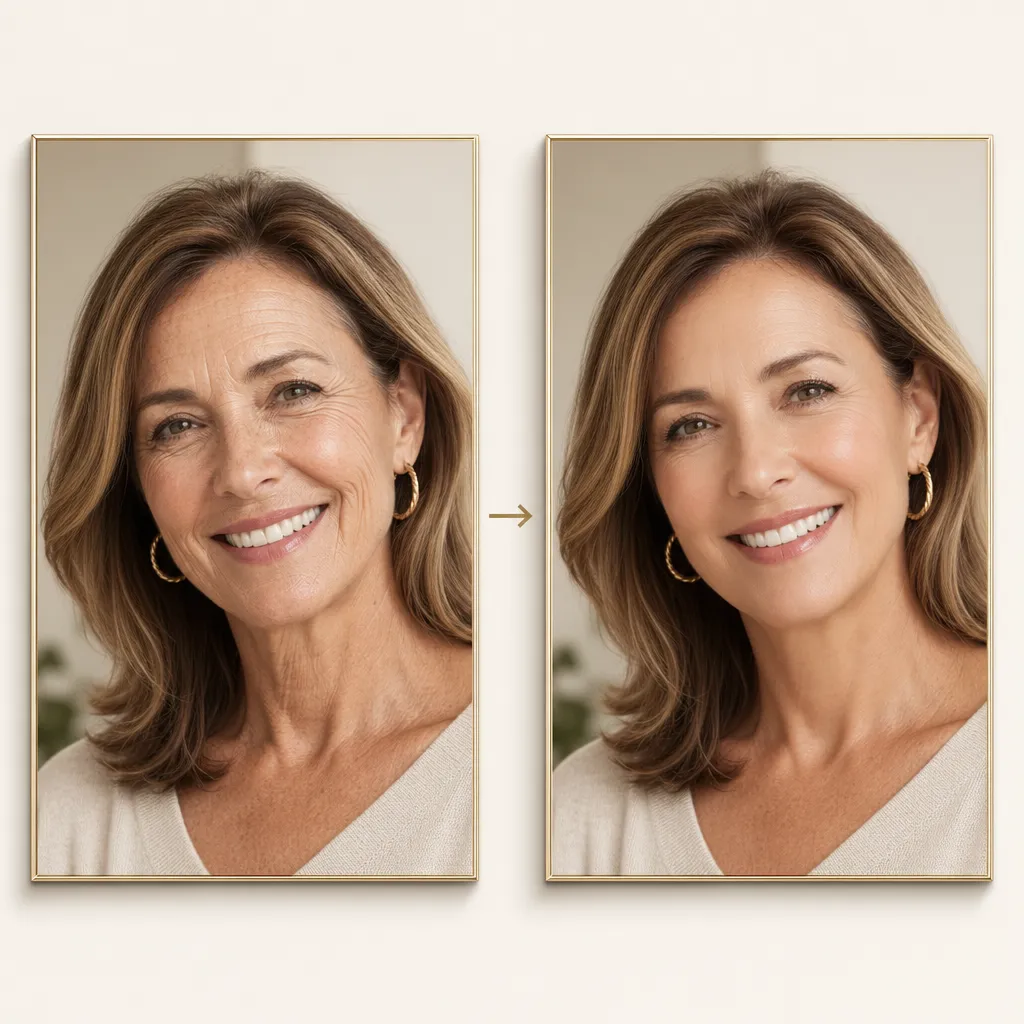
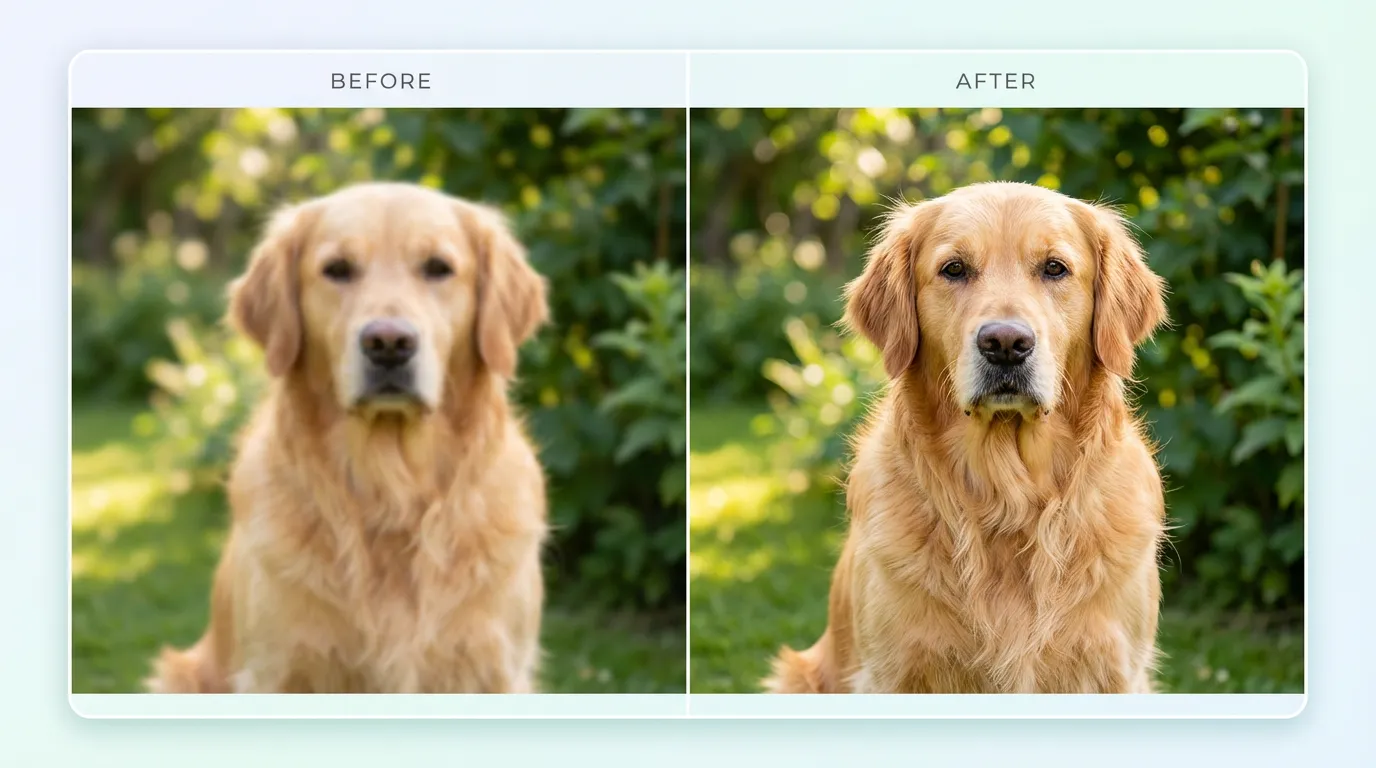
Vintage edits should be reversible and easy to judge. The sepia tone filter keeps your original visible at all times and presents the result in an interactive before-and-after view. Inspect skin tones, check face detail, and decide whether to keep the look, switch styles, or tweak controls—all before downloading anything.
How to Apply Pixlio's Sepia Filter in Three Simple Steps
No design skills or complex editing workflows needed. Upload, choose your look, and download—your vintage photo is ready in under a minute.
Who Benefits Most From Pixlio's Sepia Filter?
From casual selfie editors to wedding photographers, anyone who wants a vintage sepia look without sacrificing quality or spending time in a complex editor.
Vintage Portraits and Social Posts Enhanced with Sepia Tones
Turn everyday selfies and portraits into warm, nostalgic images ready for Instagram, TikTok, or your profile picture. This sepia photo filter preserves your facial identity and skin texture, so followers still recognize you—just with a timeless analog mood that stands out in feeds.
Wedding and Event Photos Gain Elegance with a Sepia Filter
Give ceremony and reception shots an elegant vintage warmth without muddying skin or losing detail in white dresses and florals. Subtle Sepia keeps portraits natural while adding just enough warm-brown character to evoke classic film, making this sepia tone filter ideal for albums and thank-you cards.
Travel and Landscape Photos with a Sepia Filter Feel Timeless
Cityscapes, nature shots, and travel memories gain a timeless quality when you apply a sepia photo filter. The Deep Vintage style with added grain makes these scenes feel like discovered postcards, while identity protection ensures any people in the frame stay sharp and recognizable.
Brand and Campaign Visuals with Nostalgic Sepia Filter Styling
Small businesses and marketers building nostalgic brand campaigns can apply a consistent sepia tone filter to product shots, headshots, and lifestyle imagery. The three named styles ensure visual consistency across assets, and the compact controls let you match a specific warm-tone look without hiring an editor.
Sepia Filter Frequently Asked Questions
What is a sepia filter and how does it work?
It applies warm brown tones to a photo, recreating the look of aged film or antique prints. Pixlio's sepia photo filter uses AI-assisted editing to apply the vintage treatment while protecting facial identity, skin texture, and scene composition—so your image looks authentic without losing detail.
What photo formats does Pixlio's sepia filter accept?
You can upload JPG, JPEG, PNG, or WebP images up to 15 MB. For the best results with this sepia photo filter, use clear, well-lit photos where faces and details are visible.
How does the sepia filter preserve faces and skin tones?
Pixlio uses an identity-safe transformation that automatically detects faces and skin regions. The tool applies the sepia treatment around protected areas, ensuring your features, expression, and natural skin depth remain intact even with strong vintage toning.
What are the three sepia filter styles available?
Pixlio's sepia tone filter offers three distinct styles: Subtle Sepia adds light warmth with minimal aging—ideal for portraits. Classic Sepia delivers the recognizable warm-brown vintage look. Deep Vintage applies stronger toning with grain and fade for a dramatic antique finish.
Can I adjust warmth, grain, and fade in this sepia filter?
Yes. After selecting a style, you can fine-tune three analog-look controls: Warmth (Neutral, Warm, or Amber), Grain (None, Light, or Rich), and Fade (None, Soft, or Matte). These let you shape the exact vintage character you want without a complex editing panel.
Is Pixlio's sepia filter free to use?
Pixlio provides free credits when you sign up, so you can apply the vintage treatment to your first photos at no cost. Additional credits are available for more generations. The exact credit cost is shown before you generate.
More AI Image Tools
Explore our collection of AI-powered image tools designed for different creative needs and styles