 Pixlio AI
Use the AI skin enhancer to retouch real portraits or add realistic texture to AI-generated faces.
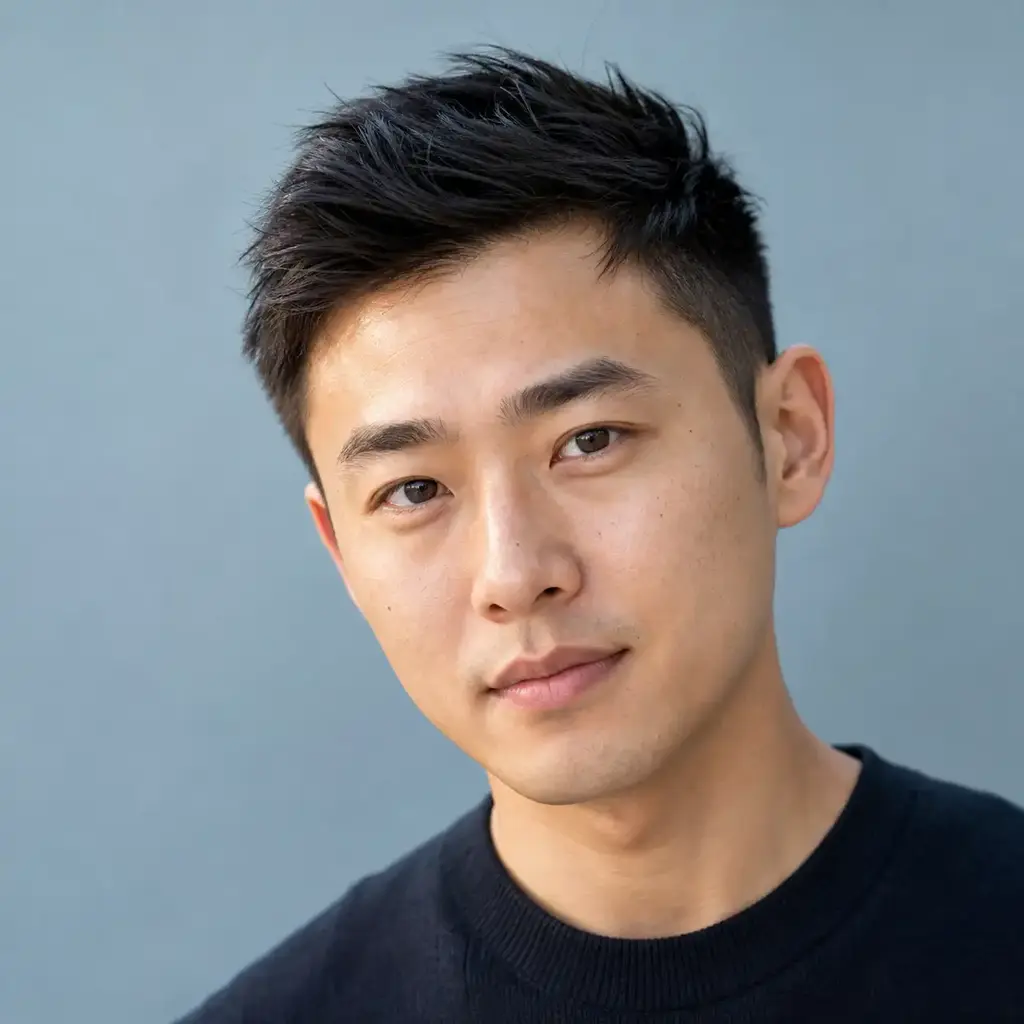
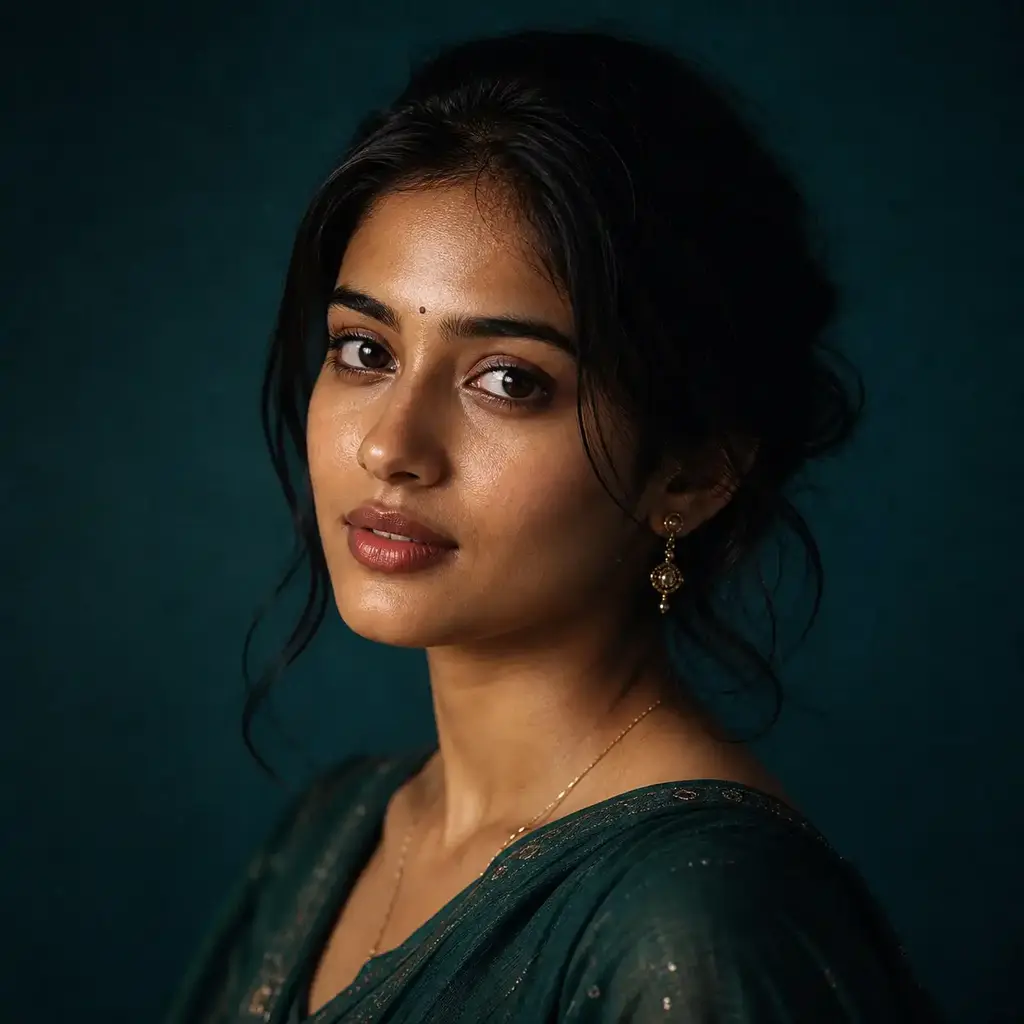
Retouch Real Portraits and Humanize AI Faces with AI Skin Enhancer
Real photos pick up blemishes and shine. AI portraits come out plastic and waxy. Pixlio's AI skin enhancer fixes both—cleaning up real skin or adding believable texture to synthetic faces—while keeping your identity, skin tone, and permanent features untouched.
What Makes This AI Skin Enhancer Worth Trying
Most skin tools over-smooth, shift skin tone, or erase the details that make a face recognizable. Pixlio's AI skin enhancer takes the opposite approach: conservative correction that improves skin while protecting everything else.
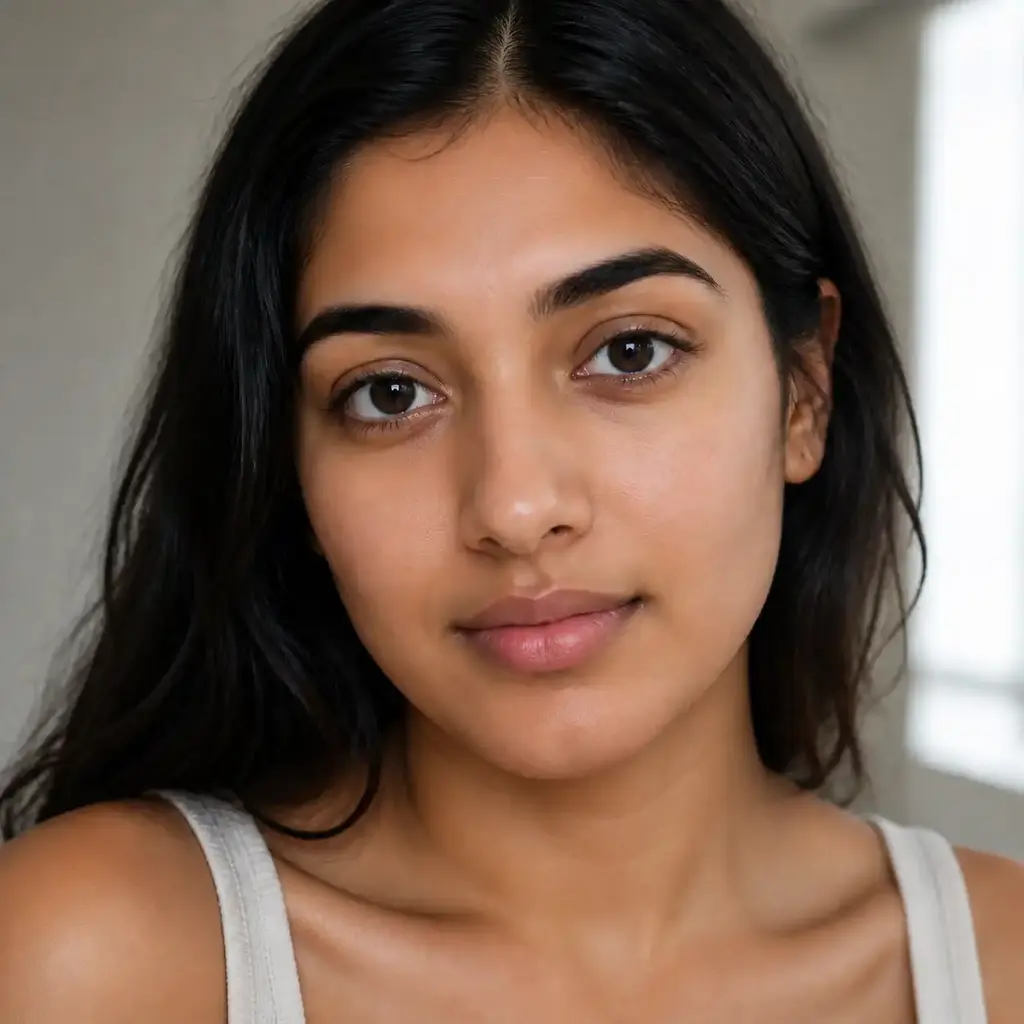
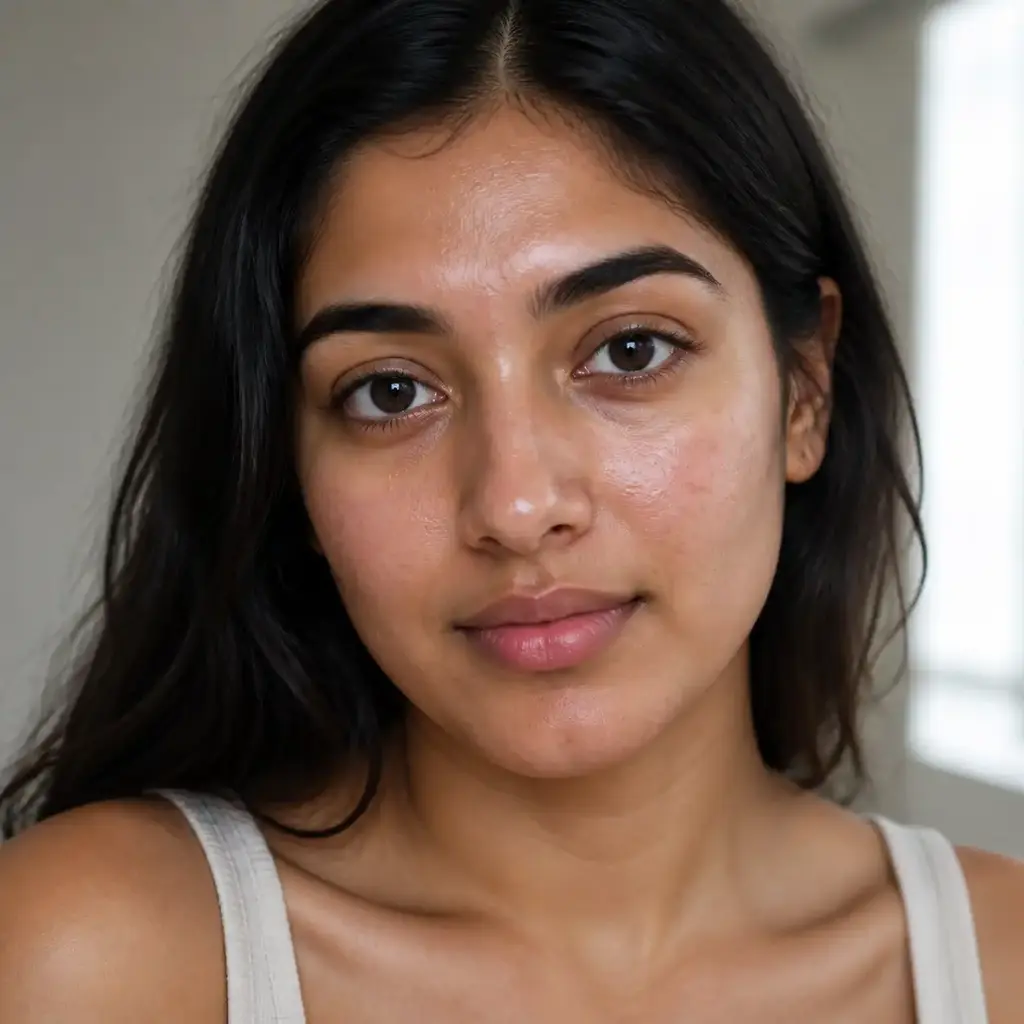
Two Modes Built for Two Opposite Problems
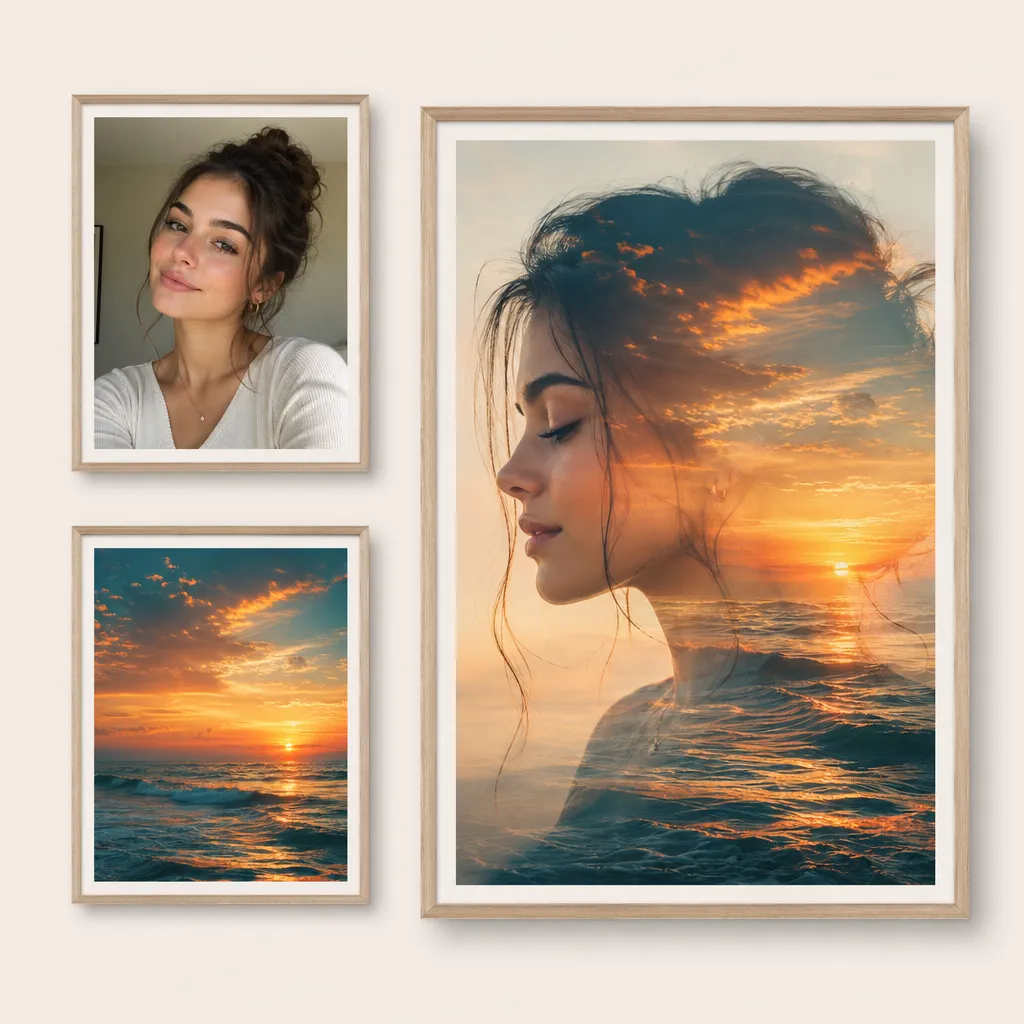
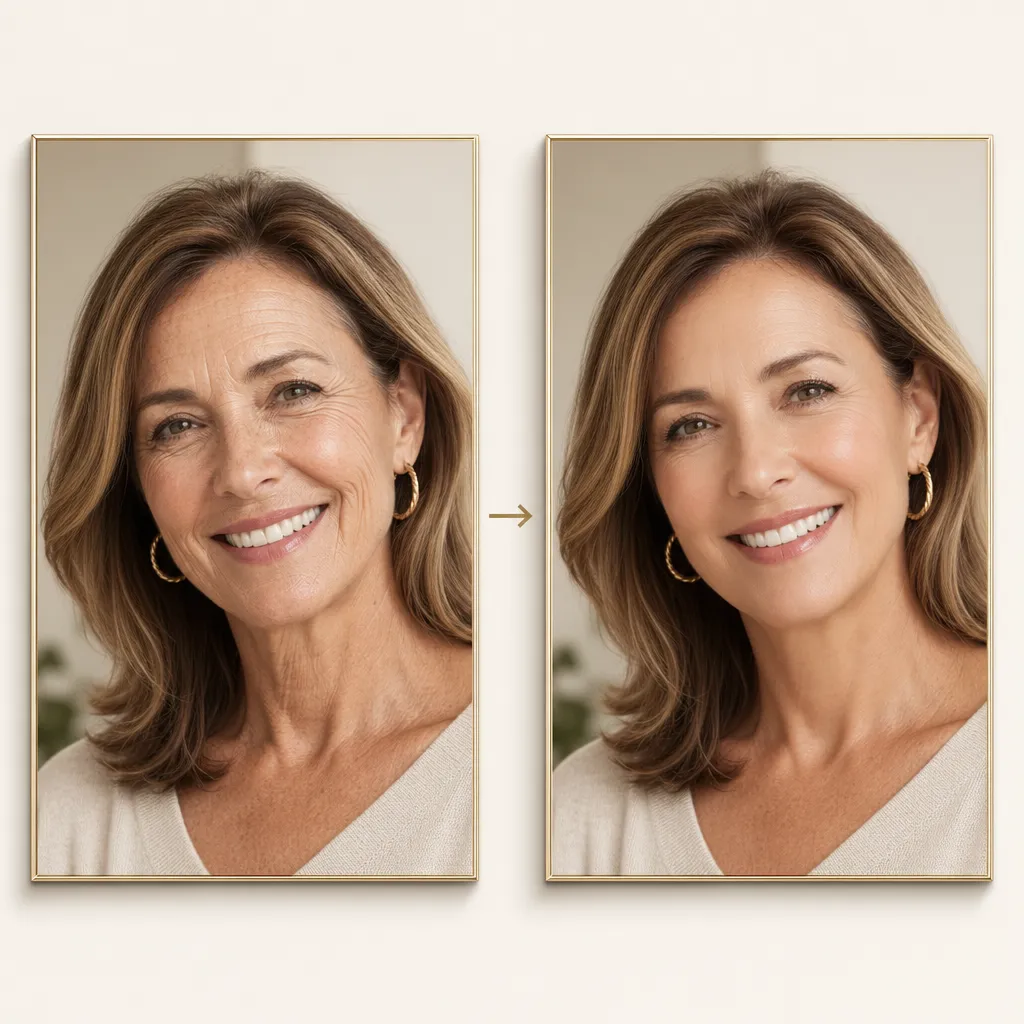
A real selfie with a blemish and an AI render with plastic skin need completely different fixes. Natural Portrait mode cleans up temporary distractions—spots, redness, excess shine—without flattening your pores or removing character. Humanize AI Skin mode works the other way, layering in anatomically varied pores, fine lines, and tonal irregularity so an AI-generated face reads as a photograph instead of a render. Pick the mode that matches your image, and the AI skin enhancer applies the right transformation.
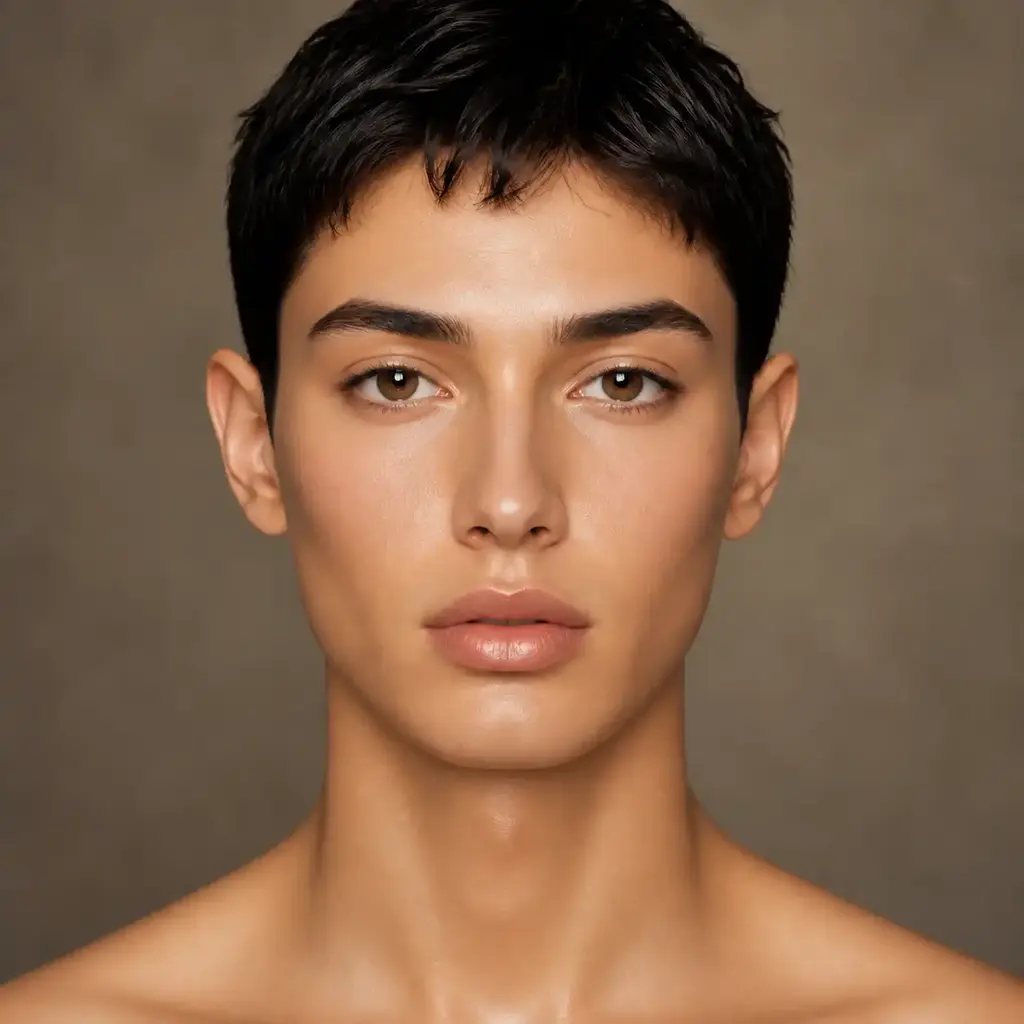
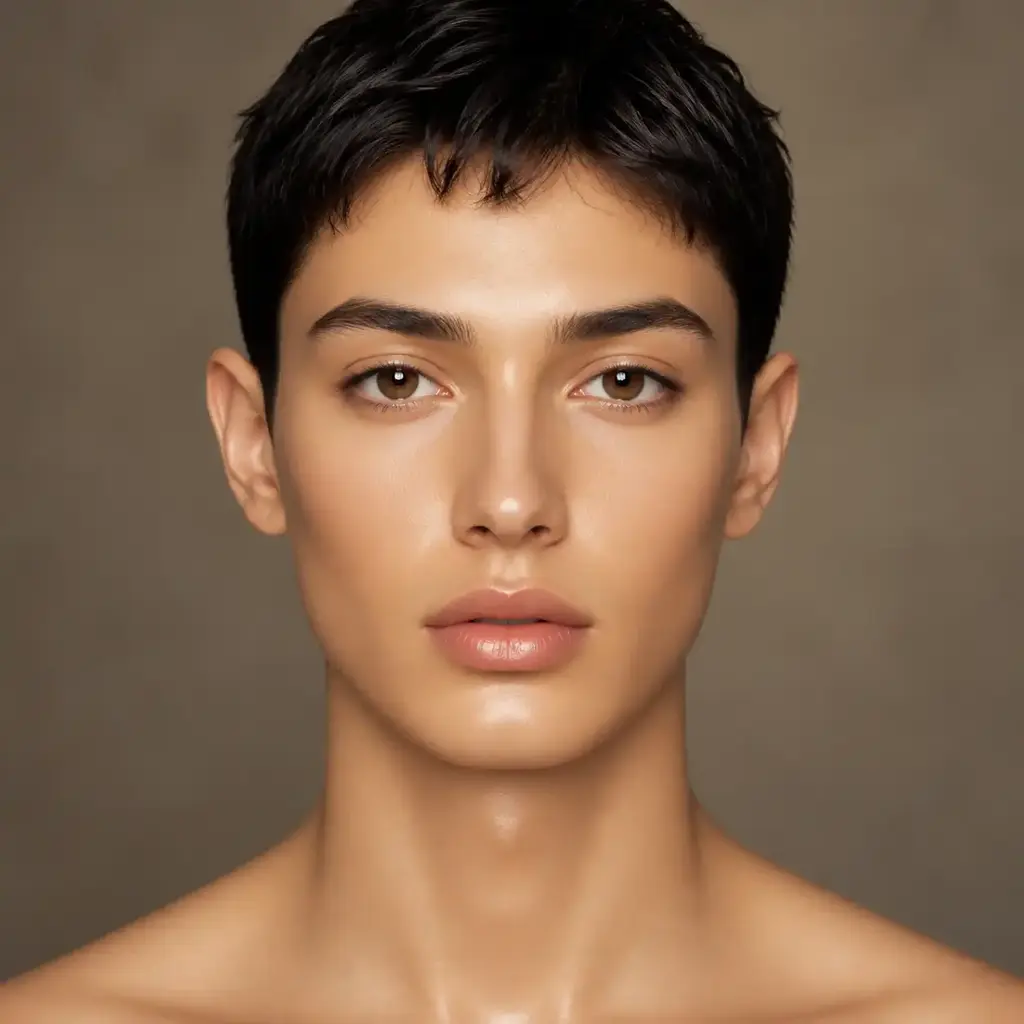
From Waxy AI Render to Believable Human Skin
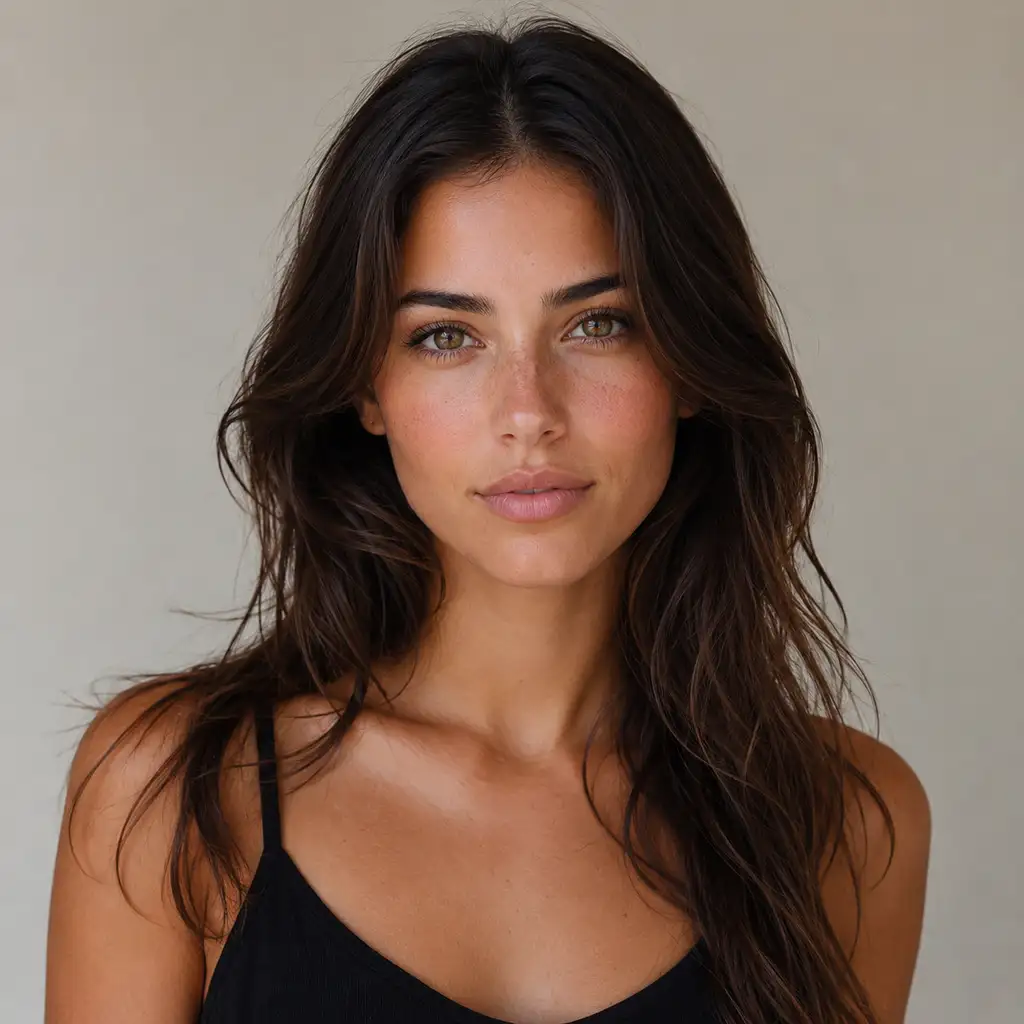
AI-generated portraits often look impressive at a glance but fall apart on closer inspection—uniform pore patterns, missing fine lines, and a glossy plastic finish that screams synthetic. The Humanize AI Skin mode adds scene-consistent microtexture that follows your image's lighting, depth of field, and camera grain. The result is an AI portrait that passes as a real photograph, not one with a noise filter slapped on top.
Dial In Strength and Surface Finish Without Complexity
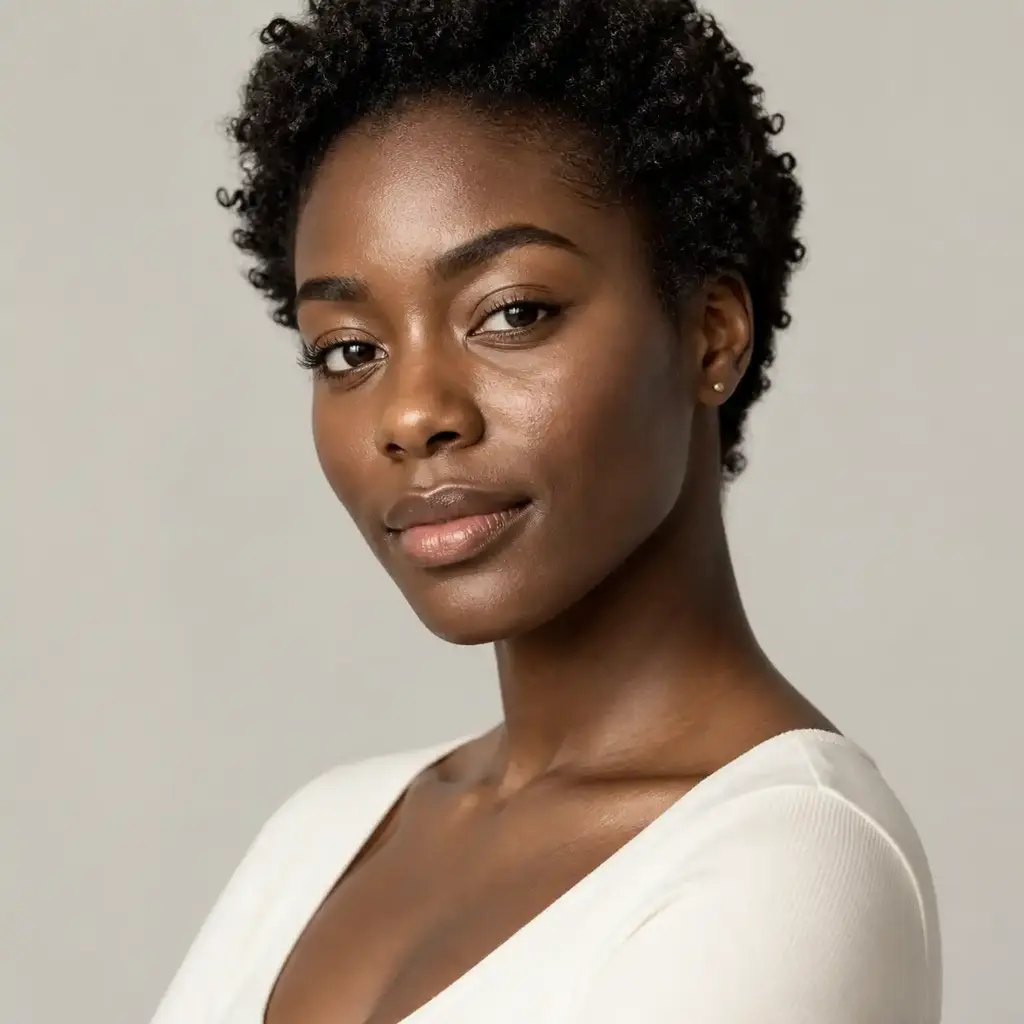
Professional retouching tools bury you in sliders. This skin enhancer gives you two focused controls instead. Strength sets how much correction to apply—Subtle for already-good portraits, Natural for a clear improvement, Strong for more pronounced results. Finish shapes the surface look—Natural retains your scene's highlights, Matte tames oily or flash-driven shine, and Soft Glow keeps a luminous quality without erasing texture. Six meaningful combinations, zero guesswork.
Your Freckles, Moles, and Scars Stay Where They Belong
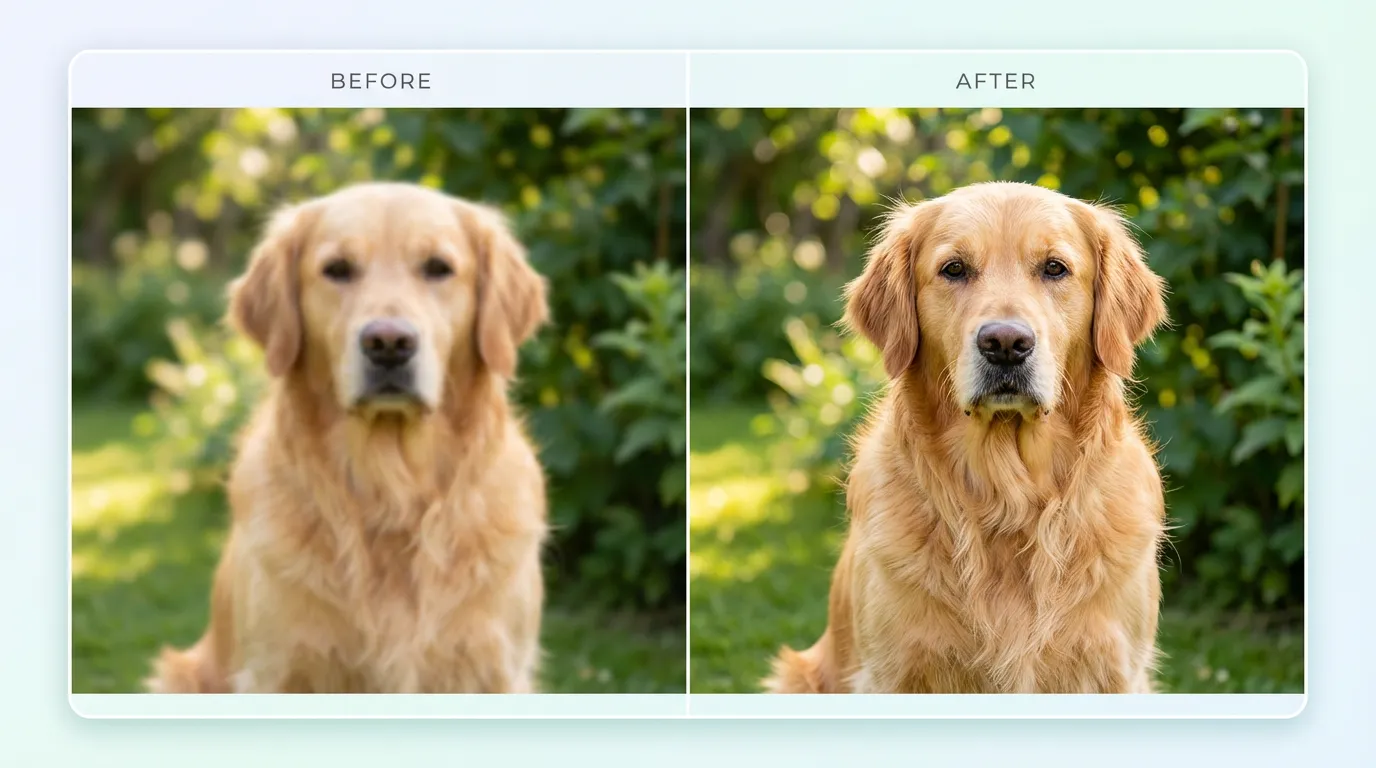
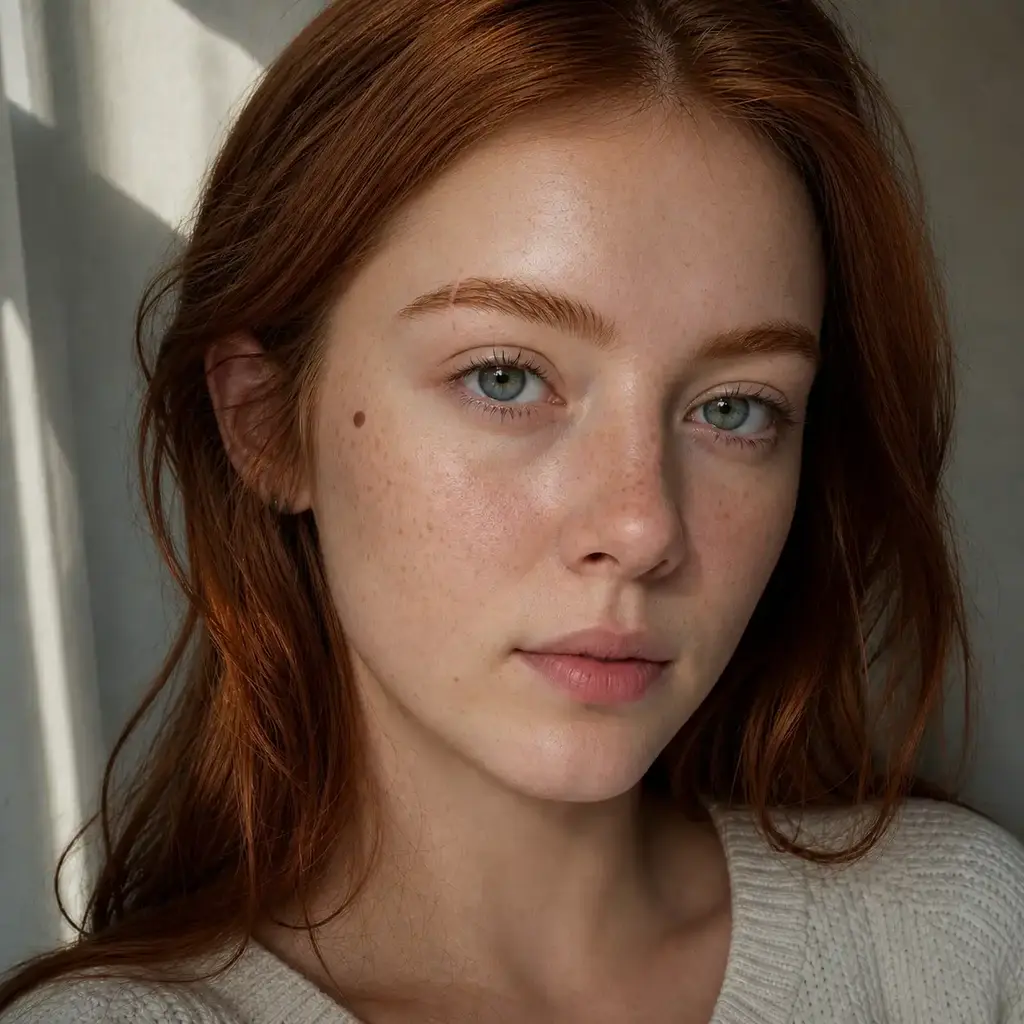
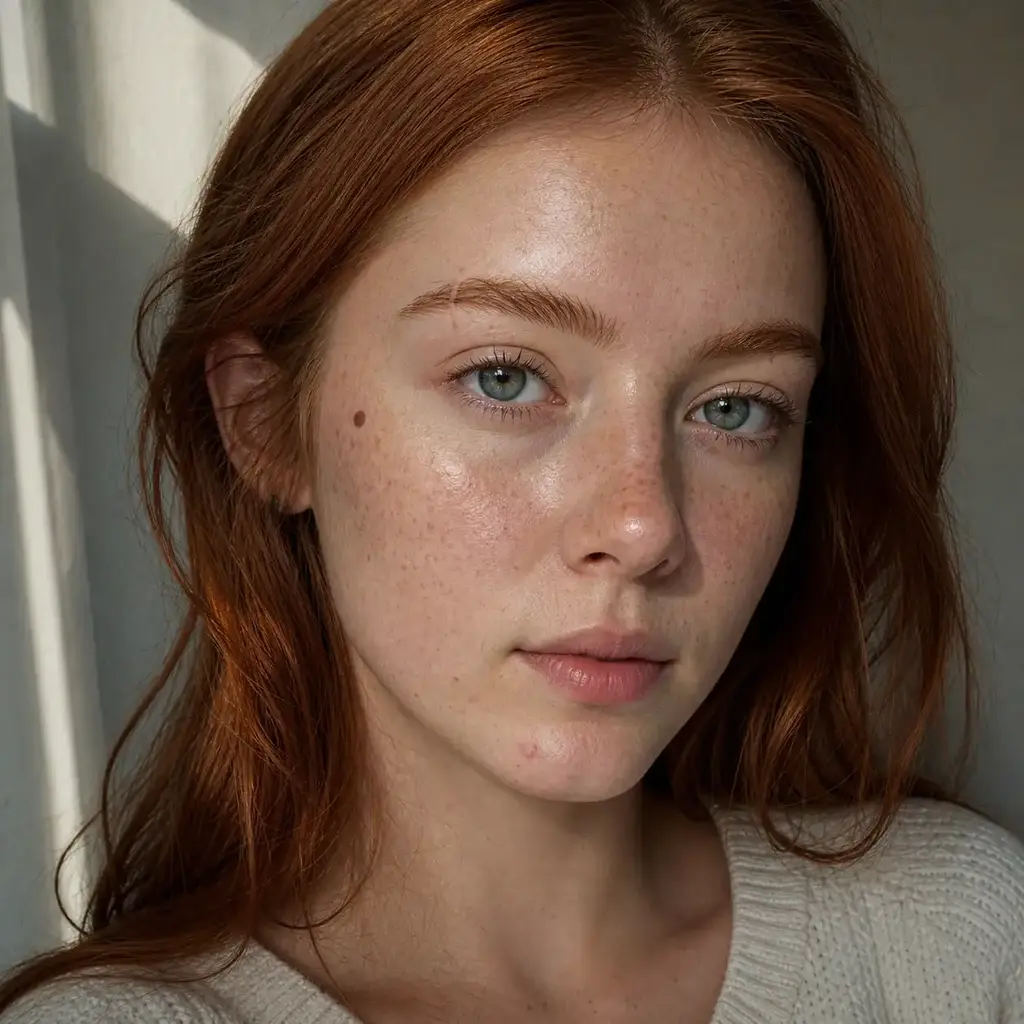
The most common complaint about skin retouching tools is that they erase the features that make a face recognizable. Pixlio's AI skin enhancer treats freckles, moles, scars, tattoos, facial hair, and makeup as identity features that are always protected. Facial geometry, expression, eye color, and original skin tone remain stable. You can inspect the full before-and-after with synchronized zoom to confirm nothing drifted.
Enhance Skin in Three Steps
No retouching expertise required. Upload a portrait, set your preferences, and compare the result side by side.
Who Benefits from an AI Skin Enhancer?
Whether you are finishing an AI render or cleaning up a real portrait, Pixlio's skin enhancer fits into workflows where natural-looking skin matters and time is short.
AI Portrait Creators Fixing Plastic Skin
You have spent time crafting the perfect prompt, but the face still looks synthetic up close—uniform pores, a waxy sheen, no fine lines. The Humanize AI Skin mode adds the realistic microtexture and tonal variation your render is missing, so the final image passes as a photograph rather than an obvious generation.
Quick Selfie and Profile Photo Cleanup
A breakout, redness, or oily shine showed up right when you need a clean photo. The Natural Portrait mode handles a fast, conservative cleanup that reduces temporary distractions without flattening your skin or altering your features. Upload, enhance, and download a profile-ready image in under a minute.
Photographers Making a Natural First-Pass Retouch
Before diving into detailed manual retouching, use the skin enhancer for a quick first pass on headshots and event portraits. The Subtle strength setting and Matte finish can tame flash-driven shine and minor blemishes while keeping the subject's skin character intact for further editing.
Ecommerce and Marketing Portrait Enhancement
Product models and team headshots need clean, professional skin without looking retouched. The AI skin enhancer produces a polished result that preserves natural skin texture, keeping the image trustworthy for landing pages, directories, and promotional materials.
AI Skin Enhancer — Common Questions
What does the AI skin enhancer actually do?
It is a portrait finishing tool with two modes. Natural Portrait removes temporary distractions like blemishes, redness, and excess shine from real photos. Humanize AI Skin adds realistic pores, fine lines, and tonal variation to AI-generated faces that look too smooth or waxy. Both modes preserve your identity, permanent features, and non-skin details.
What is the difference between Natural Portrait and Humanize AI Skin?
Natural Portrait is designed for real photographs—it cleans up temporary blemishes and reduces shine while keeping pores, freckles, moles, and scars intact. Humanize AI Skin does the opposite: it adds anatomically varied microtexture, fine lines, and subtle tonal irregularity to AI-generated portraits that look artificially smooth. Choose the mode that matches your image source.
Will the AI skin enhancer remove my freckles, moles, or scars?
No. The tool is built around identity preservation. Freckles, moles, scars, tattoos, facial hair, and makeup are treated as permanent character features and are protected during enhancement. Only temporary blemishes like spots, redness, and excess shine are addressed in Natural Portrait mode.
What image formats and sizes does this skin enhancer support?
The tool accepts JPG, JPEG, PNG, and WebP images up to 15 MB. For best results, upload a clear image where the face is visible. The tool works with selfies, professional headshots, AI-generated portraits, and casual photos alike.
How do the strength and finish controls work?
Strength controls how much correction is applied: Subtle makes the smallest visible change, Natural provides clear improvement with conservative texture, and Strong applies more pronounced correction. Finish controls the surface appearance: Natural retains scene-consistent highlights, Matte reduces oily or flash-driven shine, and Soft Glow adds a luminous finish without smoothing texture.
Does the AI skin enhancer support full-body skin editing?
The current version focuses on facial skin enhancement. Full-body exposed-skin processing for hands, arms, and legs is planned for a future update after facial-skin quality has been fully validated.
More AI Image Tools
Explore our collection of AI-powered image tools designed for different creative needs and styles