 Pixlio AI
Use the tool below to remove wrinkles from a photo online with AI.
Remove Wrinkles from Photo — AI Retouching That Keeps It Natural
Remove wrinkles from a photo in seconds with Pixlio's AI wrinkle remover. Upload a portrait or product shot, choose a target area and retouch strength, and download a natural-looking result—no Photoshop skills needed. Curious about the opposite? Try our AI Age Progression tool to see how a face might look in the future.
Why Pixlio Is the Best Way to Remove Wrinkles from Photos
Retouching wrinkles should be fast, controlled, and honest. Pixlio gives you targeted AI retouching with adjustable strength and a mandatory before-and-after review—so every result looks polished, never plastic.


AI Wrinkle Reduction That Preserves Identity
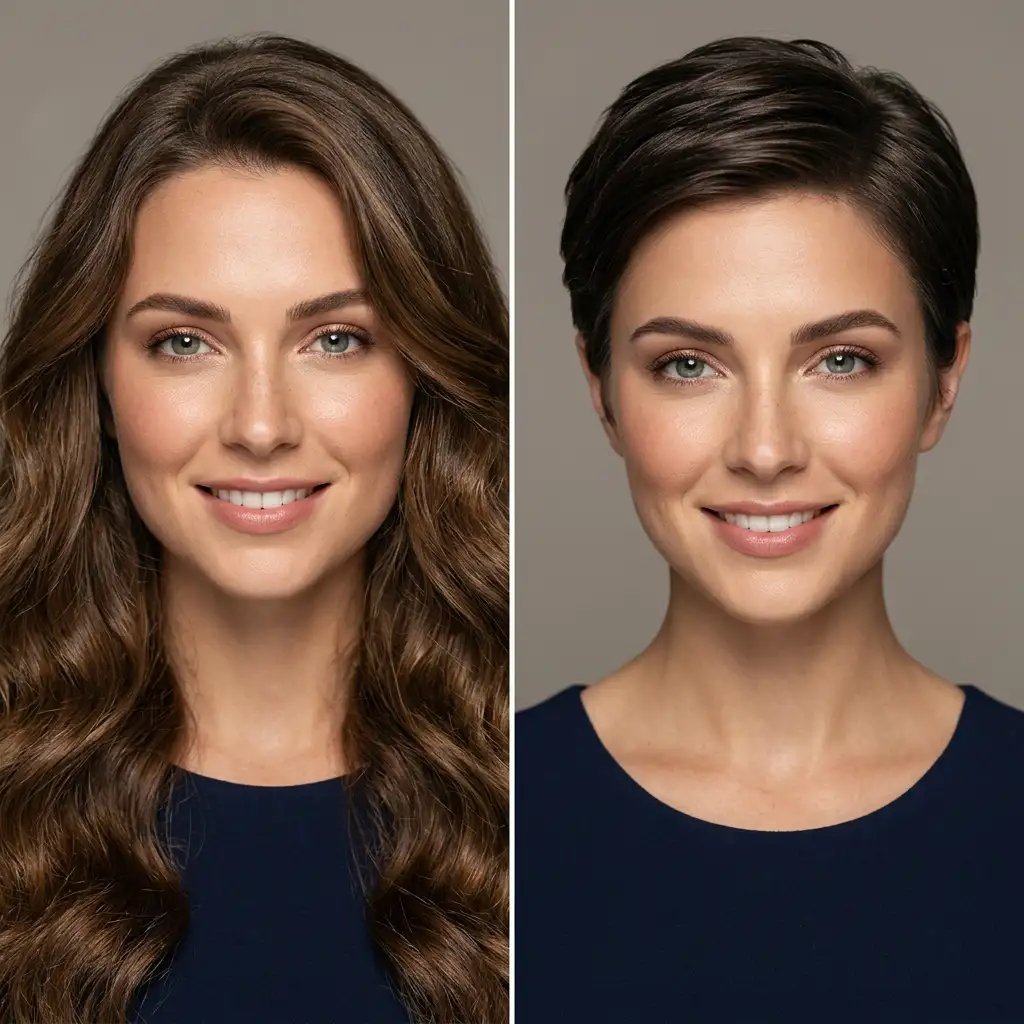
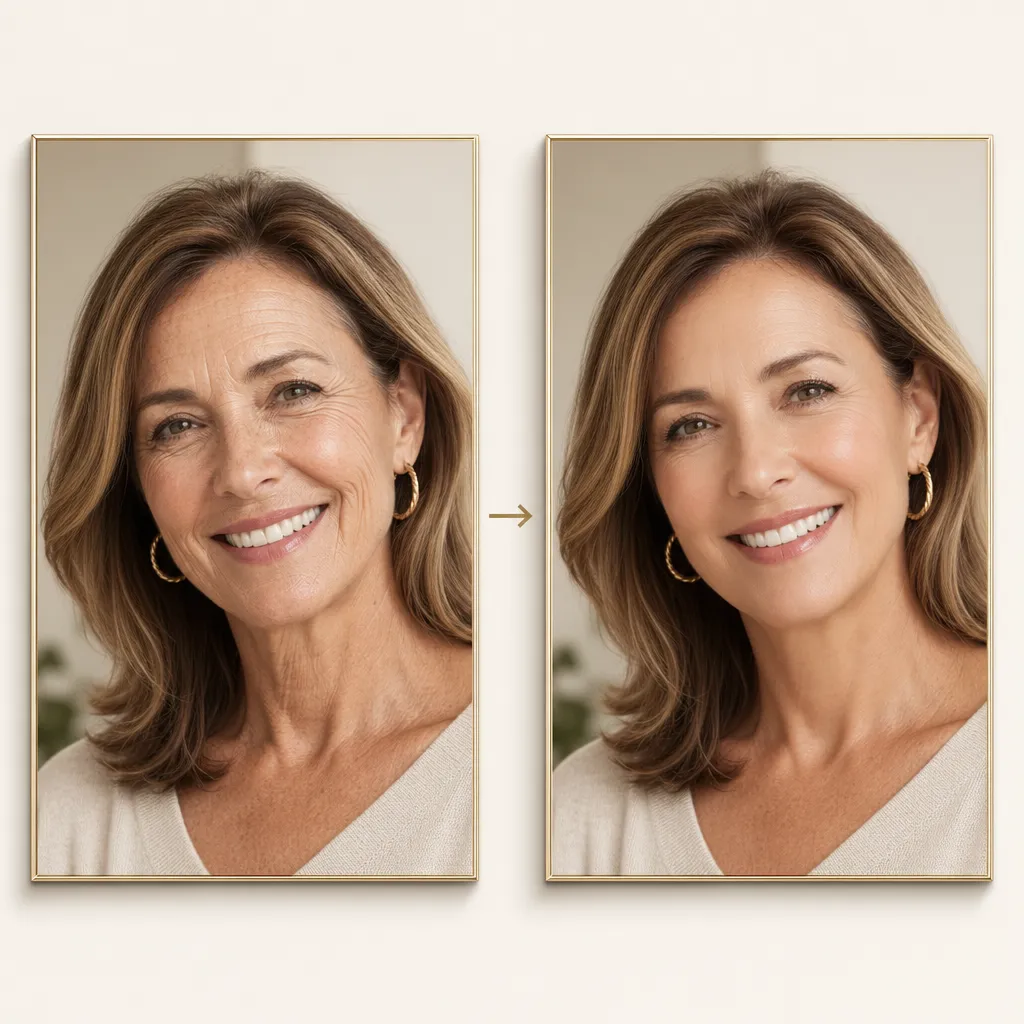
Most one-click tools blur skin into a flat surface. Pixlio's wrinkle remover works differently—it reduces wrinkle contrast while keeping pores, freckles, expression lines, and natural lighting intact. The AI analyzes skin texture and targets only the distracting creases you want softened. Permanent features like moles, jewelry, and smile character remain untouched. Whether you need to remove face wrinkles from a photo for a LinkedIn headshot or clean up a family portrait, the output looks like the same person, just with a polished finish.

Separate Face and Clothing Modes
Facial wrinkles and fabric creases need different treatment. Pixlio lets you choose a target area—Face, Clothing, or Auto—so the AI applies the right kind of smoothing. Face mode preserves skin identity and pore detail. Clothing mode keeps seams, weave patterns, and garment texture while reducing visible creases. Auto mode detects both and handles them together. This targeted approach means you can remove clothing wrinkles from a photo for an e-commerce listing without losing the fabric character buyers expect to see.


Adjustable Retouch Strength
What counts as "natural" varies from person to person. Pixlio's wrinkle remover photo editor offers three strength presets: Subtle reduces wrinkle contrast while keeping visible character, Balanced smooths distracting lines while retaining natural texture, and Strong delivers more visible smoothing for a polished look. You can also add a short retouch note—like "keep smile lines natural" or "preserve linen texture"—to guide the AI. This control lets you smooth wrinkles in pictures exactly the way you want.

Side-by-Side Before and After Preview
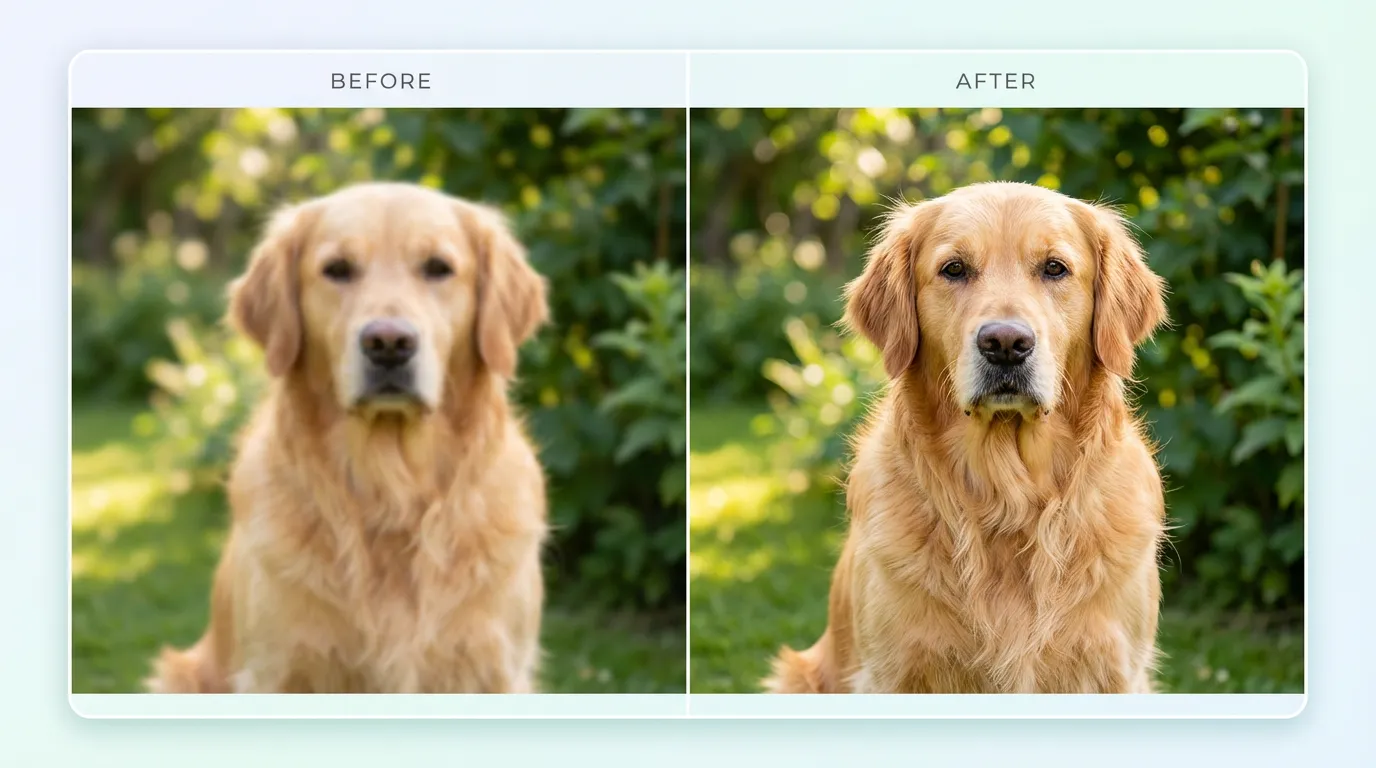
You should never download a retouched photo without inspecting it first. After every generation, Pixlio shows an interactive before-and-after comparison so you can check exactly what changed. Slide between the original and the result to verify that wrinkles are softer, identity is intact, and no unintended details were altered. If the result is too subtle or too strong, adjust the strength and regenerate. This review step is what separates a trustworthy AI wrinkle remover from tools that process blindly.
How to Remove Wrinkles from a Photo in 3 Steps
Retouching wrinkles takes less than a minute. No downloads, no manual cloning—just upload, configure, and generate.
Who Uses This Tool to Remove Wrinkles from Photos?
From casual selfie touch-ups to professional product photography, Pixlio helps anyone who wants to remove wrinkles from photos quickly and naturally—without learning complex editing software.
Profile Photos and Dating Apps
First impressions matter. Use the wrinkle remover to soften forehead lines, crow's feet, or smile lines in profile photos for LinkedIn, dating apps, or social media. The AI keeps your expression and character intact so the photo still looks like you—just more polished and confident.
E-Commerce Clothing Listings
Wrinkled clothing in product photos can hurt buyer trust. Remove clothing wrinkles from photos for your online store without reshooting or manually ironing every item. Pixlio's Clothing mode smooths creases while preserving fabric weave, stitching, and real product condition.
Professional Headshots and Team Photos
Preparing headshots for a company website or resume? Remove wrinkles from photo results that look natural and professional. The Subtle strength works well for corporate settings where a light touch-up is all that's needed—no dramatic changes, just a cleaner presentation.
Family and Event Photos
Keepsake photos deserve a gentle retouch. Soften distracting wrinkles in group shots, holiday portraits, or event photos without altering the warmth and personality that make them special. The before-and-after preview lets you confirm the result feels right before saving.
Common Questions About Remove Wrinkles from Photo Tool
What is an AI wrinkle remover?
An AI wrinkle remover uses artificial intelligence to soften visible wrinkles, fine lines, and fabric creases in a photo. Unlike manual retouching in Photoshop, it analyzes the image and reduces wrinkle contrast while preserving skin pores, facial expression, and garment texture for a natural-looking result.
Will removing wrinkles change my identity or features?
No. Pixlio is designed to soften lines, not transform your face. It preserves your natural expression, pores, freckles, and other identity details. The tool does not reshape features, apply makeup, or perform de-aging. You can review a before-and-after comparison before downloading.
What target areas are available?
You can choose Auto, Face, or Clothing. Face mode targets skin wrinkles and fine lines while preserving identity. Clothing mode smooths fabric creases while keeping texture and seams intact. Auto detects and handles both areas together.
What file formats does the wrinkle remover support?
Pixlio accepts JPG, PNG, and WebP uploads up to 15MB. The retouched result is downloaded as a PNG image.
How much does it cost to remove wrinkles from a photo?
The estimated credit cost is shown before you generate. Pixlio offers free credits on signup so you can try the tool right away. Additional credits can be purchased as needed.
Can I remove clothing wrinkles without losing fabric texture?
Yes. When you select the Clothing target area, the AI focuses on smoothing fabric creases while preserving weave, seams, and garment details. For best results, use the Subtle or Balanced strength setting and add a retouch note like "preserve linen texture" if needed.
More AI Image Tools
Explore our collection of AI-powered image tools designed for different creative needs and styles