 Pixlio AI
Use the tool below to extend or uncrop an image with AI outpainting.
Extend Any Image Beyond Its Edges with AI Outpainting
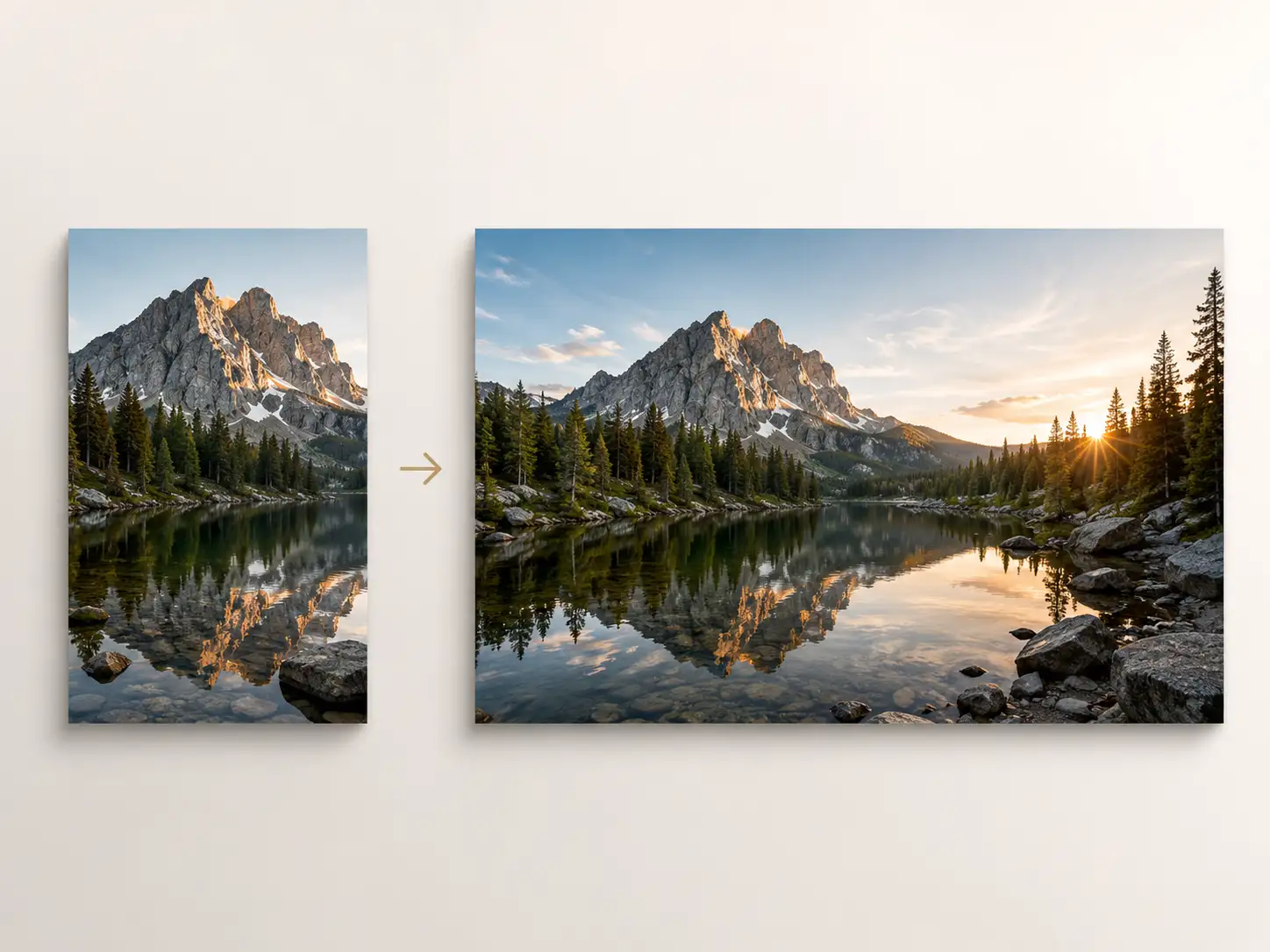
Pixlio AI outpainting tool lets you expand the canvas around your subject without reshooting or manually rebuilding the background. Our AI image extender generate the missing area with high quality. No prompt engineering required. The original subject stays untouched while seamless new content fills the edges, so you can extend your image with AI seamlessly.
Pixlio AI Outpainting Tool Delivers Clean & Seamless Expansions
Most outpainting tools leave you with visible seams, color drift, or distorted subjects. Pixlio's AI image extender is built around format-first expansion, subject preservation, and fast retry. So you can extend image with AI to get a usable result, not an artifact-filled guess.
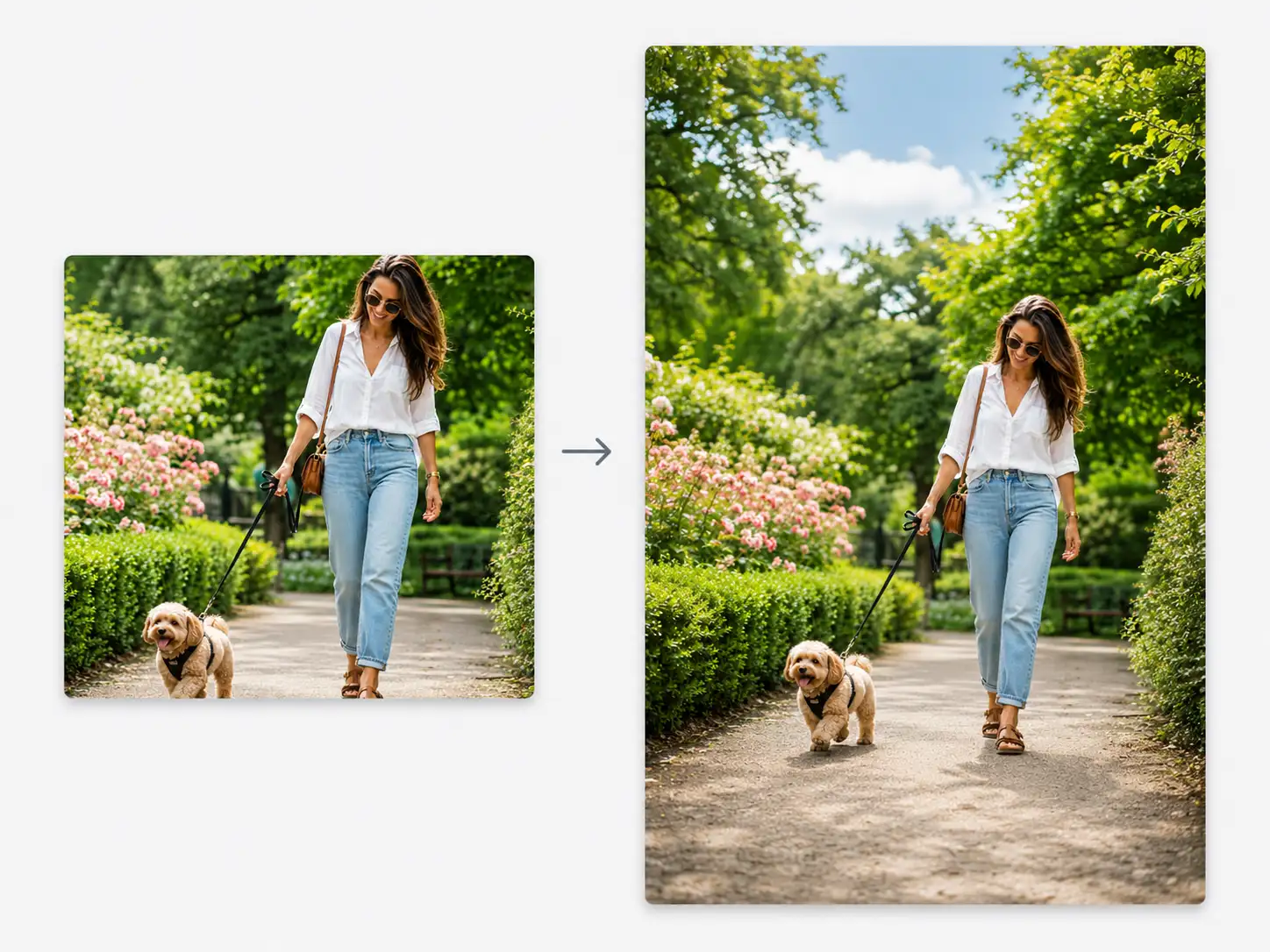
Pick a Target Frame and Let AI Outpainting Handle the Rest
You have a landscape product photo but need an Instagram Story. Or a portrait that should be a wide banner. Instead of guessing pixel dimensions, choose from built-in presets: vertical social, wide banner, ecommerce product frame, phone wallpaper, or a custom aspect ratio. Pixlio's AI outpainting calculates the expansion needed and generates the new canvas area around your image—matched to the exact surface you are designing for.
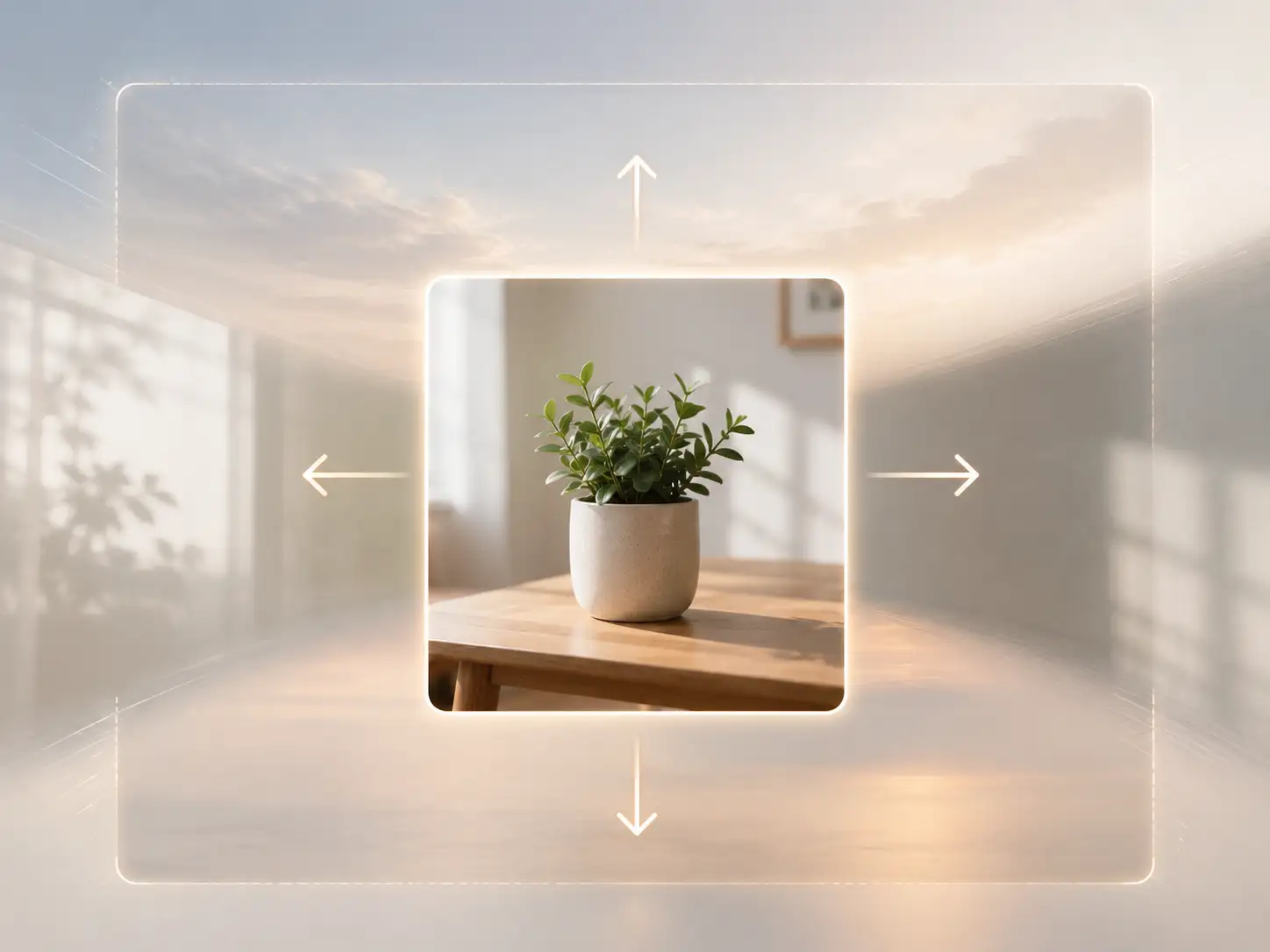
Expand One Edge at a Time with Directional AI Outpainting Controls
Sometimes you only need more sky above a subject or extra floor below a product. Pixlio gives you directional expansion buttons—left, right, top, bottom—so you can extend your image with AI on exactly the edges that matter. Expand one side, review, then expand another. This iterative approach avoids the all-or-nothing problem where a single generation tries to fill too much new area at once, and it keeps each expansion smaller and higher quality.
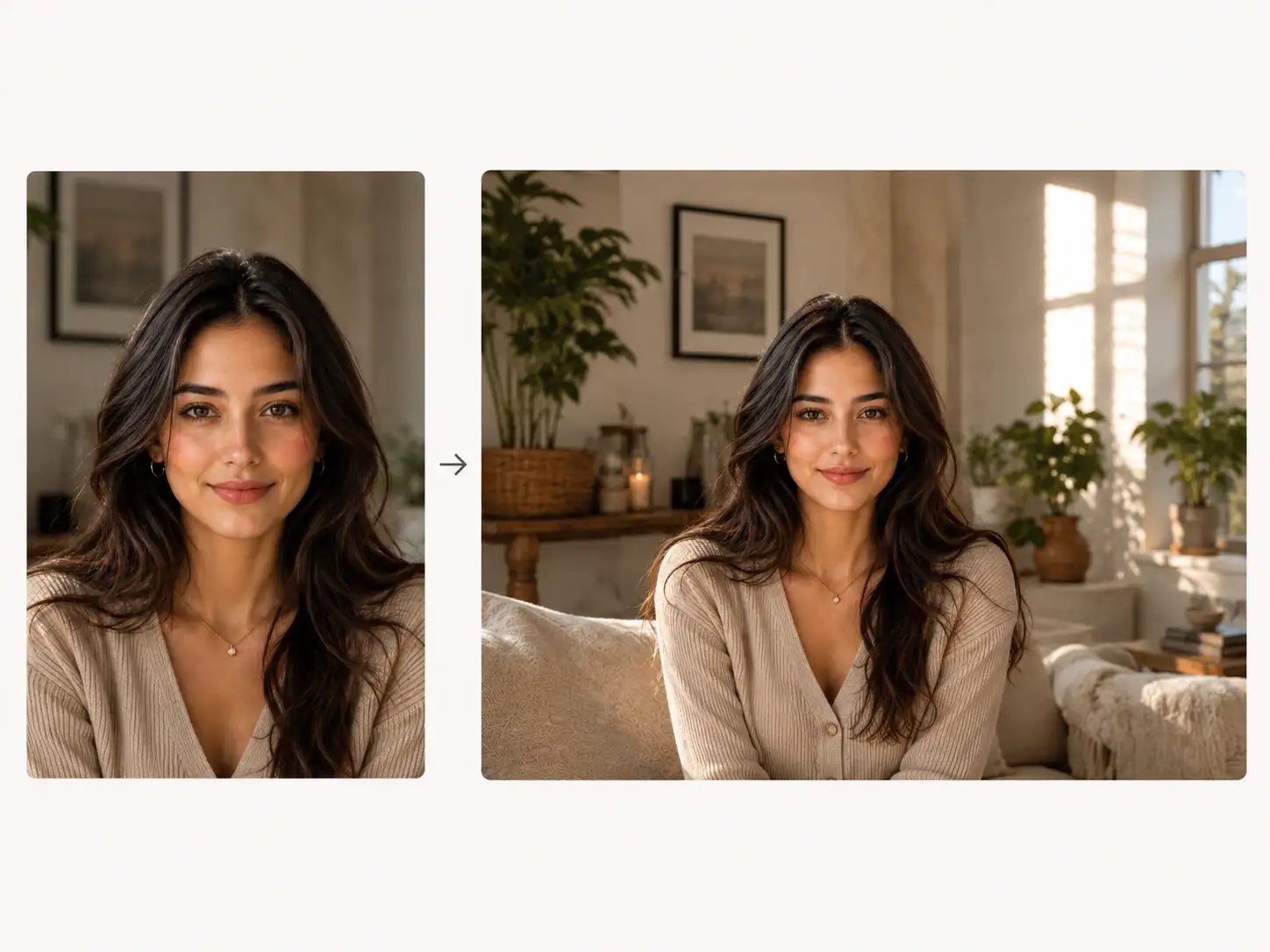
Preserve Your Subject While AI Outpainting Fills the Surroundings
The biggest risk with image expansion is the AI altering faces, hands, products, or other details you need intact. Pixlio's AI outpainting is designed to keep your original image core stable by default. Only the new canvas area is generated—your subject, its proportions, and fine details remain as you uploaded them. If a tricky scene produces an imperfect result, retry is one click away without re-uploading or losing your settings.
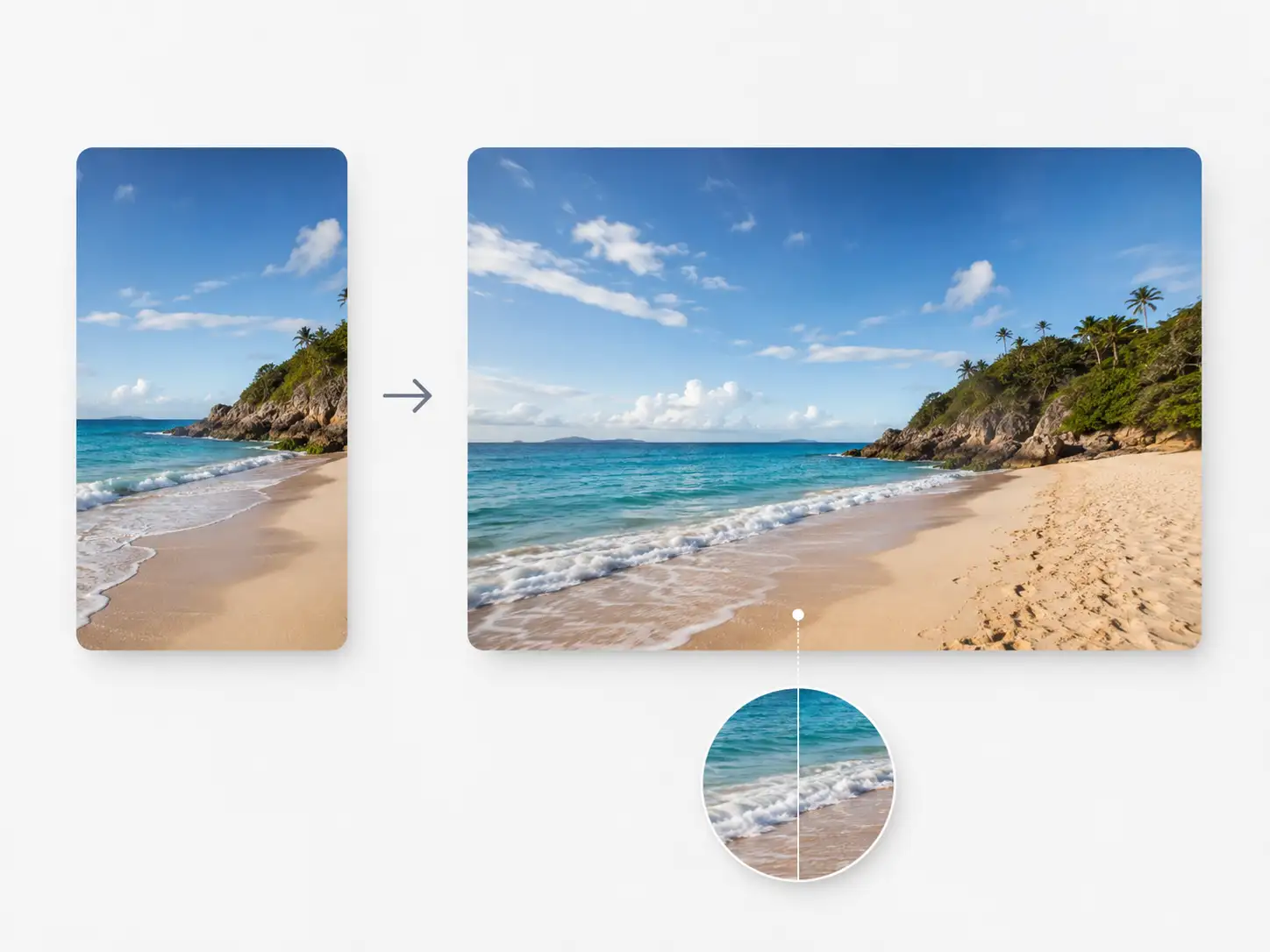
Review Seams and Retry Instantly When You Extend Images with AI
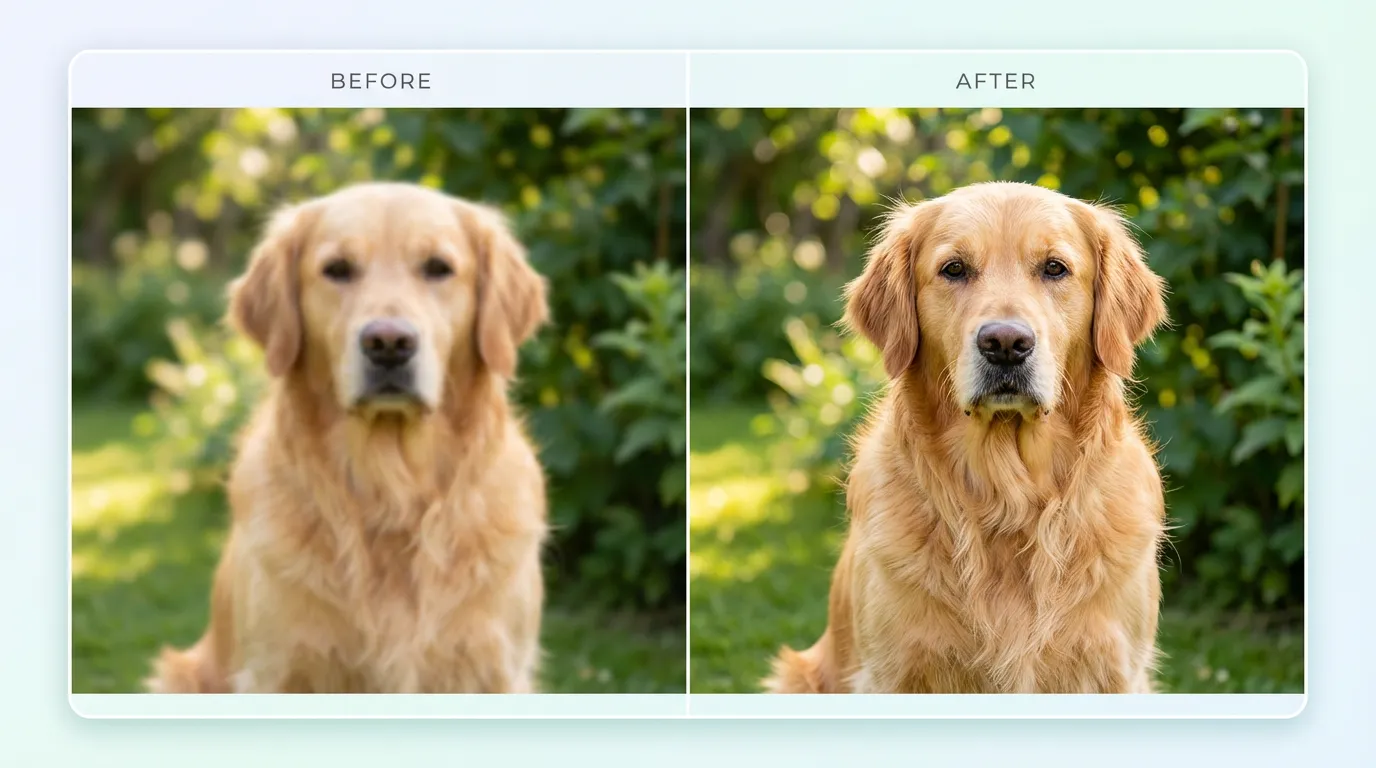
Seam mismatches, darker fills, and hue drift are common frustrations with AI outpainting tools. Pixlio includes a built-in before-and-after comparison so you can inspect blend quality at the expansion boundary. Not satisfied? Hit retry and the tool regenerates only the expanded area while preserving your last successful result. You stay in an accept-or-retry loop instead of starting over, which makes reaching a clean expansion faster and less frustrating.
How to Use Pixlio AI Outpainting Tool in 3 Steps
Extending your image takes less than a minute. No design skills, no prompt writing—just upload, choose your frame, and generate.
Who Uses Pixlio's AI Outpainting Tool?
From social creators to product photographers, Pixlio's AI image extender helps anyone who needs an existing image in a different shape—without reshooting, manual editing, or complex prompt workflows.
Social Creators Adapting Photos for Stories, Posts, and Reels
You shot a great horizontal photo but need a vertical Story or a square post. Instead of cropping out important content, use AI outpainting to expand the canvas in the right direction. The tool adds natural-looking surroundings so your subject stays centered and fully visible—no awkward borders or blurred fill needed.
Marketers and Ecommerce Sellers Fitting Products into New Layouts
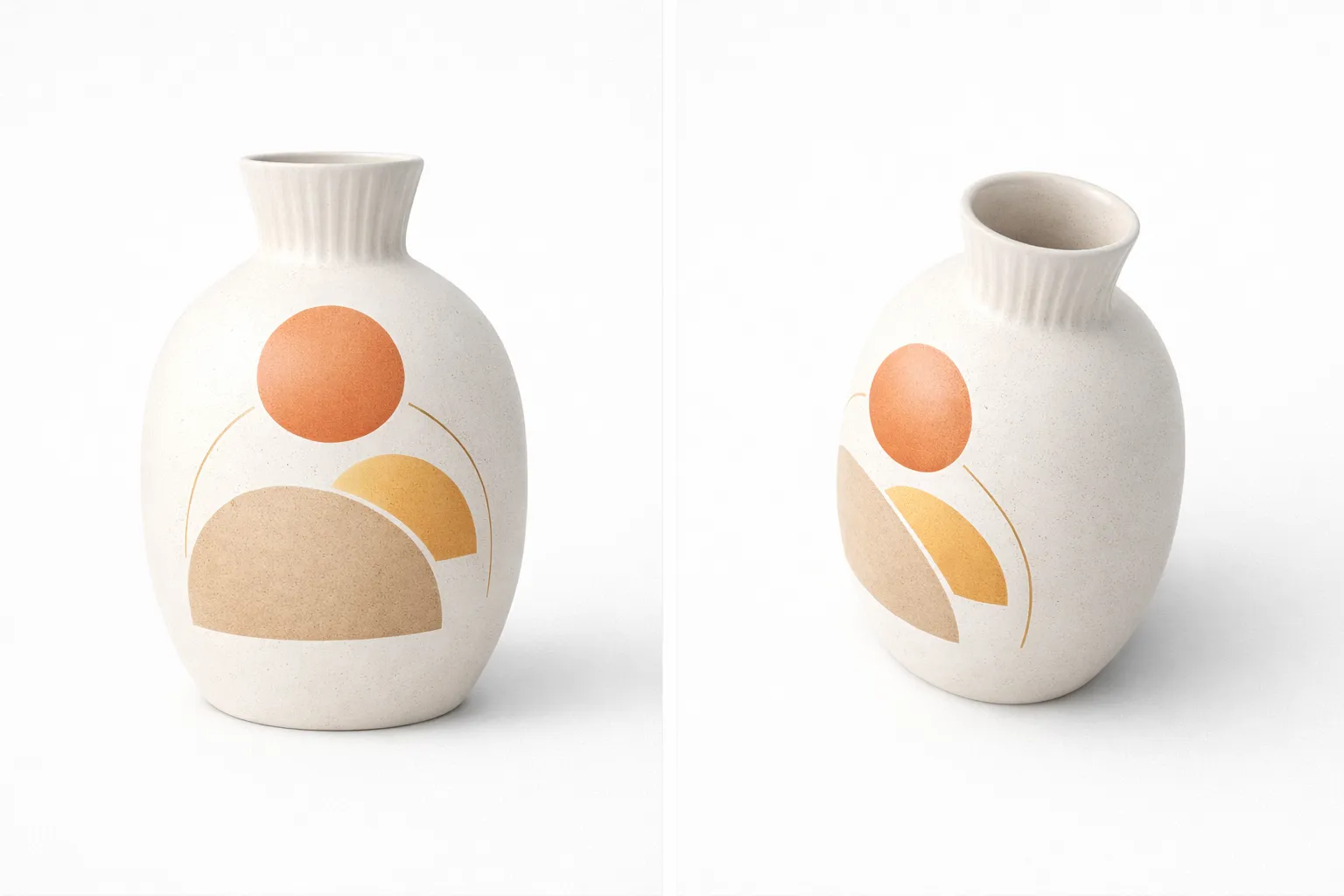
Product images rarely come in the exact dimensions your ad platform, marketplace listing, or email template requires. Pixlio's AI image extender lets you expand a product photo into a banner, hero image, or social ad frame while keeping the product itself pixel-perfect. No need to reshoot or commission new studio assets for every placement.
Photographers Extending Studio Backdrops and Portrait Compositions
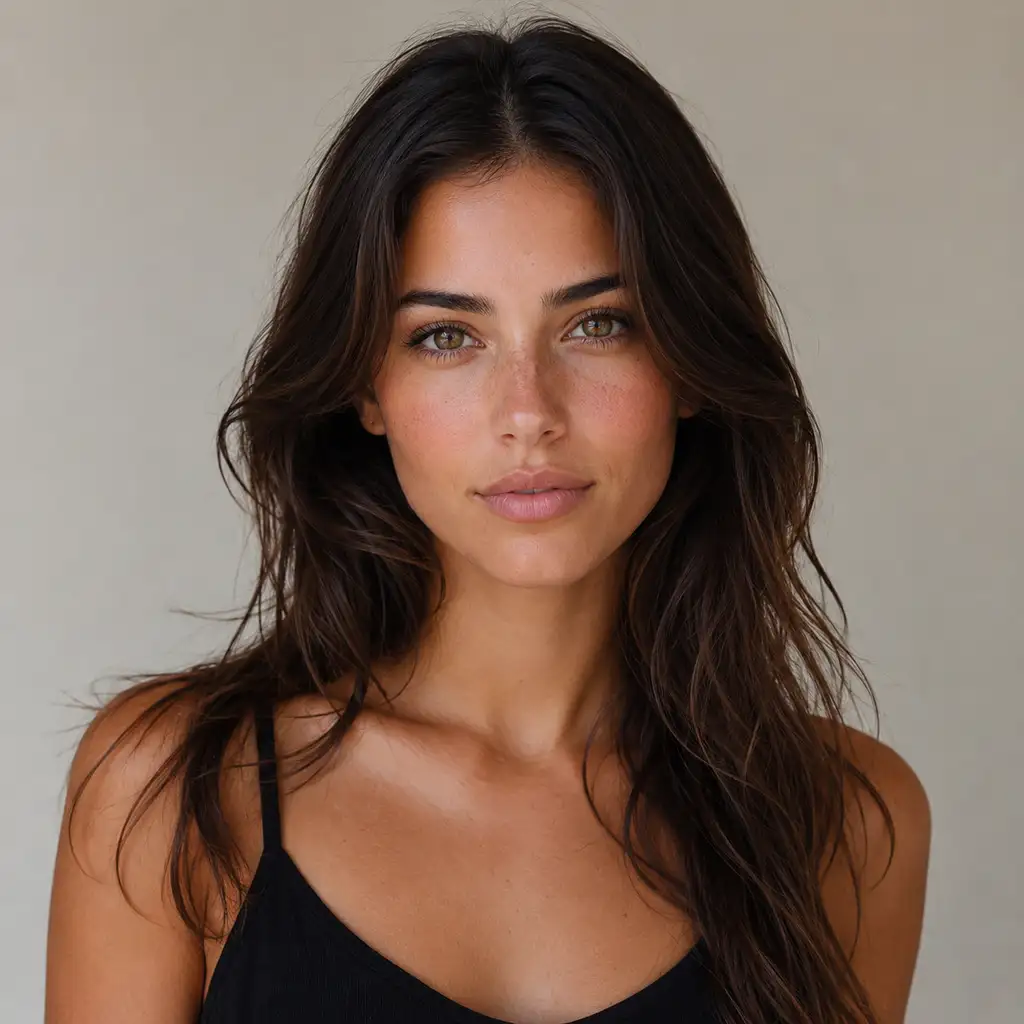
A studio backdrop that ends too soon or a portrait cropped at the elbows can ruin an otherwise strong shot. Use AI outpainting to extend white backgrounds, paper rolls, or gradient backdrops seamlessly. The tool preserves skin tones, hair, and clothing details while generating only the surrounding area you need for a full-body or wider composition.
Anyone Who Needs to Uncrop a Photo or Add Breathing Room
Sometimes a photo just needs a little more space—room for a text overlay, a wider margin for print, or a less claustrophobic composition. Pixlio lets you extend images with AI casually and quickly. Upload, pick a direction, generate, and download. No account setup needed for your first try, and no prompt engineering to get a clean result.
AI Outpainting FAQ
What is AI outpainting?
AI outpainting is a technique that extends an image beyond its original edges. Instead of cropping or stretching, the AI generates new pixels that blend naturally with the existing content—expanding the canvas while keeping the original subject intact.
Is Pixlio's AI outpainting tool free to try?
Yes. Pixlio's AI image extender offers free credits when you sign up, so you can extend your first image right away. Additional credits are available if you need more generations.
What image formats does the AI image extender accept?
Pixlio's AI outpainting tool accepts JPG, PNG, and WebP uploads. For best results, use a well-lit photo with a clear subject.
Do I need to write a prompt to extend an image with AI?
No. The tool works without any prompt—just upload your photo and choose a target frame or expansion direction. An optional prompt field is available if you want to guide the generated area, for example by requesting more sky or a white studio backdrop.
Does AI outpainting change my original subject?
The tool is designed to preserve your original image core, including faces, hands, products, and other details. Only the new canvas area around the subject is generated. If a result is not perfect, you can retry instantly without re-uploading.
What if the expanded area has visible seams or color mismatches?
Seam quality depends on the source image and expansion size. Pixlio's AI image extender includes a before-and-after review so you can inspect blend quality, and a one-click retry that regenerates only the expanded area. Trying a smaller expansion or adding a short prompt often improves difficult scenes.
More AI Image Tools
Explore our collection of AI-powered image tools designed for different creative needs and styles