 Pixlio AI
Working image
Upload an image to begin.
Remove anything from photos with AI image object remover
Keep the photo you wanted to take. Mark unwanted people, props, or background clutter, let the image object remover clean up the selected areas for you.
Give your subject room to stand out
A distracting object does not have to be the reason you abandon a useful photo. Pixlio's image object remover lets you choose the area to clean, refine your markings, and inspect the change in one workspace.
Keep the scene, clear the distraction
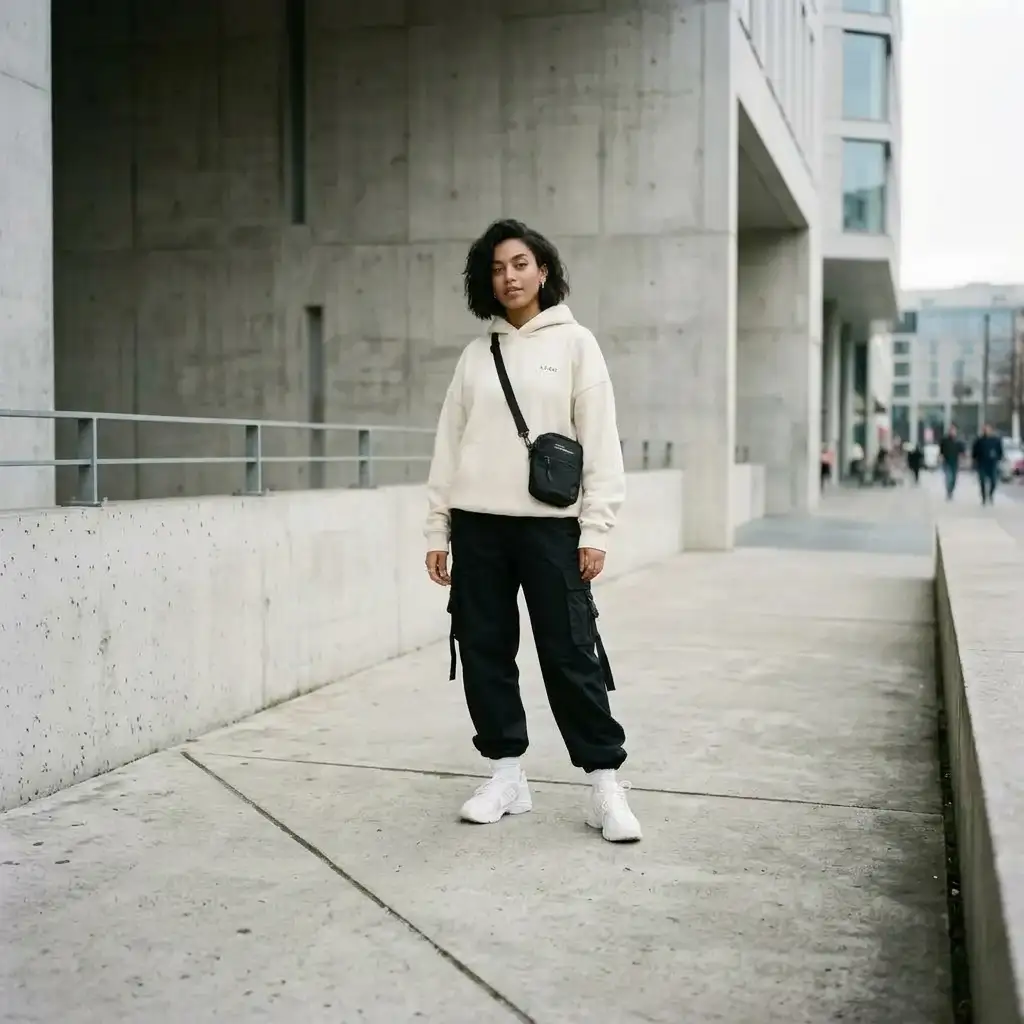
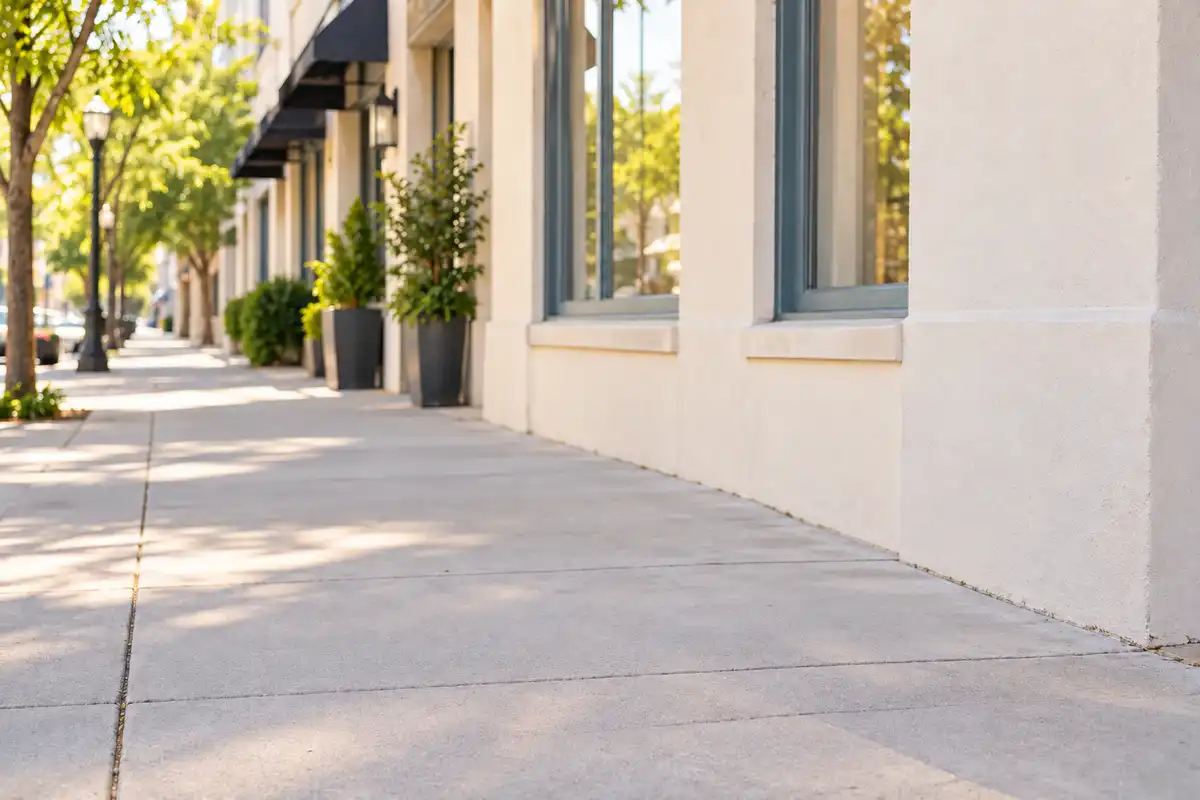
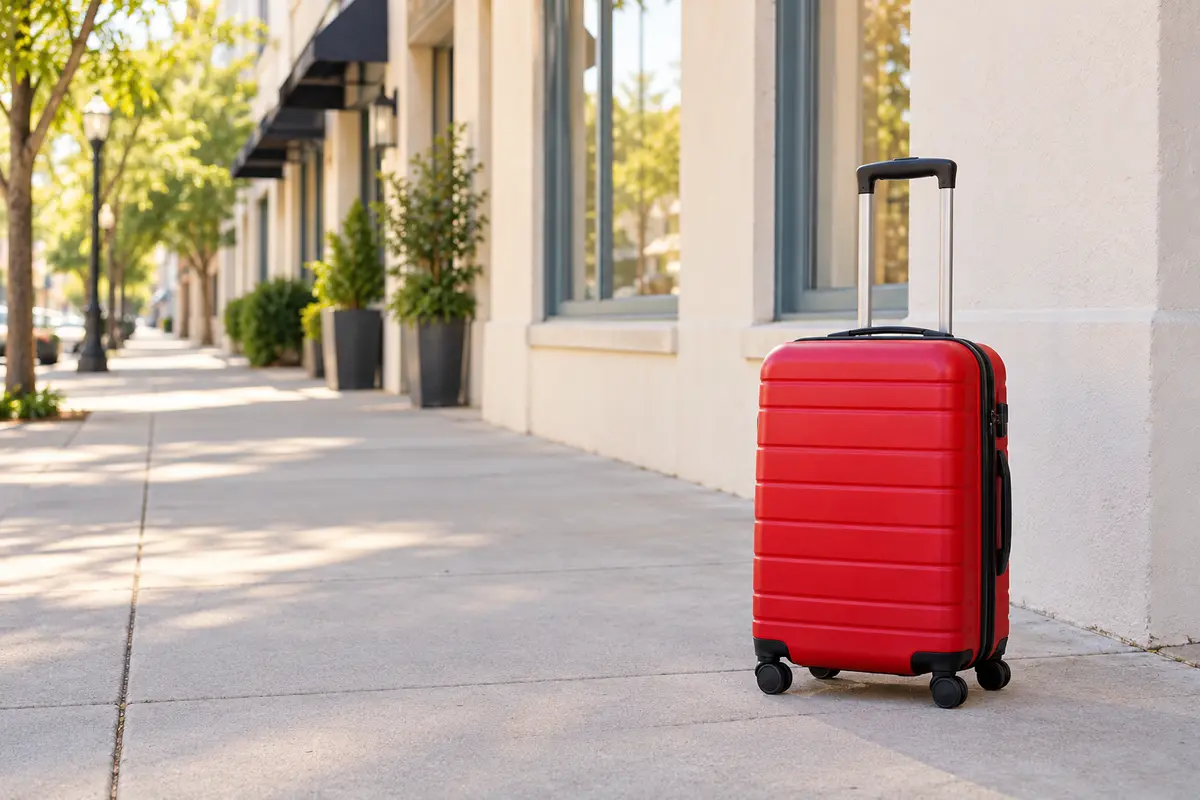
A suitcase beside a bench or a stray prop behind your subject can pull attention away from the scene. Use the AI object remover to mark that distraction rather than starting over with another photo. Paint with Brush, select a block with Rectangle, or trace an irregular outline with Lasso. No prompt is needed: your selection tells the tool where to work. Review the reconstructed area to decide whether the result fits your intended image.
Tidy your selection before committing
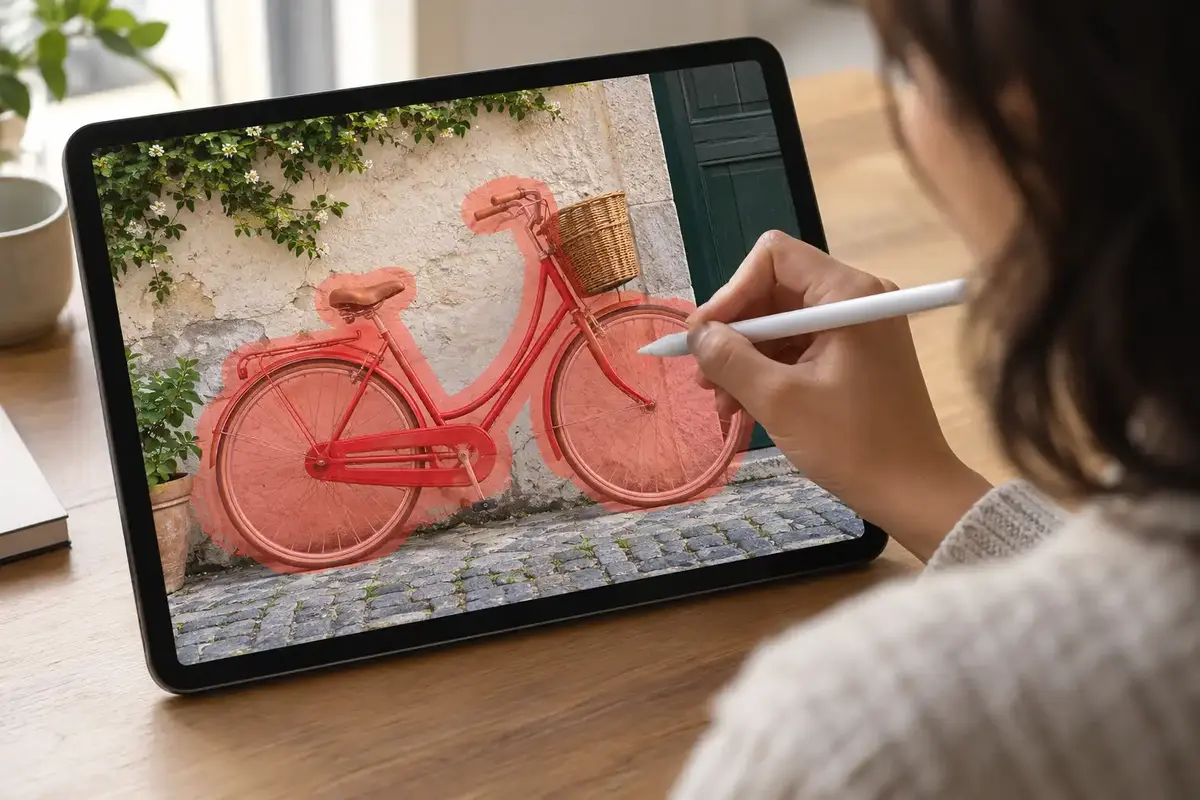
When an unwanted item sits close to something you want to keep, take a moment to check your markings. The image object remover shows a translucent overlay and an adjustable brush footprint so you can see what you selected. Eraser unmarks areas without erasing the photo itself; Undo, Redo, and Clear selection help you revise the mask. Use mouse, pen, or touch, and zoom in when a closer view would help you judge the edges.


Work through clutter without uploading again
A kitchen counter may have more than one item competing with the subject. Select several distractions together, or handle them in separate passes. Each successful output becomes the working image for your next selection, so cleanup can continue in the same session. Compare the latest result with the original upload to judge the overall change. If you want to start again, Reset restores the original; you do not need to find and upload the file a second time.
How to remove objects from images
Start with one photo and a clear idea of what you want to remove. The AI image object remover keeps upload, selection, and result review together.
Make more use of the photos you already have
Use an image object remover when a useful shot includes something you would rather leave out. These everyday situations offer a practical place to start.
A travel moment you cannot reshoot
A passerby or trash bin can distract from a view you traveled to capture. Mark the unwanted area and review the cleanup before sharing. An AI object remover gives you a way to revisit that shot when returning to the location is not practical.
Product photos with less surrounding clutter
Use the image object remover to clear stray props or packing materials around an item before preparing a listing. Keep your selection away from product details you need to show accurately, then inspect the output to ensure the photo still represents what you are selling.
Keepsakes with an unwanted detail
A scanned photo may contain a small mark or distracting printed detail. Select that area for cleanup, then compare the result with the original before deciding which version to keep. This is focused removal rather than a promise to restore every damaged part of an old photograph.
Cleaner starting images for your next project
Remove unwanted objects from images intended for a slide, social post, or creative project. When cleanup is complete, signed-in users can send the working image to Edit Image, Extend Image, Upscale, Remove Background, or Create Video. Those actions open separate Pixlio workflows for the next task.
Questions about the image object remover
What can Pixlio AI image object remover clean up?
Mark unwanted people, props, or background clutter for removal without writing a prompt. To automatically remove all detected text, try the image text remover. Object removal uses your marked areas rather than automatically detecting objects.
Why choose Pixlio's image object remover over other existing remover tools?
Pixlio combines intuitive selection tools with a convenient next step for your cleaned image. Brush over unwanted objects, trace an outline with Lasso, or select an area with Rectangle, then refine your selection before removing it. After cleanup, you can send the result directly to Pixlio's other tools to edit the image, increase its resolution, remove the background, or even create a video. You can keep creating without downloading and uploading the result again.
Do I need an account, and how many credits will I use?
You can upload and mark areas before signing in without spending removal credits. Each object-removal operation costs 2 credits at low quality. High and Best quality removal require an Pro or Max plan. Automatic text cleanup costs 10 credits per operation.
Can I remove several objects from the same image?
Yes. Select multiple areas for one operation, or clean up the image in separate passes. Pixlio AI image object remover loads each successful result as your next working image and clears the old selection. You can then mark another distraction without uploading again.
What does Pixlio recommend for irregular shapes or jagged edges?
Use Brush to paint over uneven areas, or Lasso to trace a freehand outline around the object. For a larger area, try selecting it with Rectangle first, then use Eraser to unmark the parts you want to keep. Eraser only changes the selection; it does not erase the photo itself. Zoom in and reduce the brush or eraser size for finer adjustments, then check the selection overlay before processing.
What is the difference between Undo, Compare, and Reset?
Undo and Redo change selection actions, not generated images. Compare shows the original upload beside the latest successful result, rather than the previous pass. Reset restores the original and clears your markings while keeping the latest result available for comparison.
Will the result always look seamless?
No image object remover can promise perfect reconstruction for every photo. Check the rebuilt area and nearby details before downloading, especially where the selection overlaps your subject or detailed surroundings. Zoom in to inspect the working image, then use Compare to assess the overall change.
More AI Image Tools
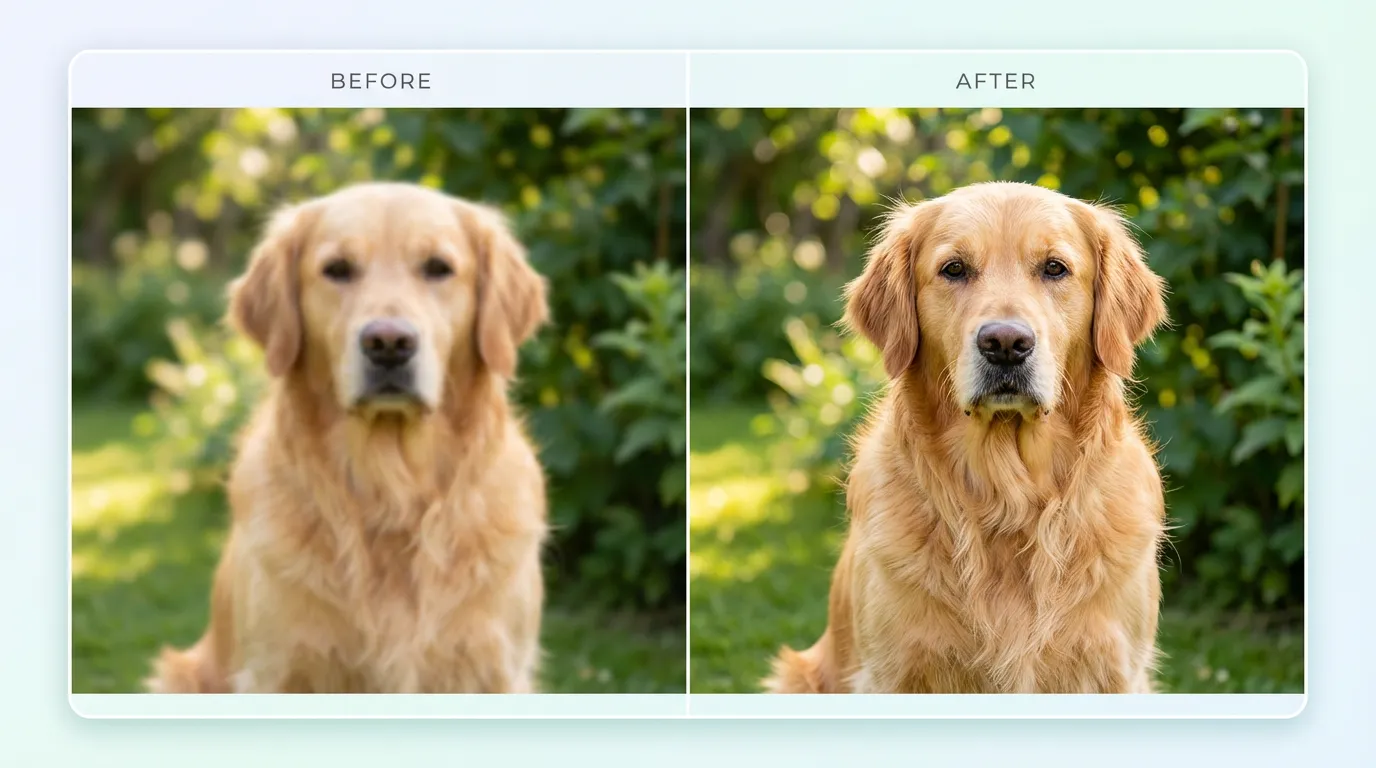
Explore our collection of AI-powered image tools designed for different creative needs and styles