 Pixlio AI
Working image
Upload an image to begin.
Give your photos a fresh start with an AI image text remover
Captions and old lettering can get in the way of a useful picture. Use Pixlio's image text remover to clear text from your images automatically.
Less lettering, more room for your image
A caption can outlive the reason you added it. This image text remover gives you a way to revisit the picture underneath, whether you are preparing a personal photo or refreshing an older creative asset.


Let the view speak without the old caption
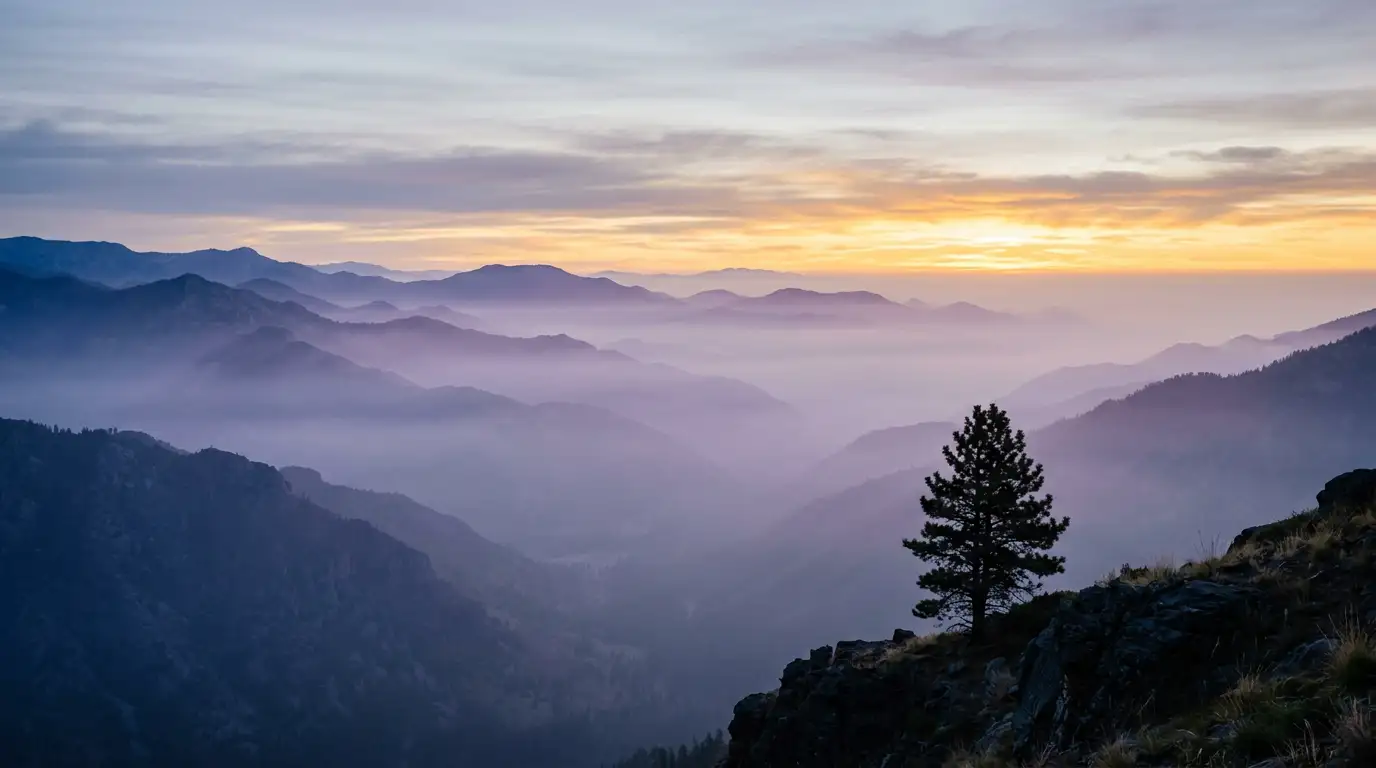
A saved travel photo might have a holiday message across the sky when you would rather share the view itself. The image text remover looks for lettering across the working image, so you can try clearing that caption without tracing every character. Run Remove All Text, then check the reconstructed sky and nearby scenery. Compare helps you decide whether the cleaned version is the one you want to keep.


Revisit a product photo after the promotion ends
An expired sale message can make an otherwise useful graphic feel dated. Use the image text remover to attempt clearing the promotional wording before taking the picture into your next design. Automatic cleanup targets all detected text, including any labels elsewhere in the image, so start with a photo where that is appropriate. Inspect the product and background afterward rather than assuming every detail stayed unchanged.
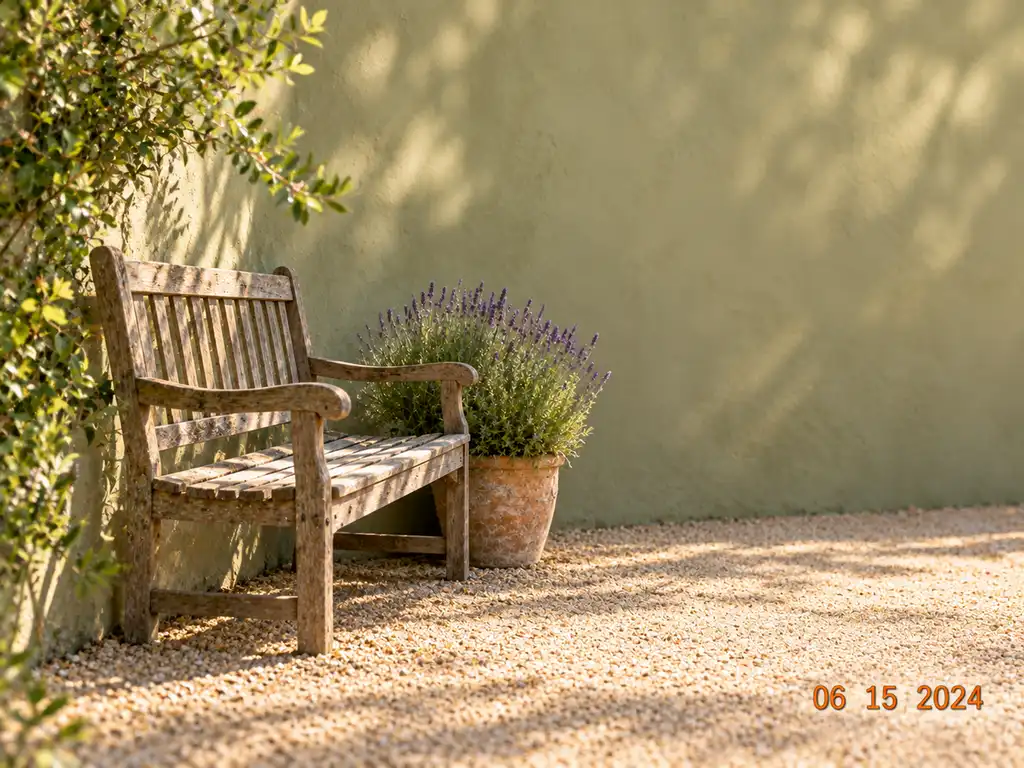
Keep the memory without the date stamp
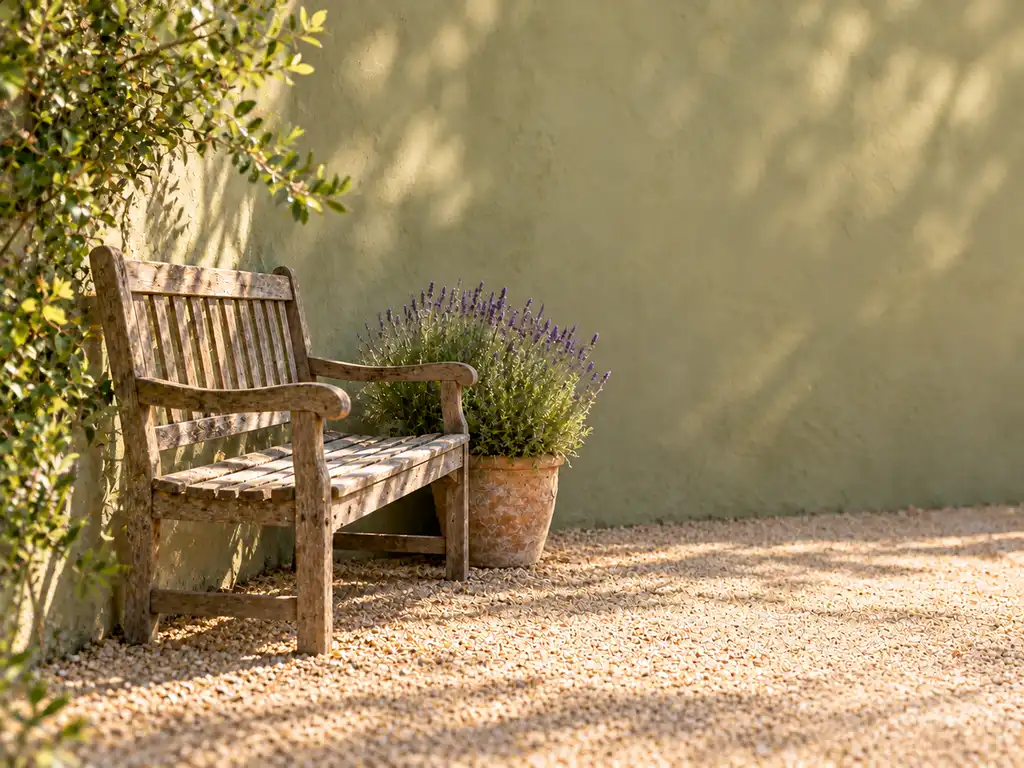
An orange camera date stamp can draw attention away from a favorite scene. Try the image text remover when you want a version without that lettering, then zoom in around the affected corner. Background surfaces and shadow edges may need a careful look after reconstruction. Reset restores the original upload if you want to start over; it does not provide a history of every generated pass.
How to remove text from images
Bring one picture into the image text remover, run automatic cleanup, and inspect what changed before moving on.
Find another use for a picture you already have
You may need to remove text from photos for a new context rather than a complete redesign. These everyday projects are useful places to try the image text remover.
Personal photos without yesterday's message
Revisit a landscape or family snapshot with an added caption or date. The image text remover offers a way to try a cleaner version for an album or a new post. Keep the original and compare faces, textures, and reconstructed areas before sharing.
A fresh starting point for social graphics
When an old announcement no longer fits, use the image text remover to clear its lettering from your own graphic. Take the cleaned image into a separate editor for the next design. This workspace handles removal; it does not add replacement headlines or give you editable text layers.
Promotional imagery for a different season
Use the image text remover on campaign assets you want to revisit after a sale ends. Review the entire result, especially if packaging contains printed details. Automatic removal may affect that text too, so choose images suited to an all-text cleanup.
Background pictures for your next presentation
Remove text from images you plan to reuse behind a slide or creative layout. If other distractions remain, switch to the image object remover workflow and mark those areas manually. You can continue on the same working image without another upload.
Questions about the image text remover
How does the image text remover work?
The AI image text remover detects text in the working image and attempts to reconstruct the areas underneath it. You do not need to paint over letters or write instructions. The image text remover targets all detected text, so review the whole picture before deciding whether the result suits your project.
Can I choose which words to remove or replace?
Remove Text has no control for individual words, and it cannot replace text with new wording. If your image contains a caption and a label you want to keep, automatic cleanup may target both. The separate Image Object Remover mode lets you mark an area manually.
Which image formats and sizes can I upload?
You can upload one readable JPG, JPEG, PNG, or WebP file up to 15 MB. The tool does not process a batch of photos together. Use Replace when you want to start a new cleanup session with another image.
Will removing text restore every hidden detail?
Not always. The image text remover reconstructs the area beneath the lettering, so the result may differ from the original details hidden by the text. Zoom in to check textures and edges after cleanup. If an area needs more work, choose Edit Image to open the result in Pixlio's AI Image Editor and make further adjustments.
Can I keep editing after I remove text from photos?
Yes. Each successful result becomes your working image for another cleanup pass without re-uploading. You can switch to Remove Object for remaining distractions, or send the current image to Pixlio's image editor, upscaler, image extender, background remover, or even AI video generator.
More AI Image Tools
Explore our collection of AI-powered image tools designed for different creative needs and styles