

Seedream 5.5 Image Generator & Editor

Create realistic images from a prompt, give your photos a new setting, or refine a design one change at a time. Use Seedream 5.5 on Pixlio with up to 10 reference images and output options up to 2K.

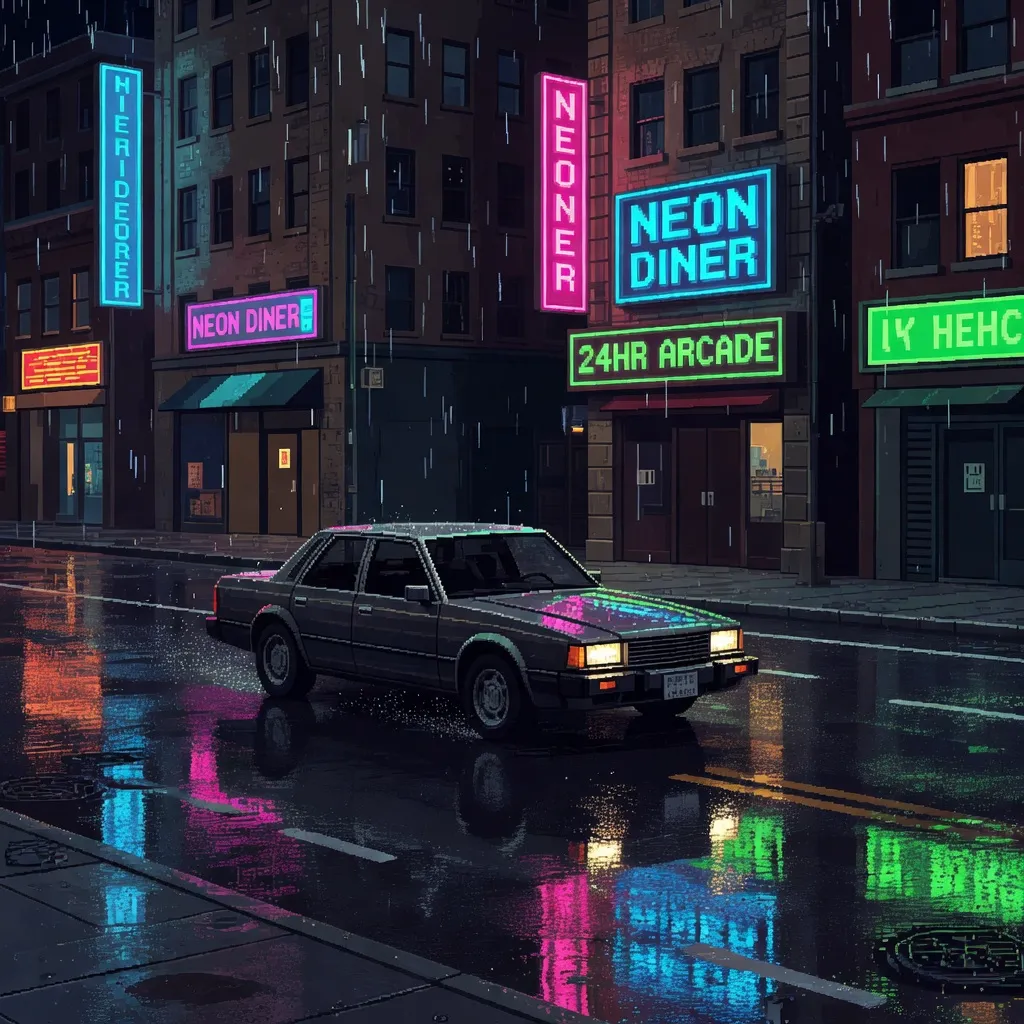
Neon car pixel art
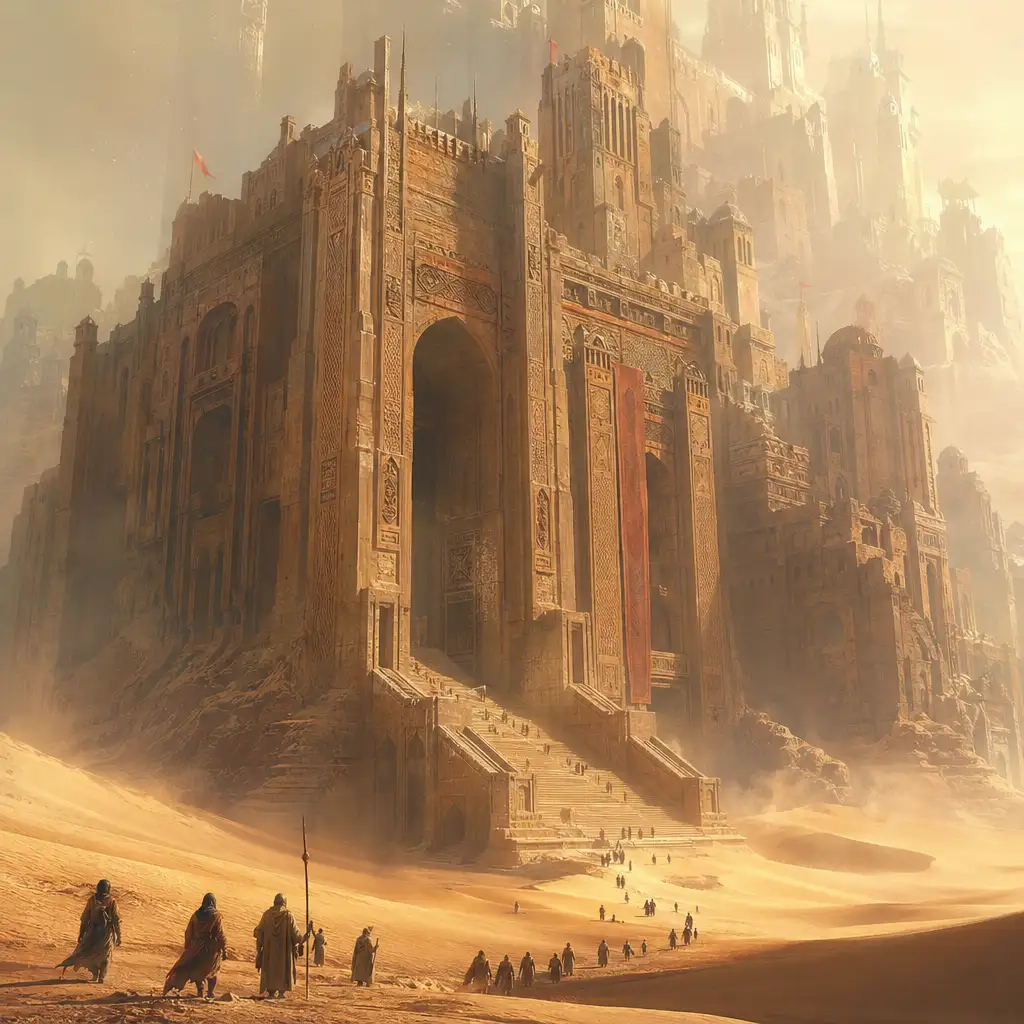
Colossal desert citadel
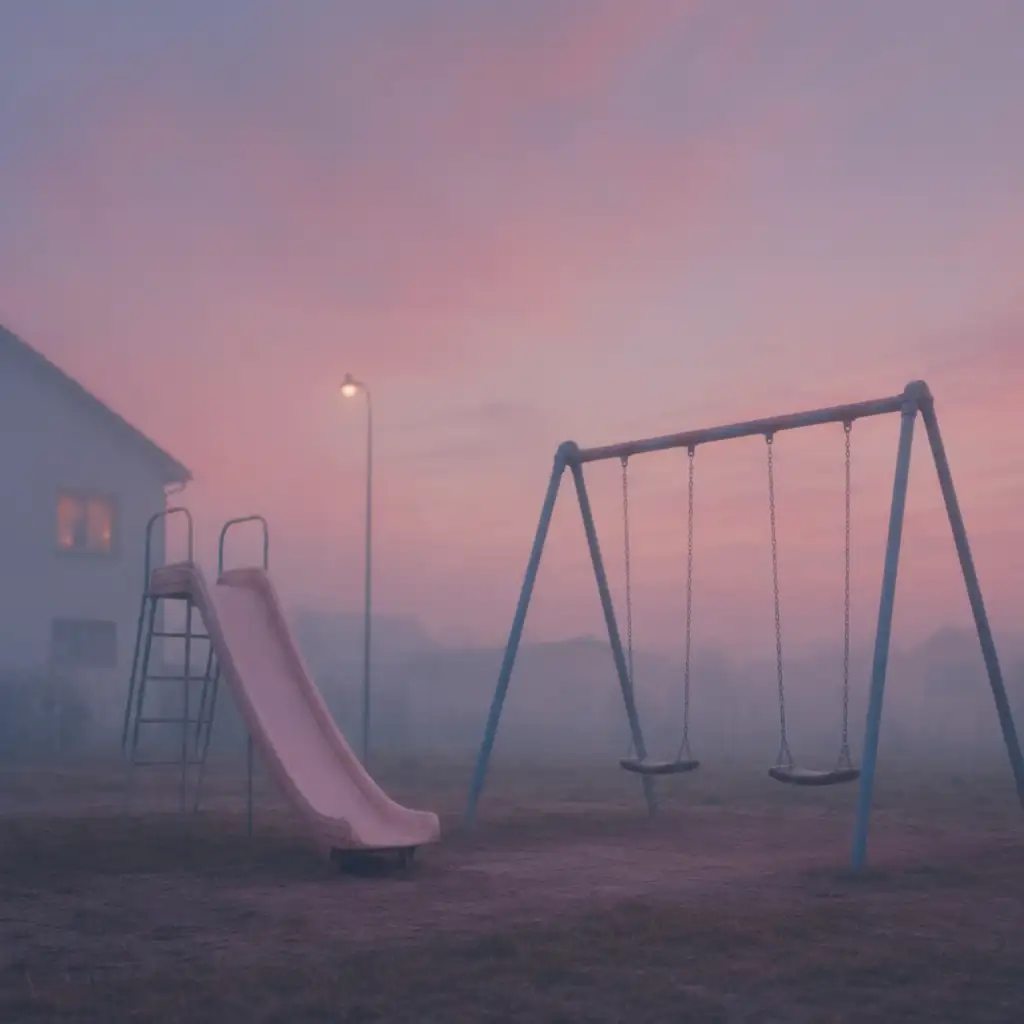
Dreamy playground at dusk
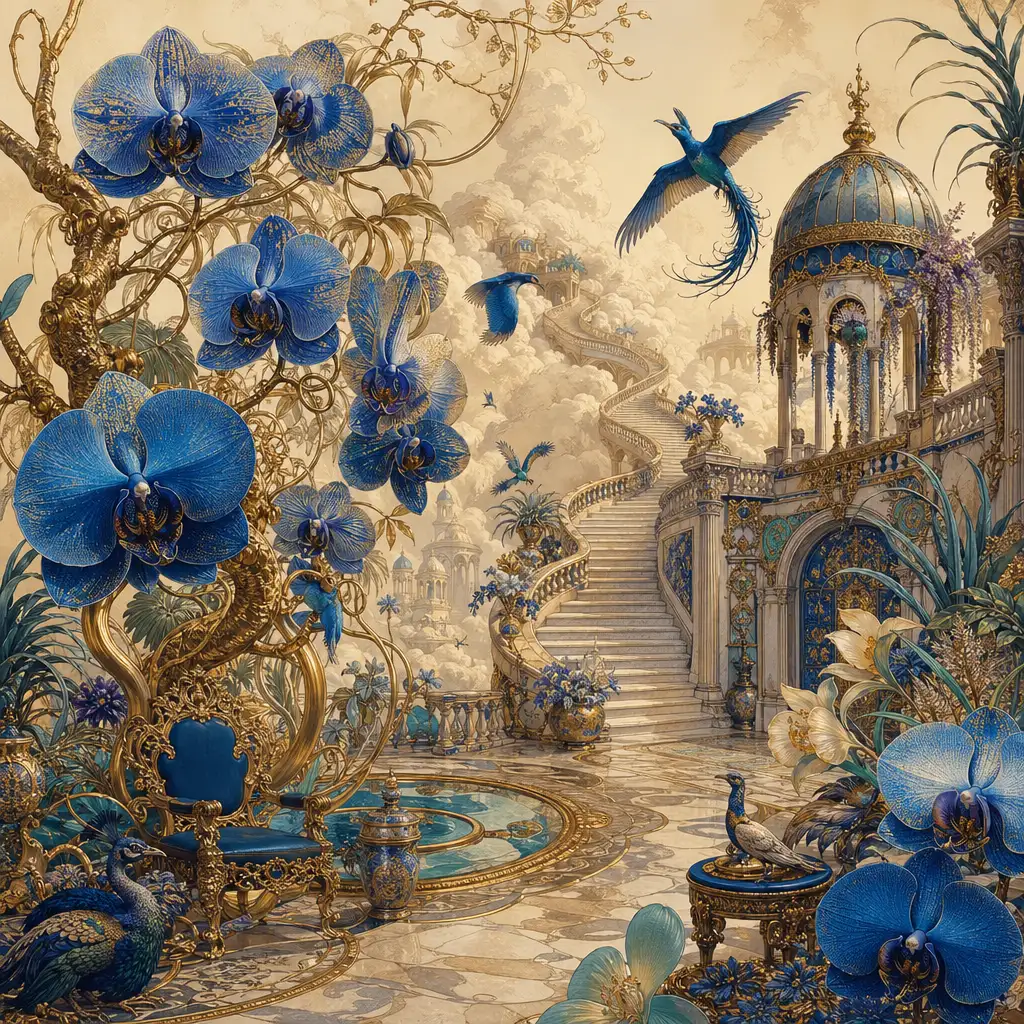
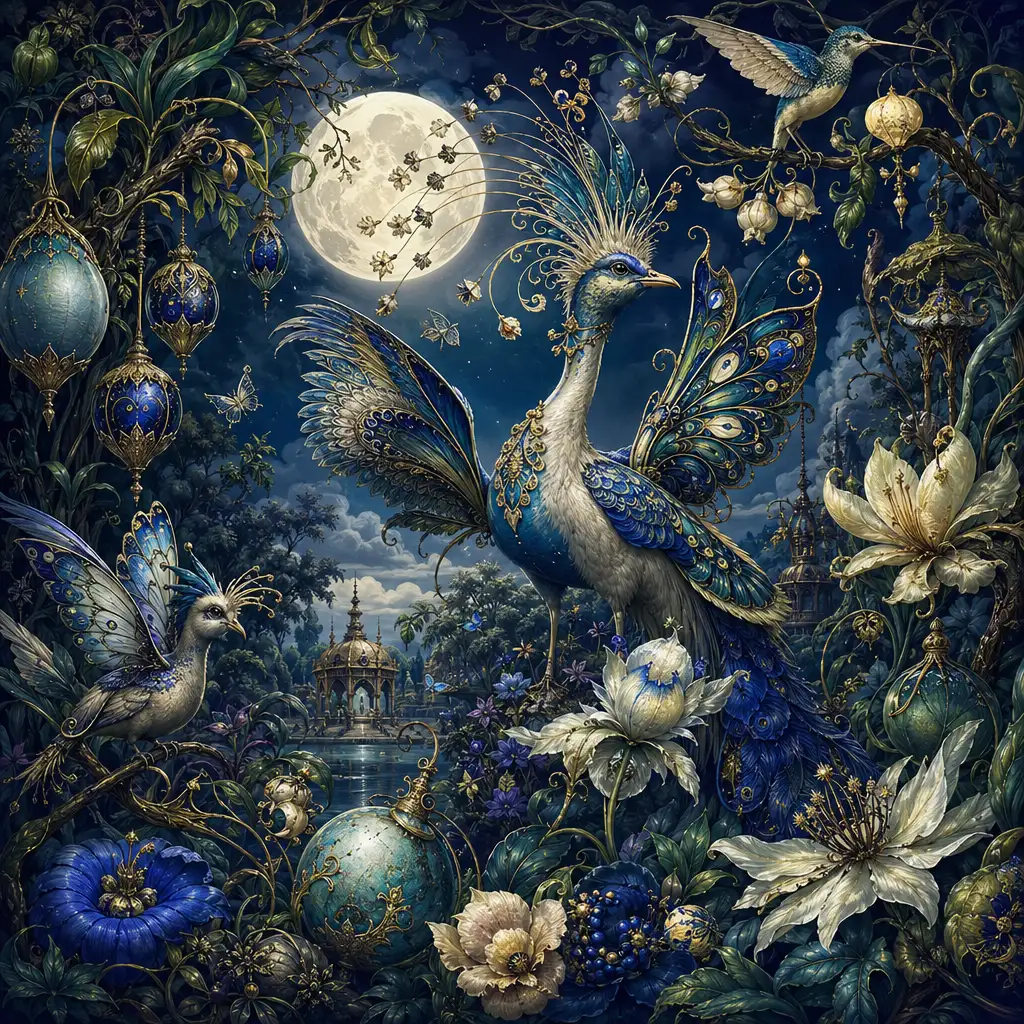
Palace garden surreal flora
Fantasy exotic menagerie

Why try Seedream 5.5?

Seedream 5.5 is ByteDance's image generation and editing model, introduced on November 9, 2026. Create a new scene from a description or start from a photo you already like. If the setting works but the outfit needs a new color, make that the next revision instead of writing a new scene brief.

In its official Seedream 5.5 announcement, ByteDance highlights more stable editing, more natural skin and material textures, and clearer small text. Those changes make Seedream 5.5 worth exploring for photo variations and designs that combine words with images. You can also revisit a familiar brief from Seedream 5.0 Pro and compare the results yourself.

Creative possibilities

What will you make with Seedream 5.5?

Give a product a new setting, revise a portrait, create a poster with your wording, or explore a room using your own references.

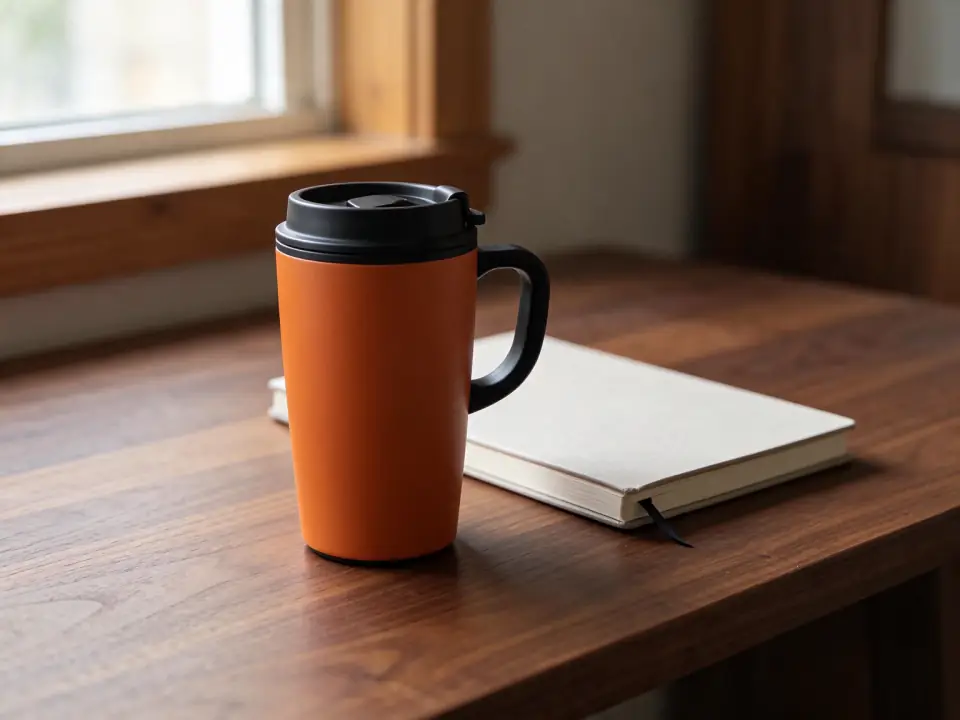
Give a product photo a new setting

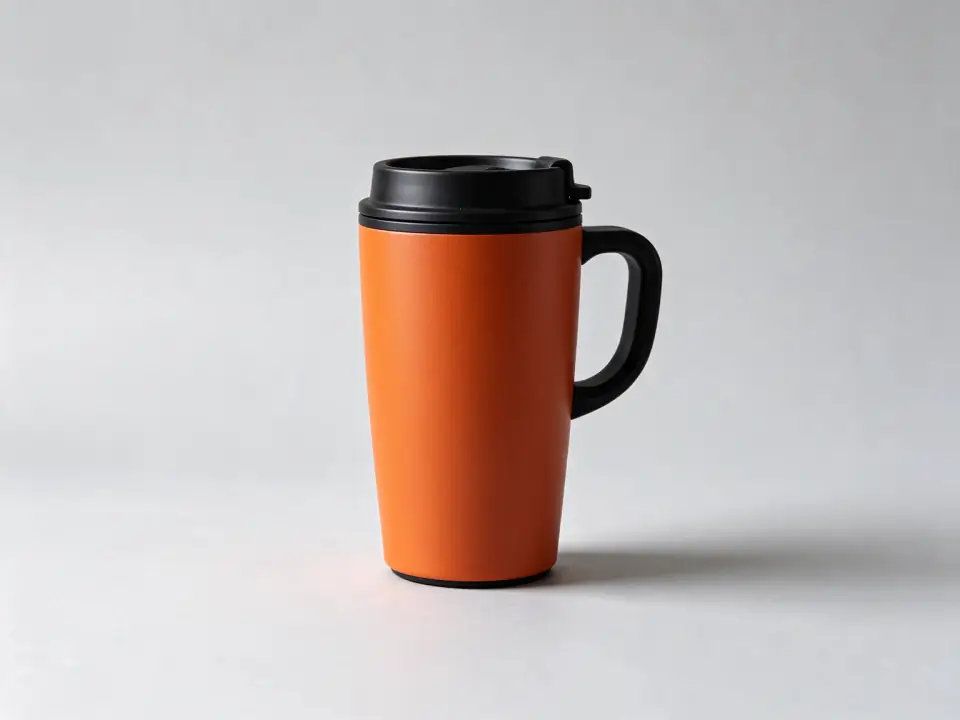
Turn a plain product photo into a desk scene, a gift-guide image, or a seasonal promotion. Upload your item, describe its new surroundings, and name the details to retain. Seedream 5.5 is designed for targeted revisions, so you can explore different settings from the same starting photo. Build a collection of visual concepts around the product you already have, with its shape, colors, and branding as your reference.

Create your version

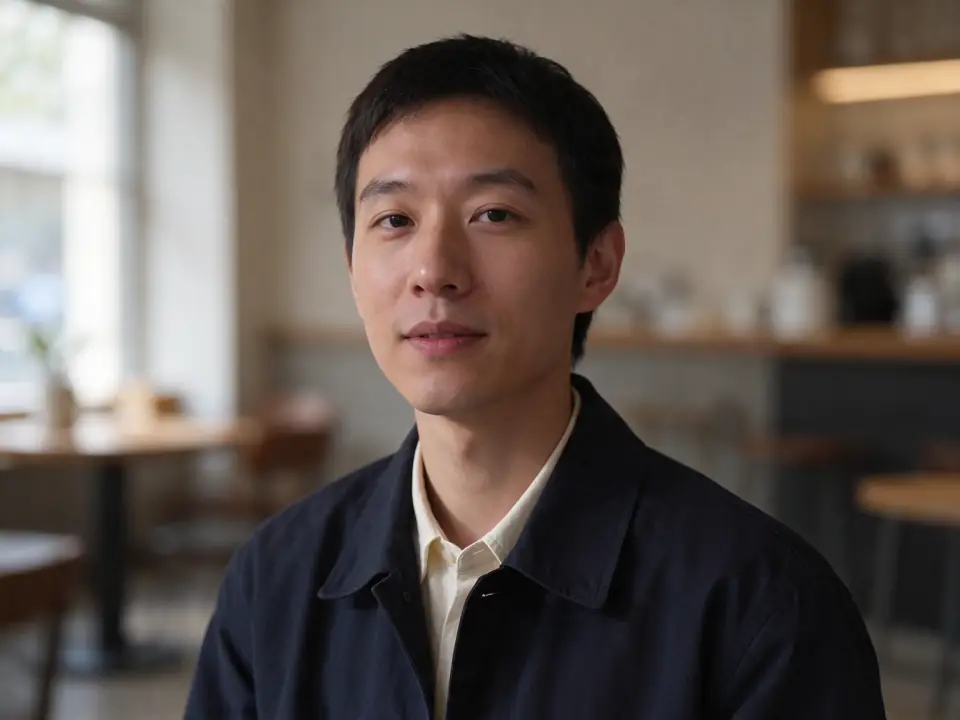
Explore a new look for your portrait

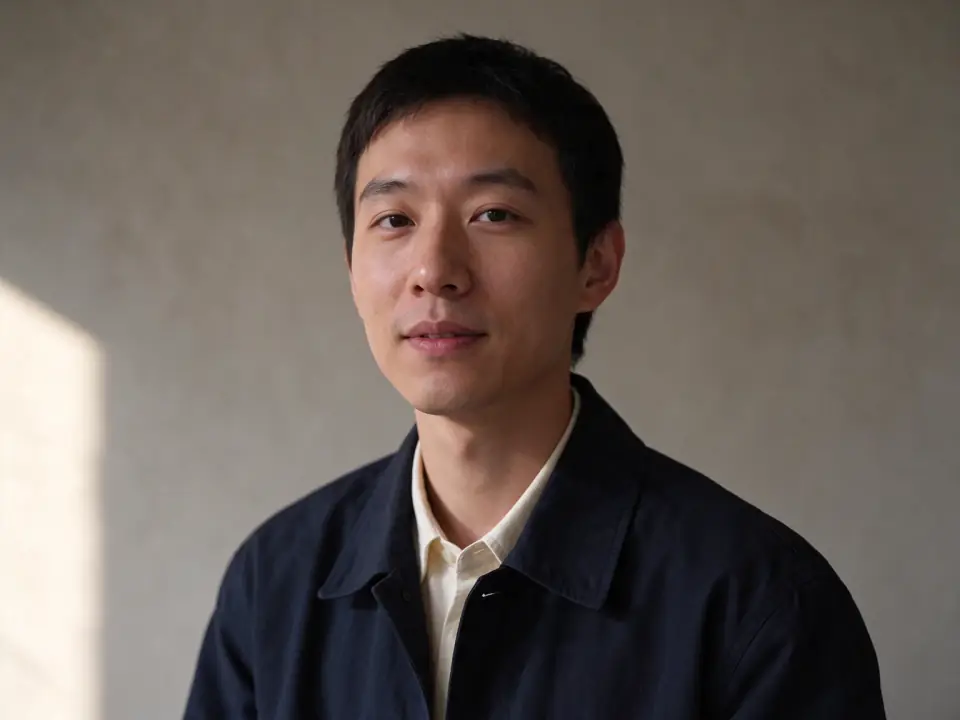
Use a portrait you like to explore a new background or outfit color. Describe the change and the facial features, hairstyle, pose, and expression you want to retain. Seedream 5.5 emphasizes editing consistency alongside more natural lighting and skin texture. Try a softly lit cafe setting or a green jacket, using your original photo to guide the person's appearance.

Create your version
Weekend market poster with a large headline, illustrated produce, and a smaller date and location line

Create posters with your own wording

Put your event name, date, and location into a poster concept alongside the illustration. Seedream 5.5 brings improved small-text rendering to designs that combine words and imagery. Supply the wording, describe which line should be largest, and choose a visual style for an invitation or promotion. Review the lettering at full size before sharing, particularly names, dates, and fine print.

Create your version
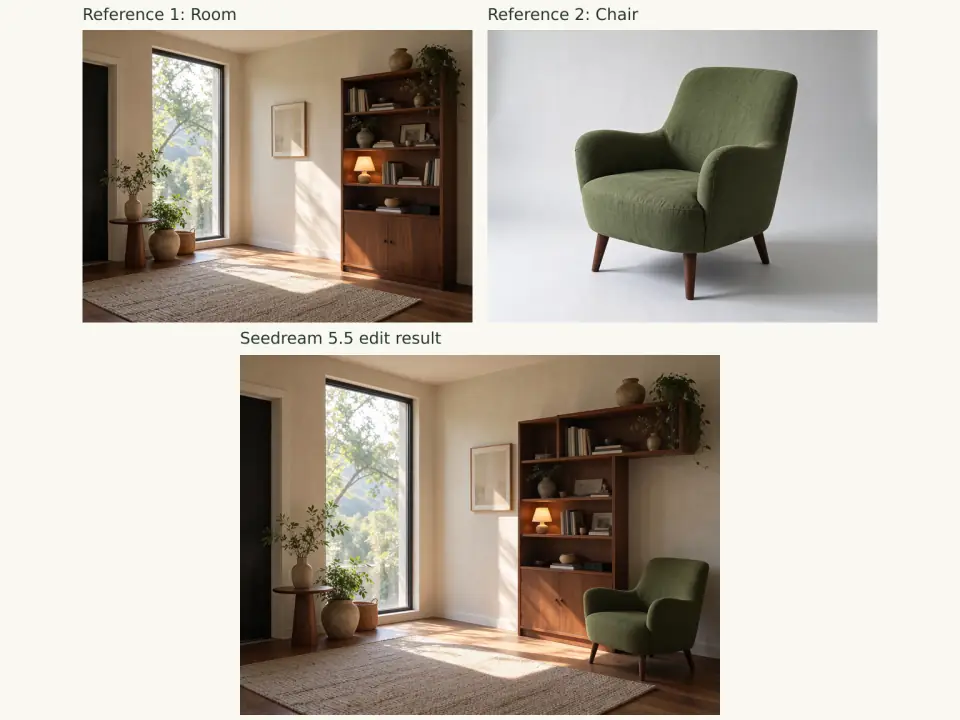
Reading nook and green armchair reference images above a room composition created from both

Preview furniture in your room

Wondering how a green reading chair might look beside your bookcase? Upload the room and furniture as separate references, then explain where the chair should go. Pixlio accepts up to 10 reference images for Seedream 5.5 editing, so you can show the objects and setting instead of describing everything from memory. Explore furniture placement, upholstery colors, and the overall mood as a visual concept for your room update.

Create your version

Start from a prompt or from a photo?

Choose your starting point according to what you already have. A text prompt gives you room to invent a scene. An uploaded image gives Seedream 5.5 a visible subject or composition to work from.

Choose a Seedream 5.5 workflow based on your starting material
Your starting point Choose What to provide Example task
You have an idea but no starting image Text to Image Describe the subject, setting, composition, and light. An illustrated reading nook for a book-club announcement.
You want to change an existing photo Image to Image Upload the photo; name the change and the details to retain. Give a product a new background or change an outfit color.
Your idea depends on several visual references Image to Image Add references and explain the role of each image. Explore a chair from one photo in the room shown in another.

Seedream 5.5 prompts to start from

Browse prompts for new scenes and photo edits.

1 of 5 : Quiet bookshop

Quiet bookshop

Text to Image: Explore a photographic scene in Seedream 5.5 with contrasting light and tactile materials.

The prompt

A small neighborhood bookshop at dusk, viewed from the doorway. Warm lamps illuminate worn wooden shelves and a green velvet reading chair. Cool evening light enters through the front window. Eye-level documentary photograph, natural shadows, visible paper and fabric texture. No people or readable signs.

Explore a different idea

How to use Seedream 5.5 on Pixlio

Go from a first idea to a result you can review and refine, with generation and editing in the same tool.

Prompt tips

Make your next instruction easier to follow

A useful brief tells Seedream 5.5 what to make and gives you something concrete to check afterward. The prompts above follow four simple patterns you can adapt to your own images.

Name the visible details
Describe a walnut desk, a matte ceramic surface, or light from a window on the left. Those details communicate a specific picture more clearly than asking only for something beautiful or professional.
Separate the change from what you want to keep
For a Seedream 5.5 edit, name both parts: “Change the jacket to dark green. Keep the person's face, pose, and background.” Inspect those retained details in the result before moving to your next revision.
Give each reference a job
Explain which uploaded image supplies the product and which supplies the room or visual style. If one image contains extra objects you do not want, say which subject to use from it.
Write out the words your design needs
For a new design, supply the headline, date, and smaller lines with their order and placement. For a revision, quote the old wording and its replacement. Check the actual letters in the result, including any smaller lines you asked to retain.

Seedream 5.5 sizes and credit costs

Seedream 5.5 text generation starts at 10 credits per image, and editing starts at 20. Auto 1.5K has the same credit cost as Auto 1K; Auto 2K offers a larger output for 5 more credits. JPEG and PNG use the same rates below.

Pixlio credits per output image for Seedream 5.5
Size selection Text to Image Image to Image
Auto 1K 10 credits 20 credits
Auto 1.5K 10 credits 20 credits
Auto 2K 15 credits 25 credits
All six fixed shape presets 10 credits 20 credits

Editing costs the same whether you supply one reference or ten. Each request produces one image. Choose a subscription for ongoing projects or a credit pack for a particular set of images on Pixlio's pricing page.

FAQ

Questions about Seedream 5.5

What can I make or edit with Seedream 5.5?

You can create images from a description or revise photos you already have. Use Seedream 5.5 for a photographic scene, an illustrated invitation, or a poster with your own wording. With an uploaded image, you can request a new portrait background, a different outfit color, or a product setting, then use the result as the starting point for another edit.

What changed from Seedream 5.0 Pro?

Seedream 5.5 improves consistency across revisions, natural lighting and textures, and small-text rendering compared with 5.0 Pro. These updates are relevant to portrait edits, product scenes, and designs with English or Chinese lettering. To assess the difference for your own project, compare the same brief and references on both models and inspect the details that matter to you.

Can I change a background without changing my face?

Seedream 5.5 supports background changes from a reference photo, though an exact facial match is not guaranteed. Upload your portrait in Image to Image mode and name both the change and what should stay: 'Replace the background with a softly lit cafe. Keep my face, expression, hairstyle, and pose.' Compare the eyes, mouth, and face shape with your original before using the result.

Will my product's logo and label stay the same?

Seedream 5.5 uses your product photo as a reference, but it can change small branding details. Start with a clear photo of the actual item and request a new setting while retaining its shape, color, logo, and label wording. Before publishing a shop image, compare small lettering, proportions, and packaging details with the original.

Can I replace the words in an uploaded poster?

You can request a wording change through Seedream 5.5 image editing. Upload the poster and quote the existing text and its replacement: 'Replace SUMMER MARKET with AUTUMN MARKET; keep the date, illustrations, and layout.' The download is a revised image, so check the replacement and any smaller text you asked to retain. To create a new poster, use Text to Image and supply the complete wording.

How do I combine two or more reference images?

Upload the images in Image to Image mode and explain what each contributes. For example: 'Use the room in the first image and the green chair in the second; place the chair beside the bookcase.' The same approach can describe a product from one photo in a setting inspired by another. Pixlio accepts 1–10 references for Seedream 5.5 editing, with no separate credit surcharge for additional references within that limit.

How do I keep refining a result I already like?

Use the result's edit action to make that image the input for your next Seedream 5.5 revision. If you like the new background but want a green jacket, request the jacket change and name the background and facial details to retain. Include those important details again in each instruction. Every Seedream 5.5 revision is a new edit charged at the rates in the table above.

Can I use Seedream 5.5 without a subscription?

Yes. You can use available signup credits or buy a one-time credit pack without starting a subscription. Create a Pixlio account to generate in your browser; no installation or API key is needed. Text generation starts at 10 credits, while photo editing starts at 20. Signup credit amounts depend on eligibility, so your first photo edit may need additional credits.

Which image size should I choose?

Choose a fixed square, portrait, or landscape preset in Seedream 5.5 when you need a particular shape. With the Auto presets, describe the intended shape or use in your prompt. Auto 1.5K offers a larger output than Auto 1K at the same credit cost; choose Auto 2K when you want more pixels for a larger graphic or a later crop. The table above lists the Seedream 5.5 rates for each option.

Can I make a transparent PNG on this page?

PNG downloads are available here; transparent-background generation is not. For a cutout, use the result's background-removal action to open Pixlio's background remover.

Create your first Seedream 5.5 image

Start with a scene in mind or a photo you want to change. Create your first version with Seedream 5.5, then shape the details that make it yours.