 Pixlio AI
Talking photo preview
Your video will appear here when it is ready.
Make an AI talking photo from your portrait
Give a favorite portrait something to say. Add your photo and a short English message to create an AI talking photo with generated speech and facial animation. Preview your 8-second clip with sound, then download it for a birthday wish, a quick hello, or a social update.
Give your portrait a voice
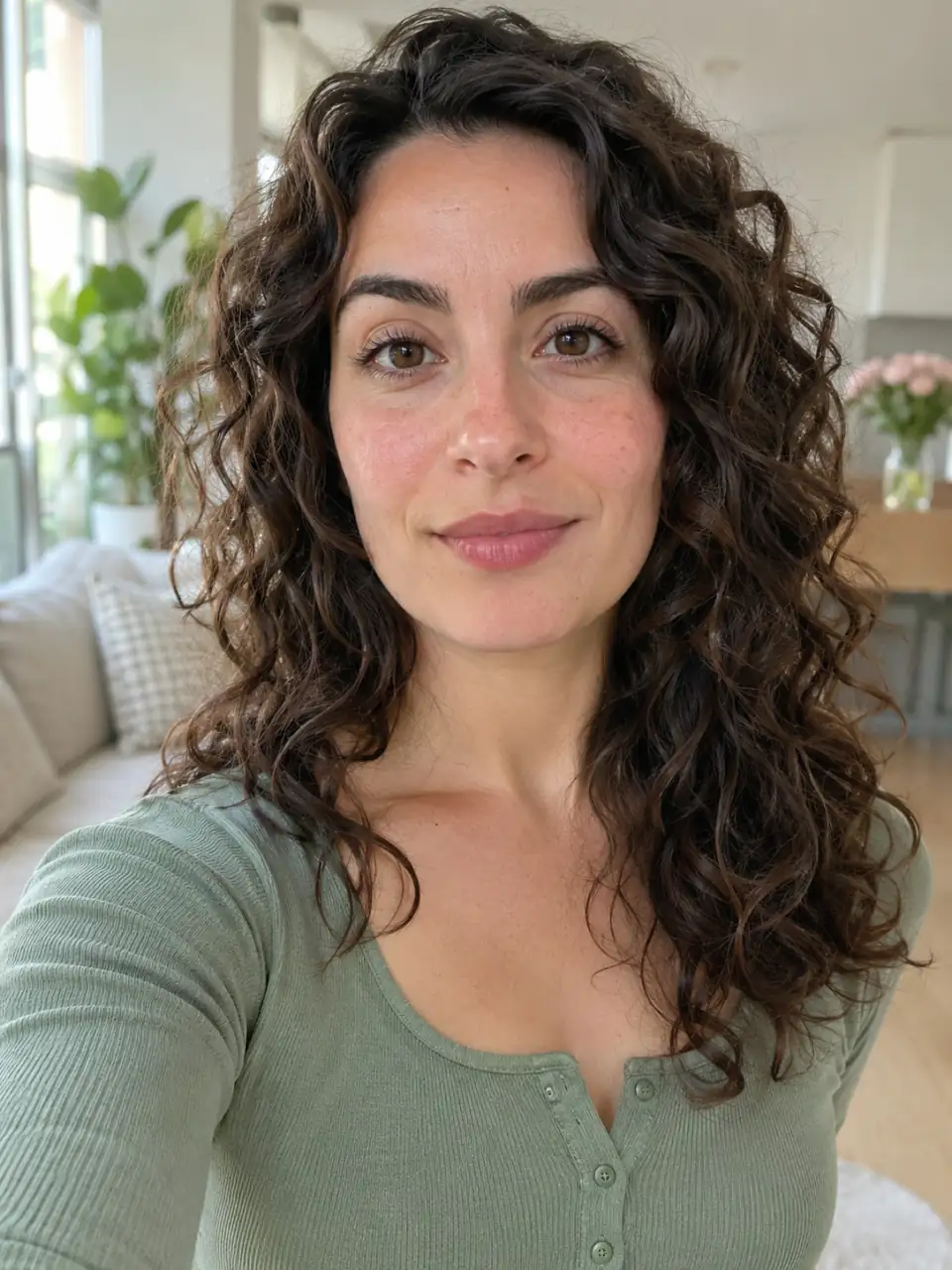
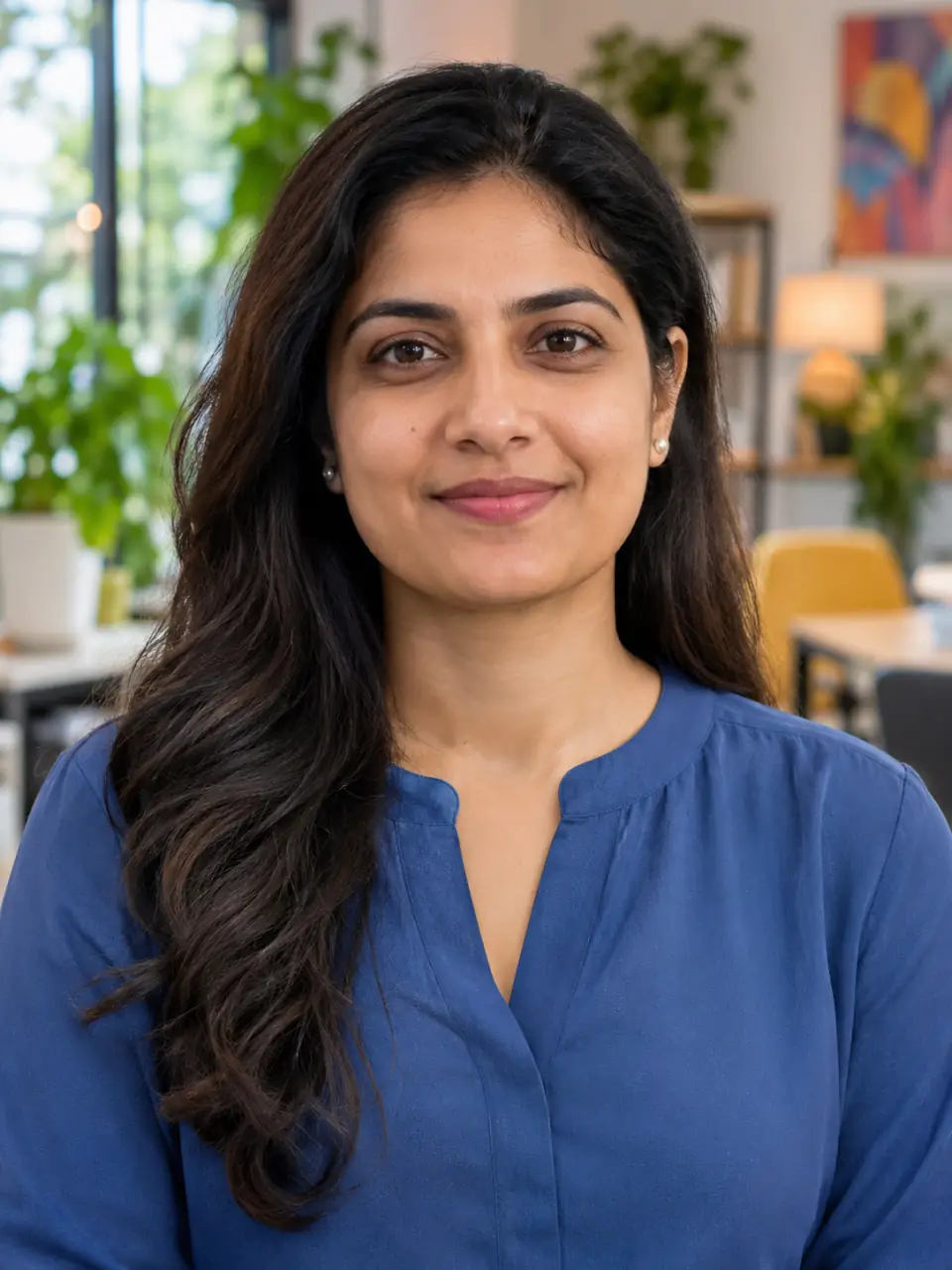
A selfie for a quick hello, a portrait for a birthday wish, or a headshot for a welcome: choose a message that suits your photo.

Create an AI talking photo without recording yourself
Start with a photo you already like. Pixlio combines generated speech with portrait animation, so your message can become a video without setting up a camera or recording audio.
Send a spoken message without a microphone
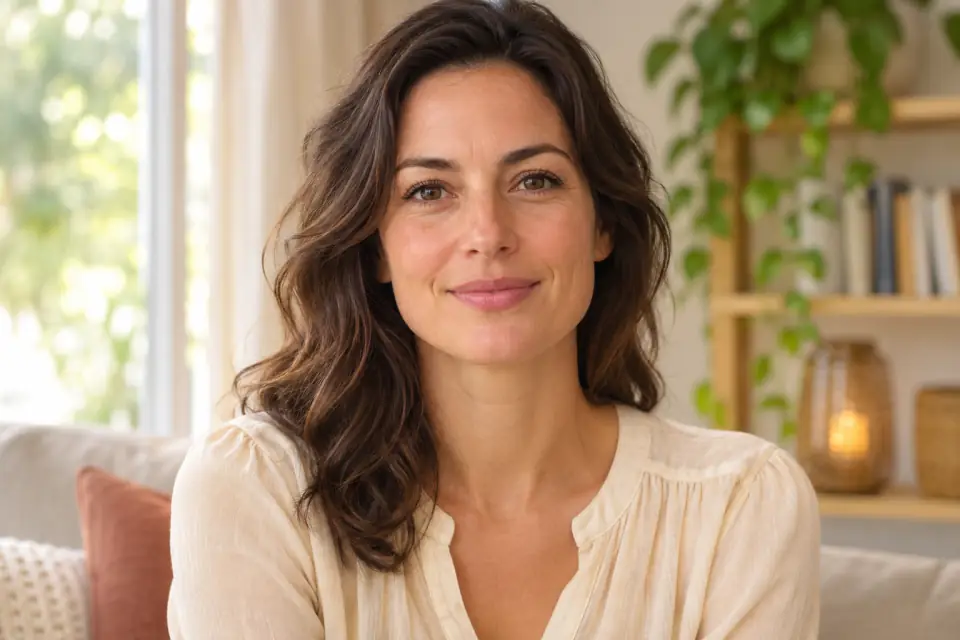
A birthday wish or a quick hello does not need a recording session. Type a short English line into the AI talking photo tool, and Pixlio generates a voice alongside the portrait animation. You can make a message while the house is noisy or when you would rather stay off camera. Listen to the preview before sending it to hear the voice and check the words.
Put a favorite portrait in motion
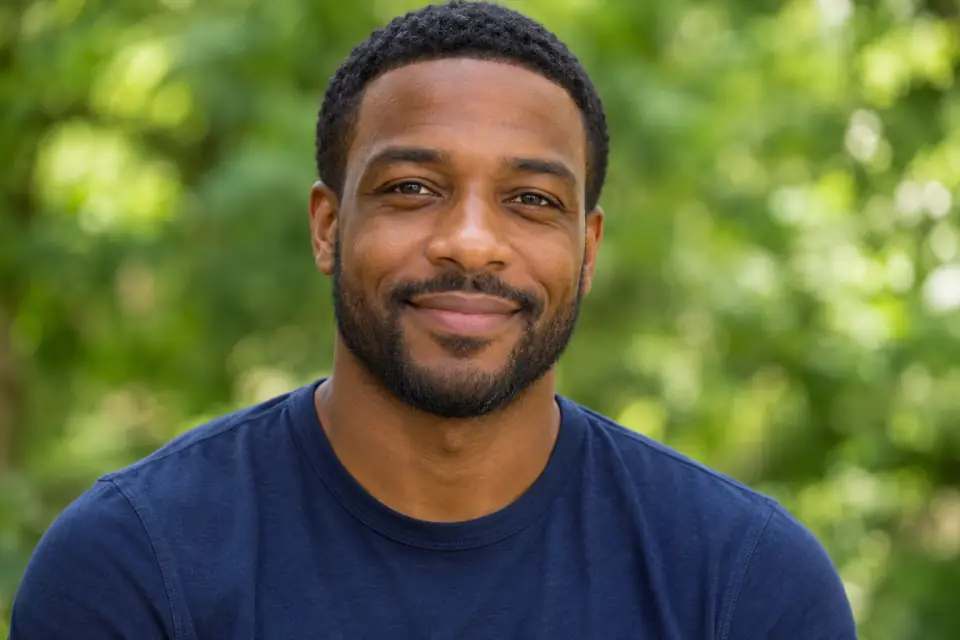
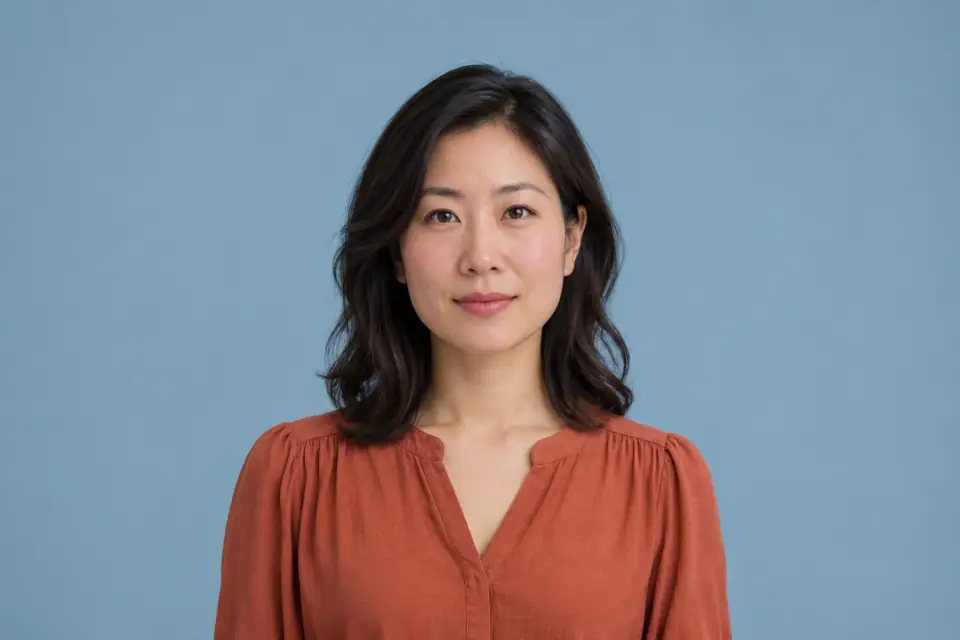
Use a selfie or headshot as the starting point for your AI talking photo. The animation is designed around the person speaking to camera, with facial expressions, blinking, and subtle head movement. A clear face and a visible mouth give it a suitable starting image. Upload a portrait or reuse one from My Creations, then crop the input to focus on the person you want to animate.
Make it vertical, square, or landscape
Choose the shape for your AI talking photo before generating: 9:16 for a vertical story, 1:1 for a square feed post, or 16:9 for a landscape presentation. Auto bases the framing on your source photo. Start at 480p, or choose 720p and 1080p with an active Pro or Max plan. The credit estimate updates with your resolution, so you can decide before creating the clip.
How to create your AI talking photo
Choose a clear face and one thing to say. These three steps take you from a still photo to a downloadable video with speech.
What will your photo say?
Use an AI talking photo for a message you can say in a few seconds. Try one of these English scripts, then change the name or wording to make it yours.
Send a birthday greeting with a familiar face
Try: “Happy birthday, Sam! Have a wonderful year ahead.” Pair the wish with your own smiling portrait, then download your AI talking photo to send in a birthday chat or alongside a digital card. Adding the recipient’s name makes it personal without turning the greeting into a long speech. It is a small way to join the celebration when you cannot be there in person.
Introduce yourself without filming a new clip
Try: “Hi, I’m Alex. Welcome to my page!” Use a headshot for an AI talking photo that accompanies a profile or welcomes people to a new community. Keep the spoken line focused on the hello; put a longer biography in the text around the video. You can reuse a portrait people recognize while giving new visitors a brief welcome to watch.
Turn a quick update into a social video
Try: “My new painting is ready. Take a look!” Pair the line with a selfie for a short announcement about something you have made. Choose a vertical clip for a story or a square video for a feed post, then download it. When you publish, add the artwork and a link in the surrounding post so viewers can see what you are announcing.
AI talking photo questions, answered
What is an AI talking photo?
An AI talking photo turns a still portrait into a short video of the person speaking. With Pixlio, you supply one photo and a short English script to create an 8-second clip with generated speech and facial animation. Preview it with sound, then download it for a greeting, introduction, or social post.
Do I need to record my voice?
No. Pixlio generates a synthetic voice from your typed message, so you can create a clip without a microphone or an audio file. The voice is chosen automatically rather than cloned from the person in the photo. Listen to the finished preview to hear how your message sounds.
Which photos can I use?
Use a clear, well-lit portrait of one person with their mouth visible. The AI talking photo tool accepts JPG, PNG, and WebP files up to 15 MiB. Upload a photo or choose one from My Creations, then crop it if needed to focus on the person. Choose your own portrait or one you have permission to animate.
How long can my script be?
You can enter up to 100 characters in English. Aim for one short phrase that sounds comfortable when spoken aloud in eight seconds. For example, “Happy birthday, Emma! Hope you have a wonderful day.” Leave room for natural pauses rather than filling every character; a long sentence may feel rushed or run past the clip.
How closely will my AI talking photo follow the script?
Your AI talking photo uses your script as the requested dialogue, but the generated wording, pronunciation, and lip sync can vary. Watch the preview with sound before sharing. Pay particular attention to names and any words that need to be said precisely; keep those phrases short and easy to pronounce.
Do I need a subscription to create a video?
No. Sign in and use credits to create a 480p video, or unlock 720p and 1080p with an active Pro or Max plan. Each video uses credits at your chosen resolution, and the tool shows the estimate before you generate. For occasional 480p greetings, you can buy a one-time credit pack; compare packs and subscriptions on the pricing page.
Can I make a vertical AI talking photo?
Yes. Choose 9:16 for a vertical AI talking photo, 1:1 for square, or 16:9 for landscape. The tool also offers 4:3, 3:4, and Auto framing based on your photo. Match the shape to where you plan to share the clip, then check the preview: a different output shape can change how much of the portrait and background appears.